
Creating and Editing Profiling Condition Sets in DITAEdit online
In DITA, profiling conditions can be set both within topics and in maps. When set in a topic, they allow you to suppress an element (such as paragraph), step in a procedure, item in a list, or even a phrase within a sentence. When set in a map, they allow you to suppress an entire topic or group of topics.
Creating Profiling Condition Sets
To create a new profiling condition set, follow these steps:
- Open the Preferences dialog box and go to .
- In the Profiling Condition Sets section, press the
 New button.
Step Result: The Condition Set configuration dialog box is opened.
Figure: Condition Set Dialog Box 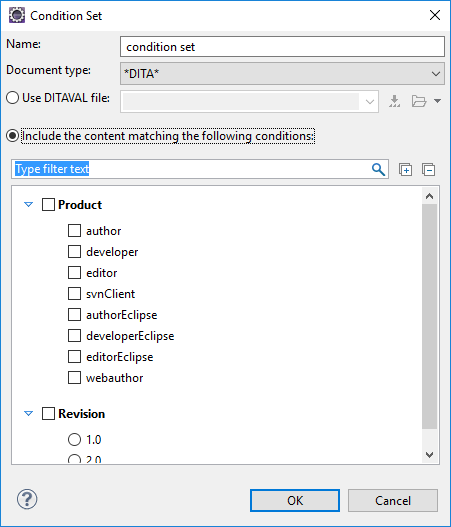
- Configure your condition set as desired. The following options are available in this
dialog box:
- Name
- The name of the new condition set.
- Document type
- Select the document type (framework) for which you have defined profiling attributes.
- Use DITAVAL file
- Select this option if you want the Profiling Condition Set to
reference a DITAVAL
file. You can
specify the path by using the text field, its history drop-down, the
 Insert Editor
Variables button, or the browsing actions in the
Insert Editor
Variables button, or the browsing actions in the  Browse drop-down list.
 - Include the content matching the following conditions
- You can select this option to define the combination of attribute values for your condition set by selecting the appropriate checkboxes for the values you want to be included in this particular condition set. If you have defined a lot of profiling attributes, you can use the filter text field to search for specific conditions.
- Click OK to confirm your selections and close the Condition Set configuration dialog box.
- Click Apply to save the condition set. All saved profiling
condition sets are available in the
 Profiling / Conditional Text toolbar drop-down menu.
Editing Existing Profiling Condition Sets
To modify an existing profiling condition set, follow these steps:
- Open the Preferences dialog box and go to .
- In the Profiling Condition Sets section, the
 Edit button to modify an existing condition set (you can also use
 Delete button to remove a condition set or the
 Up and
  Down buttons to change their priority).
Step Result: If you use the
Edit button, the Condition Set configuration
dialog box is opened: - Modify your condition set as desired.
- Click OK to confirm your selections and close the Condition Set configuration dialog box.
- Click Apply to save your modifications.