Showing and Filtering Profiled Content in Author ModeEdit online
You can visualize the effects of profiled content in Author mode by
using the options in the  Profiling/Conditional Text drop-down
menu that is located on toolbar. This drop-down menu includes the following filtering
options:
Profiling/Conditional Text drop-down
menu that is located on toolbar. This drop-down menu includes the following filtering
options:
- Select this option to show colors and styles for profiled content in Author mode. You can configure the colors and styles or specify whether or not this option is selected by default in the preferences page.
- Select this option to display the values of the profiling attributes at the end of profiled content in Author mode. You can specify whether or not this option is selected by default in the preferences page.
- Controls whether the content filtered out by a particular condition set is hidden or grayed-out in Author mode and the Outline view. When this option is selected and a condition set is selected in this drop-down menu, the filtered content is grayed-out. If this option is not selected and a condition set is selected in this drop-down menu, the filtered content is hidden. You can specify whether or not this option is selected by default in the Profiling/Conditional Text preferences page.
- This option is available if you have more than 15 conditions sets defined. It opens a dialog box that makes it easier to find and select condition sets that are not displayed in this drop-down menu.
- Up to 15 defined condition sets are listed and you can toggle each one of them on to filter the content in Author mode to only show content that will appear in the output for that particular condition set. If there are more than 15 defined condition sets, the rest of them can be accessed in the More submenu or by using the Choose Condition Set option to access a dialog box that presents all of them.
 Profiling
Settings
Profiling
Settings- Opens the Profiling/Conditional Text preferences page where you can add and edit profiling attributes and condition sets.
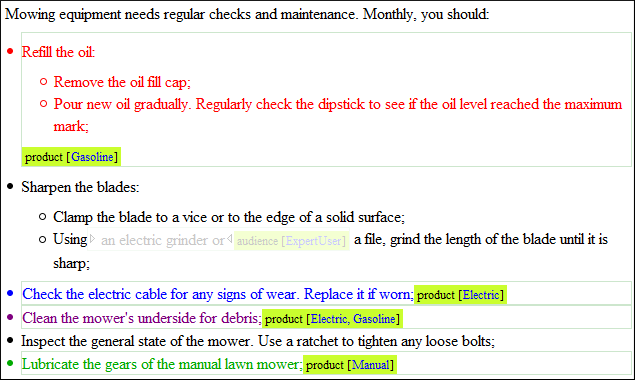
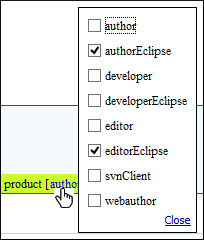
If the Show Profiling Attributes option is selected, a green border is painted around profiled text in the Author mode. Also, all profiling attributes set on the current element are listed at the end of the highlighted block and in its tooltip message. To edit the attributes of a profiled fragment, click one of the listed attribute values. A form control pops up and allows you to add or remove attribute values.