Applying Profiling Attributes in DITAEdit online
Profiling attributes are applied on element nodes. You can apply profiling attributes on a text fragment (it will automatically be wrapped into a phrase-type element), on a single element, or on multiple elements in the same time. If there is no selection in your document, the profiling attributes are applied on the element at the cursor position.
- DITA Topics
- To profile DITA topics, right-click a topic reference in the DITA Maps
Manager, select
 Edit
Properties from the contextual menu, go to the
Profiling tab, and select the appropriate values.
Edit
Properties from the contextual menu, go to the
Profiling tab, and select the appropriate values. - DITA Content
- To profile DITA content in Author mode, highlight the content and select Edit Profiling Attributes from the contextual menu and select the appropriate values in the Edit Profiling Attributes dialog box.
- DITA Elements
- To profile specific XML elements in Author mode, position the cursor inside the element, right-click, select Edit Profiling Attributes (you can also right-click the element in the breadcrumb or Outline view), and select the appropriate values in the Edit Profiling Attributes dialog box. You can also use the Attributes view to set the profiling attributes on the element at the current cursor position.
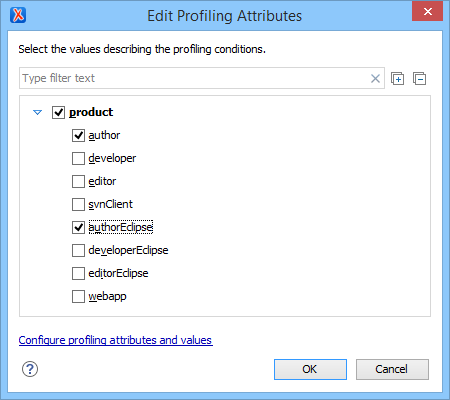
The profiling attributes, and their potential values, that appear in this dialog box depend
on what has been configured in Oxygen XML Editor plugin. If you have a large list of profiling
attributes, you can use the text filter field to search for attributes or values, and you can
expand or collapse attributes by using the  Expand All/
 Collapse All buttons to the
right of the text filter or the arrow button to the left of the profiling attribute name.
Collapse All buttons to the
right of the text filter or the arrow button to the left of the profiling attribute name.
- If your root map references a DITA subject scheme map that defines values for the profiling attributes, those values are used. Oxygen XML Editor plugin collects all the profiling values from the subject scheme map that is referenced in the map that is currently opened in the DITA Maps Manager (or set as the root map). In the image above (taken from the Oxygen XML Editor plugin documentation project), you see values for eight products. They are the only values that are defined in the subject scheme map and thus, are the only ones that appear in the dialog box.
- If you have defined profiling attribute values for the DITA document type in the Profiling/Conditional Text preferences page, those values are displayed in the dialog box.
- Otherwise, a generic default set of profiling attributes and values are available.
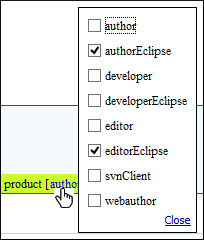
If the Show Profiling Attributes option (available in the
 Profiling / Conditional Text toolbar menu) is selected, a
green border is painted around profiled text in the Author mode and all
profiling attributes set on the current element are listed at the end of the highlighted
block. To edit the attributes of a profiled fragment, click one of the listed attribute
values. A form control pops up and allows you to add or remove attribute values.
Profiling / Conditional Text toolbar menu) is selected, a
green border is painted around profiled text in the Author mode and all
profiling attributes set on the current element are listed at the end of the highlighted
block. To edit the attributes of a profiled fragment, click one of the listed attribute
values. A form control pops up and allows you to add or remove attribute values.