Creating and Editing Profiling Attributes in DITAEdit online
You can filter DITA content or the structure of a document by using profiling attributes or profiling conditions sets.
Defining Profiling Attributes for DITA Content
To define or edit profiling attributes for filtering DITA content, follow these steps:
- Open the Preferences dialog box and go to .
- In the Profiling Attributes section, there are already some
default attributes for DITA documents (
audience,platform,product,otherprops, andrev), although if a Subject Scheme Map is used for profiling your content, you will see the attributes defined in your subject scheme map instead. You can add new attributes and values by clicking the New button at the bottom of the table, or
customize existing attributes and their values by selecting an attribute and clicking
the
New button at the bottom of the table, or
customize existing attributes and their values by selecting an attribute and clicking
the  Edit
button.
Edit
button.Step Result: This opens a Profiling Attribute configuration dialog box that allows you to define attributes that exist in your schema.
- In this configuration dialog box, use the New, Edit,
 Delete buttons to add, edit, or delete possible
values of the selected attribute. You can also specify an optional description for each
attribute value and you can choose whether the attribute accepts a Single
value or Multiple values separated by a delimiter
(DITA only accepts space as delimiters for attribute values).
Delete buttons to add, edit, or delete possible
values of the selected attribute. You can also specify an optional description for each
attribute value and you can choose whether the attribute accepts a Single
value or Multiple values separated by a delimiter
(DITA only accepts space as delimiters for attribute values). - Click OK to accept your changes.
Result: You should see your changes in the Profiling Attribute table.
You can also use the Profiling Condition Sets section to apply more complex filters on you DITA content.
Editing Profiling Attribute Values
There are several ways to add values to existing profiling attributes.
- Use the procedure in Defining Profiling Attributes for DITA Content to edit an existing attribute and use the Profiling Attribute configuration dialog box to add, edit, or delete values for existing profiling attributes.
- You can add values directly to the existing profiling attributes in a document using
the In-Place Attributes Editor in Author mode, the Attributes view, or in the source code in
Text mode. However, this just adds them to the document and
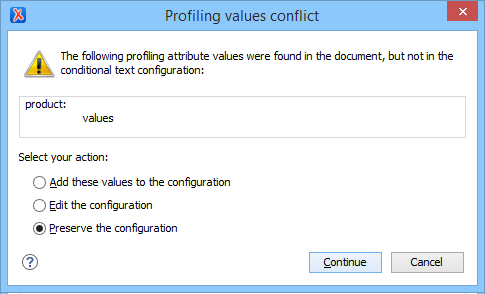
does not change the conditional text configuration. If you invoke the Edit
Profiling Attributes action (from the contextual menu in
Author mode) on the new value, the Profiling Values
Conflict dialog box will appear and it includes an Add these
values to the configuration action that will automatically add the new
value to the particular profiling attribute. It also includes an Edit the
configuration action that opens the Profiling / Conditional Text preferences page where
you can edit the profiling configuration. The action selected by default is to preserve
the current configuration.Note: If the Allow additional profiling attribute values collected from the document option is not selected in the Profiling / Conditional Text preferences page, the Profiling Values Conflict dialog box will never appear, the current conditional text configuration will be preserved, and therefore the second method mentioned above will not be available.
Figure: Profiling Values Conflict Dialog Box