
XQuery Builder ViewEdit online
The XPath/XQuery Builder view allows you to compose complex XQuery
expressions and execute them over the currently edited XML document. You can use the
doc() function to specify the source file for which the expressions are
executed. When you connect to a database, the expressions are executed over that database. If
you are using the XPath/XQuery Builder view and the current file is an
XSLT document, Oxygen XML Editor plugin executes the expressions over the XML document in the
associated scenario.
If the view is not displayed, it can be opened by selecting it from the menu.
- XPath version chooser drop-down menu
- A drop-down menu that allows you to select the type of the expression you want to
execute. You can choose between:
- XPath 1.0 (Xerces-driven)
- XPath 2.0, XPath 2.0SA, XPath 3.0, XPath 3.0SA, Saxon-HE XQuery, Saxon-PE XQuery, or Saxon-EE XQuery (all of them are Saxon-driven)
- Custom connection to XML databases that can execute XQuery expressionsNote: The results returned by XPath 2.0 SA and XPath 3.0 SA have a location limited to the line number of the start element (there are no column information and no end specified).Note: Oxygen XML Editor plugin uses Saxon to execute XPath 3.0 expressions. Since Saxon implements a part of the 3.0 functions, when using a function that is not implemented, Oxygen XML Editor plugin returns a compilation error.
 Execute XPath
button
Execute XPath
button- Use this button to start the execution of the XPath or XQuery expression you are editing. The result of the execution is displayed in the Results view.
 Favorites
button
Favorites
button- Allows you to save certain expressions that you can later reuse. To add an expression as a favorite, press the star button and enter a name for it. The star turns yellow to confirm that the expression was saved. Expand the drop-down menu next to the star button to see all your favorites. Oxygen XML Editor plugin automatically groups favorites in folders named after the method of execution.
 History drop-down
menu
History drop-down
menu- Keeps a list of the last 15 executed XPath or XQuery expressions. Use the
 Clear
history action from the bottom of the list to remove them.
Clear
history action from the bottom of the list to remove them.  Settings drop-down
menu
Settings drop-down
menu- Contains the following three options:
 Update on cursor move - When selected and you navigate through a document,
the XPath expression corresponding to the XML node at the current cursor position is
displayed.
Update on cursor move - When selected and you navigate through a document,
the XPath expression corresponding to the XML node at the current cursor position is
displayed. Evaluate as you type - When you select this option, the XPath expression you
are composing is evaluated in real time.Note: This option and the automatic validation are disabled when the scope is other than Current file.
Evaluate as you type - When you select this option, the XPath expression you
are composing is evaluated in real time.Note: This option and the automatic validation are disabled when the scope is other than Current file. Options -
Opens the Preferences page of the currently selected processing engine.
Options -
Opens the Preferences page of the currently selected processing engine.
- XPath scope menu
- Oxygen XML Editor plugin allows you to define a scope for which the XPath
operation will be executed. You can choose where the XPath expression will be executed:
 Current
file - Current selected file only.
Current
file - Current selected file only. Enclosing project - All
the files of the project that encloses the current edited file.
Enclosing project - All
the files of the project that encloses the current edited file. Workspace selected
files - The files selected in the workspace. The files are collected
from the last selected resource provider view (Navigator, Project
Explorer or Package Explorer).
Workspace selected
files - The files selected in the workspace. The files are collected
from the last selected resource provider view (Navigator, Project
Explorer or Package Explorer). All opened
files - All files opened in the application.
All opened
files - All files opened in the application. Current DITA Map hierarchy
- All resources referenced in the currently selected DITA map, opened
in the DITA Maps Manager view.
Current DITA Map hierarchy
- All resources referenced in the currently selected DITA map, opened
in the DITA Maps Manager view. Opened
archive - Files open in the Archive Browser view.
Opened
archive - Files open in the Archive Browser view. Working
sets - The selected working sets.
Working
sets - The selected working sets.
At the bottom of the scope menu the following scope configuration actions are available: Configure XPath
working sets - Allows you to configure and manage collections of
files and folders, encapsulated in logical containers called working sets.
Configure XPath
working sets - Allows you to configure and manage collections of
files and folders, encapsulated in logical containers called working sets. XPath file filter
- You can filter the files from the selected scope for which the XPath expression
will be executed. By default, the XPath expression will be executed only on XML
files, but you can also define a set of patterns that will filter out files from
the current scope.
XPath file filter
- You can filter the files from the selected scope for which the XPath expression
will be executed. By default, the XPath expression will be executed only on XML
files, but you can also define a set of patterns that will filter out files from
the current scope.
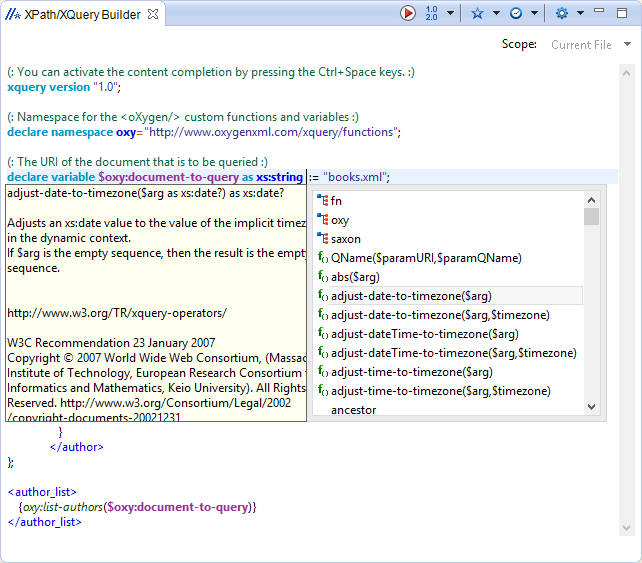
When you hover your cursor over the version icon
( ), a tooltip is displayed to let you know what
engine Oxygen XML Editor plugin is currently using.
), a tooltip is displayed to let you know what
engine Oxygen XML Editor plugin is currently using.
- Content Completion Assistant - It offers context-dependent proposals and takes into account the cursor position in the document you are editing. The set of functions proposed by the Content Completion Assistant also depends on the engine version. Select the engine version from the drop-down menu available in the toolbar.
- Syntax Highlighting - Allows you to identify the components of an expression. To customize the colors of the components of the expression, open the Preferences dialog box and go to .
- Automatic validation of the expression as you type.Note: When you type invalid syntax, a red serrated line underlines the invalid fragments.
- Function signature and documentation balloon, when the cursor is located inside a function.