
Debugging the CSSEdit online
If you notice that some of the CSS properties were not applied as expected, some of the tips offered in this topic might help you with the debugging process.
Merged Map Files
Depending on the type of transformation, one or more merged map files are created at some
point during the transformation stages. These files could be used to help debug unexpected results.
- The first thing you should try is to check the file structure of the merged map file. This can be found in the out/pdf-css directory and it has the .merged.xml file extension. For the DITA Map PDF - based on HTML5 & CSS transformation type, you will also find a .merged.html file. You can open these files in Oxygen XML Editor/Author to examine the structure. Optionally, you can use the pretty print feature (Format and Indent) to make the structure easier to read.
- Check that the CSS selector is written correctly against the document structure.
- If you still cannot identify the problem, then inspect how the styles are applied (you can try any of the methods listed below).
Inspecting the Applied Styles Using the Chrome Browser
To inspect the applied CSS styles using Chrome:
- In Chrome, open the file ending in .merged.xml or .merged.html (for the DITA Map PDF - based on HTML5 & CSS transformation type).
- Click on the element you want to inspect.
- Activate the Chrome Developer Tools by using
 > More Tools > Developer Tools, or press CTRL+SHIFT+I.
 - Activate the Rendering pane by using > More Tools > Rendering:
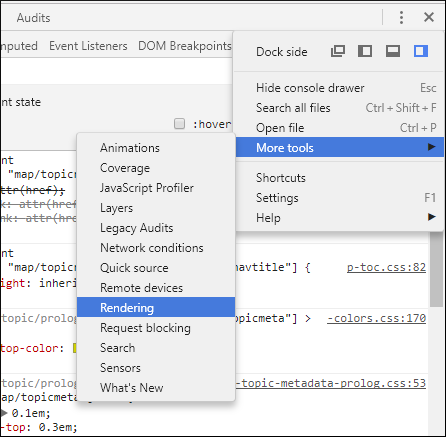
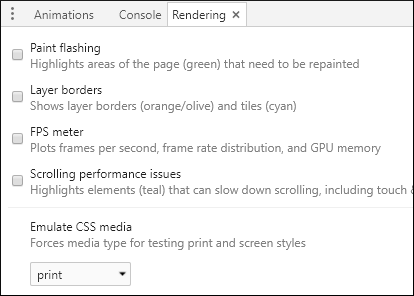
- In the Rendering pane, select print from
the Emulate CSS media section. This will activate the CSS selectors
enclosed in
@media
            print {..}
.
Note: This allows you to the debug styling of elements, table of contents, and index, but not
the styles of the page margin boxes (headers, footers) or page breaks.
Tip: In the left pane of the Developer Tools interface, you
can inspect elements and their styles in the Elements tab. You can
click on any of the links to display the applied CSS files in the
Styles tab in the right pane. Editing the styles in that pane
results in a live preview of how the change will affect the output.
CAUTION: Do not modify the built-in rules directly
in the CSS files from the Oxygen XML Editor/Author installation. Instead,
copy the rules to your own customization CSS.
Inspecting the Applied Styles Using Oxygen XML Editor/Author
To inspect styles:
- In Oxygen XML Editor/Author, open the file ending in .merged.xml or .merged.html (for the DITA Map PDF - based on HTML5 & CSS transformation type).
- From the Styles toolbar, choose the + Print
Ready entry. This will activate the CSS selectors enclosed in
@media print {..}. - Click on the element you want to style. Use the Inspect Styles action from the Contextual Menu. A specialized view will show the built-in CSS rules.
Note: This allows you to debug styling of elements, but not of the page margin boxes (headers,
footers) or page breaks.
CAUTION: Do not modify the built-in rules directly
in the CSS files from the Oxygen XML Editor/Author installation. Instead,
copy the rules to your own customization CSS.
Other techniques
These are some other techniques you may find useful:
- Add background and borders properties to the specific CSS rule. If they do not appear in the output then there is a problem with the rule selector.
- Try to use the
!importantnotation to the property that is not applied, or make the selector more specific (you can add more parent selectors). - To figure out how the elements are mapped into PDF, you can use this fragment in the
customization
CSS:
* {
   border: 1pt solid blue !important;
}

*:before(1000) {
   content:  oxy_name() !important;
   color: orange;
}

*:before(999) {
   content: "[ class= '" attr(class) "'] " !important;
   color: orange;
}
This will show the element name, its class attribute, and will paint a blue border around each of the elements in the output. It will not show the page margin boxes or some content elements that were hidden.