
Configure the Toolbars for a FrameworkEdit online
The procedure below describes how to add defined actions to a toolbar for a custom framework. These steps use examples from the two previous help topics that described how to define the Insert Section and Insert Table actions. You can also configure additional toolbars to add other custom actions.
-
Open the Document Type configuration dialog box for your custom
framework and select the Author tab. Next, go to the
Toolbar subtab.
Figure: Configuring the Toolbar 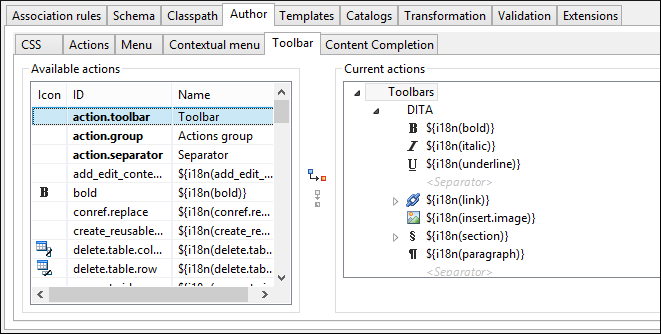
The panel is divided in two sections: the left side contains a list of actions, while the right one contains an action tree, displaying the list of actions added in the toolbar. The special entry called Separator allows you to visually separate the actions in the toolbar.
-
Select the Insert section action in the left panel section and
the Toolbar label in the right panel section, then press the
 Add as child
button.
Add as child
button.
-
Select the Insert table action in the left panel section and the
Insert section in the right panel section. Press the
 Add as sibling
button.
When opening a document of the particular framework in Author mode, the toolbar with the new buttons will be displayed in the toolbar area.Tip: If you have many custom toolbar actions, or want to group actions according to their category, add more toolbars with custom names and split the actions to better suit your purpose. If your toolbar is not displayed when switching to the Author mode, right-click the main toolbar, select Configure Toolbars, and make sure the appropriate toolbar (such as the Author Custom Actions toolbar) is selected.
Add as sibling
button.
When opening a document of the particular framework in Author mode, the toolbar with the new buttons will be displayed in the toolbar area.Tip: If you have many custom toolbar actions, or want to group actions according to their category, add more toolbars with custom names and split the actions to better suit your purpose. If your toolbar is not displayed when switching to the Author mode, right-click the main toolbar, select Configure Toolbars, and make sure the appropriate toolbar (such as the Author Custom Actions toolbar) is selected.