
DITA Table LayoutsEdit online
CALS Table Model Layout
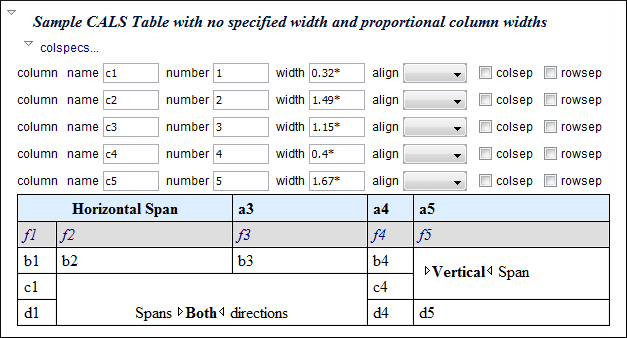
The CALS
table model allows for more flexibility and table customization than other models. When
choosing a CALS table model from the Insert Table dialog box,
you have access to more configurable properties. The layout of a CALS table includes a
colspecs section that allows you to easily configure some properties
without opening the Table Properties dialog box. For example, you can
change the value of column widths (colwidth attribute) or the text alignment
(align attribute). Although they appear as part of the Author
mode, the colspecs link and its controls will not appear in your
output. They are just there to make it easier to adjust how the columns of your table are
formatted.
Simple Table Model Layout
When choosing a Simple table model from the Insert Table dialog box, you only have access to configure a few properties. For example, you can choose the number of rows and columns, specify values for frames, and choose from a few types of properties for the column width. The layout of this type of table is very simple, as the name suggests.

Choice Table Model Layout
A Choice table model is used within a step element in a DITA Task
document to describe a series of optional choices that a user must make before proceeding.
The choicetable element is a useful device for documenting options within a
single step of a task. You can insert Choice tables in DITA Task documents either by
selecting choicetable from the Content Completion Assistant (within a step
element) or by using the  Insert Table action on the toolbar or from the contextual menu). The options
and layout of a Choice table is similar to the Simple table model.
Insert Table action on the toolbar or from the contextual menu). The options
and layout of a Choice table is similar to the Simple table model.
Properties Table Model Layout
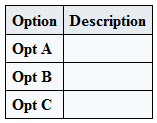
A Properties table model is used within a refbody element in a DITA
Reference document to describe a property (for example, its type, value, and description).
You can insert Properties tables in DITA Reference documents either by selecting
properties(wizard) from the Content Completion Assistant (within a refbody
element) or by using the Insert Table action on the toolbar (or from the contextual menu) and
selecting Properties for the Model. The layout
of a Properties table is very simple. It allows for a maximum of 3 columns (typically
for property type, value, and description) and the only options available are for whether or
not you want a header row and for specifying frames (borders).

Table Validation in DITA
Oxygen XML Editor plugin reports table layout problems that are detected in manual or
automatic validations. When you validate a DITA
map with the  Validate and Check for Completeness action, if the
Report table layout problems option is selected in the
DITA Map Completeness Check dialog box, table layout
problems will be reported in the validation results. The types of errors that may be
reported for DITA table layout problems include:
Validate and Check for Completeness action, if the
Report table layout problems option is selected in the
DITA Map Completeness Check dialog box, table layout
problems will be reported in the validation results. The types of errors that may be
reported for DITA table layout problems include:
- CALS Tables
-
- A row has fewer cells than the number of columns detected from the table
colsattribute. - A row has more cells than the number of columns detected from the table
colsattribute. - A cell has a vertical span greater than the available rows count.
- The number of
colspecsis different than the number of columns detected from the tablecolsattribute. - The number of columns detected from the table
colsattribute is different than the number of columns detected in the table structure. - The value of the
cols,rowsep, orcolsepattributes are not numeric. - The
namest,nameend, orcolnameattributes point to an incorrect column name.
- A row has fewer cells than the number of columns detected from the table
- Simple or Choice Tables
- A row has fewer cells than the number of table columns.