Oxygen XML Editor plugin includes some useful features to help you navigate XML documents.
Navigation Keyboard Shortcuts
Tab
Navigate to the next XML node.
Tip: If you encounter a space-preserved
element when you navigate through a document and you do not press
another key, pressing the Tab key will continue the navigation. However, if the cursor is positioned in a
space-preserved element and you press another key or you position the
cursor inside such an element using the mouse, the Tab key can be used to arrange the
text.
Shift +
Tab
Navigate to the previous XML node.
Ctrl + RightArrow (Command +
RightArrow on OS X)
Navigate one word forward.
Ctrl + LeftArrow (Command + LeftArrow
on OS X)
Navigate one word backward.
Ctrl + Home (Command + Home on OS
X)
Position the cursor at the beginning of the document.
Ctrl + End (Command + End on OS
X)
Position the cursor at the end of the document.
Navigating to a Modification
Oxygen XML Editor plugin includes some actions to help you quickly navigate to a particular
modification. They can be invoked using keyboards shortcuts or from the
Navigation menu:
Last Edit Location (Ctrl+Q)
Moves the cursor to the last modification in any opened document.
Back (Alt+LeftArrow (Command+OpenBracket on OS
X))
Moves the cursor to the previous modification.
Forward (Alt+RightArrow (Command+CloseBracket on OS
X))
Moves the cursor to the next modification.
Navigating with the Outline View
Oxygen XML Editor plugin includes an Outline
view that displays a hierarchical tag overview of the currently edited XML
Document.
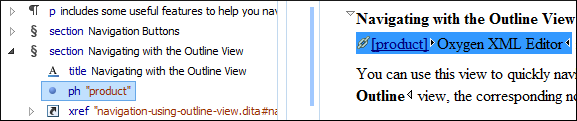
You can use this view to quickly navigate through the current document by selecting nodes
in the outline tree. It is synchronized with the editor area, so when you make a selection
in the Outline view, the corresponding nodes are highlighted in the
editor area.
Figure: Outline View Navigation in Author Mode
Using the Breadcrumb to Navigate
A breadcrumbin
the toolbar area at the top of the document indicates the path from document root to
the current element. It can also be used as a helpful tool to navigate to specific elements
throughout the structure of the document.
Figure: Breadcrumb in Author Mode
The last element listed in the breadcrumb is the element at the current cursor
position. Clicking an element from the
breadcrumb selects the entire element and navigates to it in the editor area.
Using the Linking Support
When working on multiple documents that reference each other (references, external
entities, XInclude, DITA conref, etc), the linking support is useful for navigating
between the documents. In the built-in frameworks that are bundled with Oxygen XML Editor plugin, links are marked with an icon representing a chain link (). When hovering over the icon, the mouse pointer changes its shape
to indicate that the link can be accessed and a tooltip presents the destination location.
Click the link to open the referenced resource in the editor or system browser. The same effect can be obtained by pressing the
F3 key when the cursor is in a
link element.
Note: Depending on the referenced file type, the target link will either
be opened in the Oxygen XML Editor plugin or in the default system application. If the
target file does not exist, Oxygen XML Editor plugin prompts you to create it.


 ). When hovering over the icon, the mouse pointer changes its shape
to indicate that the link can be accessed and a tooltip presents the destination location.
Click the link to open the referenced resource in the editor or system browser. The same effect can be obtained by pressing the
F3 key when the cursor is in a
link element.
). When hovering over the icon, the mouse pointer changes its shape
to indicate that the link can be accessed and a tooltip presents the destination location.
Click the link to open the referenced resource in the editor or system browser. The same effect can be obtained by pressing the
F3 key when the cursor is in a
link element.