Configuring Transformation Scenarios for a FrameworkHistory | Edit
When distributing a framework to the users, it is a good idea to have the transformation scenarios already configured. This helps the content authors publish their work in various formats. Being contained in the Document Type Association, the scenarios can be distributed along with the actions, menus, toolbars, and catalogs.
These are the steps that allow you to create a transformation scenario for your framework.
-
Open the
Preferences dialog box and go to
Document Type Associations. Open the Document Type dialog
for the SDF framework then choose the Transformation tab.
Click the
 New button and choose the
appropriate type of transformation (for example, XML transformation with
XSLT).
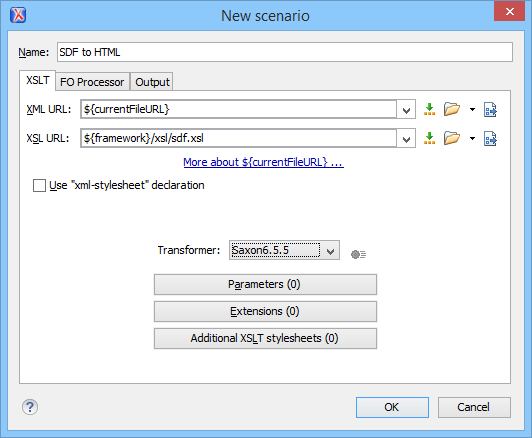
In the New scenario dialog box, fill in the following fields:
New button and choose the
appropriate type of transformation (for example, XML transformation with
XSLT).
In the New scenario dialog box, fill in the following fields:- Fill in the Name field with SDF to HTML. This will be the name of your transformation scenario.
- Set the XSL URL field to
${framework}/xsl/sdf.xsl.
Figure: Configuring a New XSLT Transformation Scenario
Now the scenario is listed in the Transformation tab:
Figure: Transformation Tab

To test the transformation scenario that you just created, open the SDF XML sample
from the Example Files
Listings. Click the  Apply Transformation Scenario(s) button to display
the Transform with dialog box. The scenario list contains the scenario you defined
earlier . Select the SDF to HTML scenario that you just defined and click the
Apply associated button. The HTML file is saved in the same folder
as the XML file and displayed in the browser.
Apply Transformation Scenario(s) button to display
the Transform with dialog box. The scenario list contains the scenario you defined
earlier . Select the SDF to HTML scenario that you just defined and click the
Apply associated button. The HTML file is saved in the same folder
as the XML file and displayed in the browser.