Editing Actions in Oxygen XML Web Author
The Oxygen XML Web Author allows you to not only review documents, but to also make
changes to them. To activate this mode, tap or click the Edit button in
the upper toolbar. In mobile devices, you can also swipe left, or use the  Menu button, to display
a side panel at the right side of the editing area. This panel provides you with access to
several views and a variety of editing actions.
Menu button, to display
a side panel at the right side of the editing area. This panel provides you with access to
several views and a variety of editing actions.
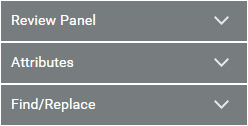 The following views can be accessed by using the options in the side panel on the right
side of the editor:
The following views can be accessed by using the options in the side panel on the right
side of the editor:
Menu button, to display
a side panel at the right side of the editing area. This panel provides you with access to
several views and a variety of editing actions.
- Review Panel - Displays the tracked changes and comments made to the document by the content authors.
- Attributes - Displays all possible attributes and their value. You can also edit attribute values.
- Find/Replace - Provides Find and Replace actions for searching the current document.
Contextual Menu Actions (Desktop Version)
In a desktop web browser, the contextual menu also offers the following actions, along with
framework-specific actions:
 Copy
Copy- Opens a dialog box that allows you to preview the content to be copied. You can then use the Ctrl + C (Command + C on OS X) keyboard shortcut to copy the selected content to the clipboard (or invoke the contextual menu from that dialog box and choose the Copy action).
 Paste
Paste- Inserts the current clipboard content into the document.
- Paste Special
- Opens a dialog box that allows you to choose how to paste copied content. You have
to use the Ctrl + V (Command + V on
OS X) keyboard
shortcut (or select Paste from the contextual menu) to paste
the copied content into the preview window in this Paste
Special dialog box and then you can choose to paste it into your
document with one of the following choices:
- Smart Paste - Oxygen XML Web Author will paste the copied content while trying to preserve its structure and if the current location is invalid, Oxygen XML Web Author will attempt to find a possible solution.
- Paste as Text - The copied content will be pasted as text content.
- Paste as XML - Copied content that is considered to be valid XML will be pasted with its XML structure preserved.
 Cut
Cut- Opens a dialog box that allows you to preview the content to be cut. You can then use the Ctrl + X (Command + X on OS X) keyboard shortcut to cut the selected content and copy it to the clipboard (or invoke the contextual menu from that dialog box and choose the Cut action).
 Undo
Undo- This action is available after you make a change.
 Redo
Redo- This action is available when you use the Undo action.
 Insert Element
- Inserts an element at current position.
 Rename
Element
Rename
Element- Renames the current element.
 Surround
With
Surround
With- Allows you to choose a tag to enclose the selected content.
 Accept
Change(s)
Accept
Change(s)
- Available on changes when Change Tracking is enabled. It accepts the tracked change located at the cursor position and moves to the next change. If you select a part of a delete or insert change, only the selected content is accepted. If you select multiple changes, all of them are accepted. For an insert change, it means keeping the inserted text and for a delete change, it means removing the content from the document.
 Reject
Change(s)
Reject
Change(s)- Available on changes when Change Tracking is enabled. Rejects the tracked change located at the cursor position and moves to the next change. If you select a part of a delete or insert change, only the selected content is rejected. If you select multiple changes, all of them are rejected. For an insert change, it means removing the inserted text and for a delete change, it means preserving the original content from the document.
 Add
Comment
Add
Comment- Allows you to insert a comment on a selected fragment of text.
 Remove
comment
Remove
comment- Removes a selected comment.
 Edit
comment
Edit
comment- Opens the Edit Comment dialog box that allows you to edit the selected comment.
Framework Specific Actions (Desktop Version)
Depending on the type of document you are editing, the toolbar contains a series of actions
defined at framework level. Some of these actions are also available in the contextual menu.
Oxygen XML Web Author comes with built-in actions for DITA, DocBook, TEI, and XHTML document types. These
actions include:
- Styling actions
- Most common styling actions, such as Bold, Italic, Underline.
- Insert actions
- Actions that allows you to insert a variety of framework-specific objects, such as images, tables, paragraphs, and other elements.
- List actions
- Actions that allow you to create ordered and unordered lists, and add new items in them.
- Table actions
- Actions that allow you to create a table and manage its structure (insert and delete rows and columns).