How to Perform Common Editing Tasks
Input text:
- Tap or click to move the cursor into the selected document area.
- Type the text using the keyboard or screen.
Split a paragraph:
- Tap or click to move the cursor at the split position.
- Tap or press Enter to open the Content Completion Assistant.
- Choose Split p from the list of proposals.
Enter a new XML element, or to surround the selection in an XML element
- Tap or click to move the cursor into the selected document area, or make a text selection.
- Tap or press Enter to open the Content Completion Assistant.
- Select the element name.
Activate change tracking
- Tap or click the
 Track Changes button from the
Review toolbar to enable or disable this feature.
Track Changes button from the
Review toolbar to enable or disable this feature.
Set an attribute value
- Tap or click the
 Menu button from the upper right side corner (or swipe from right to left
on mobile devices). A side panel is displayed.
Menu button from the upper right side corner (or swipe from right to left
on mobile devices). A side panel is displayed. - Select the Attributes tab. The attributes side panel is
displayed. On a desktop system, you can also press Alt +
Enter to change
the focus to the Attributes tab and it automatically selects the
first attribute in the list.
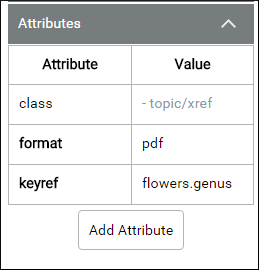
- If the attribute is present in the attributes table (it already has a value), you can change its value by tapping or clicking its value. On a desktop system, you can also use Tab or Shift+Tab to cycle through the available attributes and the Enter key to select and modify attribute values.
- If the attribute is not present, use the Add Attribute button and tap or click the attribute to set its value. You can also click Alt + Enter and then A to add a new attribute.
Remove an attribute
- Tap or click the Menu button from the upper right side corner (or swipe from right to left
on mobile devices). A side panel is displayed.
- Select the Attributes tab. The attributes side panel is displayed.
- Find the attribute in the table and tap or click its value.
- Use the
 Delete button (or use the
Delete key) to remove the attribute.
Delete button (or use the
Delete key) to remove the attribute.
Save a modified XML document
To save your changes, tap or click the  Save button from the upper toolbar. Note that the
open and save operations depend on the integration of the Oxygen XML Web Author with a CMS
or other storage mechanism.
Save button from the upper toolbar. Note that the
open and save operations depend on the integration of the Oxygen XML Web Author with a CMS
or other storage mechanism.
Search and replace content
- Tap or click the
 Find/Replace button from the upper toolbar, or
the Rind/Replace tab.
Find/Replace button from the upper toolbar, or
the Rind/Replace tab. - The Find/Replace side panel is opened. Type the text you want
to find in the Search for input box and tap or click the
 Find button in the left side of that same input box.
 - All matches are highlighted, and the first one is selected. To advance to the next
match, tap or click the Find button again.
- To replace content, type the new text in the Replace with input box. To replace the current match, use the Replace button. To replace all matches, use the Replace all button.
Editing MathML Equations
- Tap or click the equation to open an editing dialog box.
- Edit the XML source of the equation.
- Tap or click OK to finish the editing process.