How to Perform Common Review Tasks
Add a comment:
- Make a selection in the document content.
- Tap or click the
 Add comment button from Review toolbar.
 - Input a comment in the displayed dialog box. Tap or click Comment
to commit it into the document.Note: To modify one of your comments, select the comment and tap or click the Change button.
- The commented text is highlighted.
See the list of all comments or tracked changes from your document:
- Tap or click the Review Panel tab from the upper right side
corner (or swipe from right to left on mobile devices). A side panel is displayed with all
the comments and tracked changes.
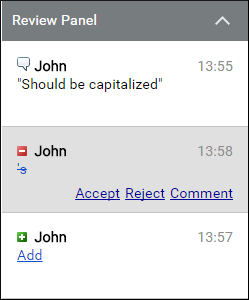
- Tap or click one of the comments or tracked changes to see it highlighted in the document area.
- Hover over or select a particular comment to display the Remove and Change actions. For the tracked changes, the list of available actions are: Accept, Reject, and Comment.
Navigate through the comments or tracked changes:
- Use the left and right arrow buttons (
 ) from the
Review toolbar to navigate between comments or tracked
changes.
) from the
Review toolbar to navigate between comments or tracked
changes. - The current comment or tracked change is highlighted in the document. Also, it is displayed in the right-side Review panel.