
Oxygen AI Positron Assistant
An Oxygen AI Positron Assistant add-on is available that provides support for helping writers generate content by using the Oxygen AI Positron service.
Overview
In a simplified form, technical documentation is often done in two stages: analysis and implementation. In the analysis stage, technical writers could use various resources such as web searches, ChatGPT, or discussions with colleagues or engineers to further understand the subject that needs to be documented.
In the second stage, technical writers would use tools such as Oxygen XML Editor to write the actual content. The Oxygen AI Positron Assistant add-on provides various ways to use ChatGPT to help writers while editing or reviewing the technical documentation. For example, it can be used to receive hints about what to write next, improve the readability of content, or re-structure the content in various ways.
Quick Installation
You can drag the following Install button and drop it into the main editor in Oxygen (version 24.1 or newer) to quickly initiate the installation process:

Manual Installation
- Go to to open an add-on selection dialog box. Enter or paste
https://www.oxygenxml.com/InstData/Addons/default/updateSite.xml in the
Show add-ons from field or select it from the drop-down
menu.Note: If you have issues connecting to the default update site, you can download the add-on package, unzip it, then use the Browse for local files action in the Install new add-ons dialog box to locate the downloaded addon.xml file.
- Select the Oxygen AI Positron Assistant add-on and click Next.
- Read the end-user license agreement. Then select the I accept all terms of the end-user license agreement option and click Finish.
- Restart the application.
Result: The AI Positron Assistant and AI Positron Chat side views are now available.
Connecting to the Oxygen AI Positron Service
You can use the AI Positron Assistant side view to easily configure
login details and connect to the Oxygen Positron Service in the web
browser. The service is free to use for up to 250 requests per month.
To initiate the connection process, use the Connect button in the AI Positron Assistant view (or from the user drop-down menu at the top-right corner of the view).
Oxygen Positron Service uses the OpenAI
ChatGPT server version 3.5 API to propose document generation and change
suggestions.Generating and Refining Content
- Content Generation
-
- New DITA Topic - Generates a DITA XML topic based on a text description entered in a popup dialog box.
- Continue Writing - Generates additional text based on the content preceding the cursor position.
-
Short Description - Generates a short description ( inside a
<shortdesc>element) based on a summary of the selected text (or the entire document if there is no selection). You can configure the style and the approximate number of sentences to be generated. -
Index Terms - Generates a
<keywords>element that contains index terms obtained from the selected text (or the entire document if there is no selection). - Follow Instructions (available when editing schemas, XSLT stylesheets, and Schematron files) - Replaces the selected instructions with content generated based on them.
- Rewrite
-
- Correct Grammar - Generates a suggestion for correcting the grammar and spelling within the selected content.
- Improve Readability - Modifies the selected content to improve readability and fix grammar/spelling errors.
- Use Active Voice - Generates a suggestion for replacing the selected content with content that has been converted from passive to active voice.
- Itemize - Generates a suggestion for converting the selected content into a list of items.
- Join Items - Generates a suggestion for converting the selected list of items into a paragraph.
- Overview
-
- Answer Questions - Generates answers to questions that the AI finds within the selected content (or the entire document if there is no selection).
- Generate Questions - Generates a list of five questions that are answered within the selected content (or the entire document if there is no selection).
- Summarize - Generates a summary of the selected content (or the entire document if there is no selection).
- Readability - Generates suggestions for changing the selected content (or the entire document if there is no selection) to improve its general readability.
- Translation
-
The actions in this category translate the selected text to the target language (English, German, French, Japanese), while preserving the original XML markup.
AI Positron Views
The add-on provides access to the following side-views: AI Positron Assistant and AI Positron Chat. If a view is not displayed, it can be opened by selecting it from .
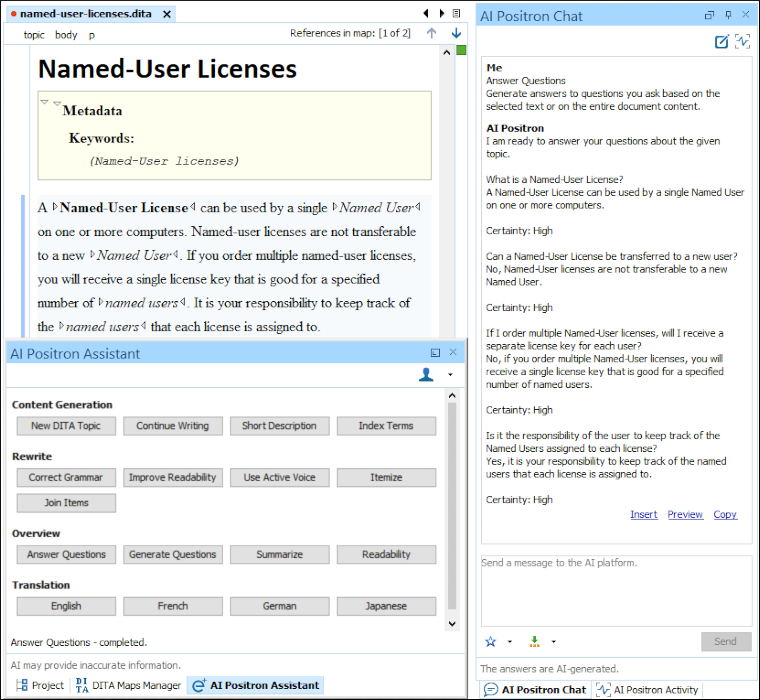
AI Positron Assistant View
The AI Positron Assistant view contains the available actions (buttons) that can be used to generate and refine content. Simply click a button to trigger the corresponding action. You can hover the mouse cursor over a button to see a description of what the action does.
- Usage status - Opens a dialog box that displays your usage information.
- Disconnect - Disconnects Oxygen from
the
Oxygen Positron Service. - Preferences - Opens the Oxygen AI Positron Assistant preferences page where you can configure the AI Positron service address and provide a Context for the user that the AI will use to create more relevant and personalized responses.
AI Positron Chat View
The AI Positron Chat view presents results after processing an action and allows you to further refine the responses by sending messages to the Positron service platform. When an AI Positron action is triggered, the AI Positron Chat view is automatically opened and the progress and results are displayed in the top pane within the view.
- Insert/Replace - Inserts the response at the cursor location within the document (or replaces the selected content).
- Preview - Allows you to preview the content that would be inserted at the cursor location within the document.
- Copy - Copies the response to the system clipboard.
The Chat History drop-down toolbar button makes it easy to go back to previous conversations and continue them.
 Favorites drop-down button to store a favorite prompt. You can use the
 Insert Variables
drop-down button to select one of the supported variables:
Insert Variables
drop-down button to select one of the supported variables:- ${selection} - Expands to the currently selected content.
- ${document} - Expands to the content of the entire document.
To clear the information in the AI Positron Chat
view and start a new chat, click the  New
Chat button in the top-right corner of the view.
New
Chat button in the top-right corner of the view.
AI Positron Assistant Preferences Page
- AI Positron Service address
- Currently, there is only one public platform providing this service.
- Load default actions
- Specifies if default actions are loaded.
- AI actions folder
- You can use this option to specify a local folder where you have stored additional actions.
- Context
- The context provides useful information about the user to the AI and is used in each action and chat request to create more relevant and personalized responses.
Validation Quick Fixes
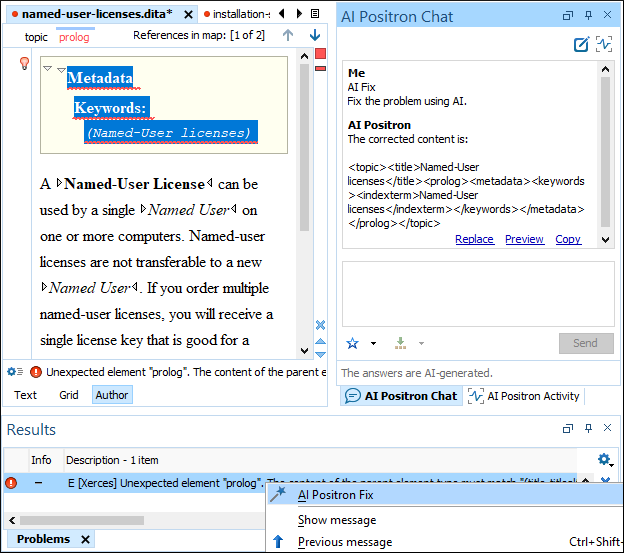
When validation problems are displayed in the Results pane, you can right-click on a problem and use the AI Positron Fix action to ask the AI Positron platform for help with fixing the problem. It will propose content in the AI Positron Chat view that can be used to solve the problem.
Creating Custom Actions
In the AI Positron Assistant preferences page, you can define a reference to a folder that contains custom actions.
Once the add-on is installed, the New Document wizard can be used to create a new AI Positron Custom Actions file that contains a JSON array with multiple actions. If the actions file is saved in the custom actions folder defined in the AI Positron Assistant preferences page, validation and content completion will be automatically provided for it.
[
    {
        "id": "my.action.id",
        "title": "Improve Grammar",
        "type": "replace-selection-with-fragment",
        "context": "Improve grammar in the following content preserving the XML markup:"
    }
][
{
"id": "my.action.id",
"title": "Improve Grammar",
"type": "replace-selection-with-fragment",
"context": "${style} Improve grammar in the following content preserving the XML markup:",
"expand-params":[
{
"name": "style",
"label": "Style",
"value": "",
"alternate-values": ["Use active voice.", "Use passive voice."],
"alternate-value-labels": ["Active voice", "Passive voice"],
"choice-type": "single-choice"
}
]
}
]Custom Schematron Validation Rules
The add-on contributes two XPath extension functions that can be used from custom Schematron schemas to rephrase content or to perform validation checks on existing content:
ai:transform-content(instruction, content)-
Use this function from namespace http://www.oxygenxml.com/ai/function to automatically transform content using AI.
The function has two string parameters:instruction- The OpenAI instruction to be performed on the content.content- The content to be transformed.
It returns a string that represents the transformed content.
Here is an example of a custom Schematron schema that uses thetransform-contentfunction to correct the number of words used in a short description:<sch:schema xmlns:sch="http://purl.oclc.org/dsdl/schematron" queryBinding="xslt3" xmlns:sqf="http://www.schematron-quickfix.com/validator/process"> <sch:ns uri="http://www.oxygenxml.com/ai/function" prefix="ai"/> <sch:pattern> <sch:rule context="shortdesc"> <sch:report test="count(tokenize(.,'\s+')) > 50" sqf:fix="rephrase"> The phrase must contain less than 50 words.</sch:report> <sqf:fix id="rephrase"> <sqf:description> <sqf:title>Rephrase phrase to be less that 50 words</sqf:title> </sqf:description> <sqf:replace match="text()" select="ai:transform-content( 'Reformulate phrase to be less that 50 words', .)"></sqf:replace> </sqf:fix> </sch:rule> </sch:pattern> </sch:schema>
ai:verify-content(instruction, content)-
Use this function from namespace http://www.oxygenxml.com/ai/function to automatically validate content using AI.
The function has two string parameters:instruction- The OpenAI instruction to be performed on the content.content- The content to be validation.
It returns a boolean value that represents the result of the validation.
Here is an example of a custom Schematron schema that uses theverify-contentfunction to check a short description for instances of a passive voice:<sch:schema xmlns:sch="http://purl.oclc.org/dsdl/schematron" queryBinding="xslt3" xmlns:sqf="http://www.schematron-quickfix.com/validator/process"> <sch:ns uri="http://www.oxygenxml.com/ai/function" prefix="ai"/> <sch:pattern> <sch:rule context="shortdesc"> <sch:report test="ai:verify-content('Does the following content has passive voice?', .)" sqf:fix="rephrase">The phrase uses passive voice.</sch:report> <sqf:fix id="rephrase"> <sqf:description><sqf:title>Rephrase text to be active voice</sqf:title> </sqf:description> <sqf:replace match="text()" select="ai:transform-content('Rephrase text to be active voice', .)"/> </sqf:fix> </sch:rule> </sch:pattern> </sch:schema>
Resources
To see a visual demonstration of the AI Positron Assistant add-on, along with various uses cases for using the tool, see the following resource: Webinar: AI as a Tool for Technical Content Creation.