
Actions Available in the Markdown EditorEdit online
Aside from the actions that are available in Oxygen XML Editor plugin for any type of document (such as the actions in the various menus and the common sections of the toolbar), a variety of unique actions are also available in the Markdown editor, from the toolbar and contextual menu.
Toolbar Actions
The following default actions are readily available on the toolbar when editing Markdown documents:
 Header (1st Level)
- Inserts an atx-style first level header at the cursor position.
 Header (2st Level)
- Inserts an atx-style second level header at the cursor position.
 Header (3rd Level)
- Inserts an atx-style third level header at the cursor position.
 Horizontal
Rule
Horizontal
Rule- Inserts a horizontal rule at the cursor position.
 Bold
(Strong)
Bold
(Strong)- Marks the selected text with bold.
 Italic
(Emphasis)
Italic
(Emphasis)- Marks the selected text with italics.
 Strikethrough
- Marks the selected text with a strikethrough.
 Code Block
- Inserts (or surrounds selected text in) a codeblock.
 Blockquote
- Inserts a blockquote at the cursor position.
 Insert
Link
Insert
Link- Opens the Insert Link dialog box that allows you to define a
link to insert at the
cursor position.
Figure: Insert Link Dialog Box 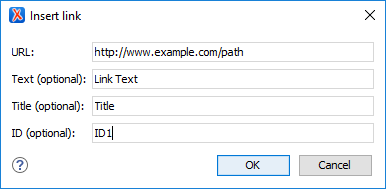
 Insert
Image
Insert
Image- Opens the Insert Image dialog box that allows you to define
an image to insert at
the cursor position. You can type the URL of the image you want to insert or use
browsing actions in the
 Browse drop-down menu.
Figure: Insert Link Dialog Box 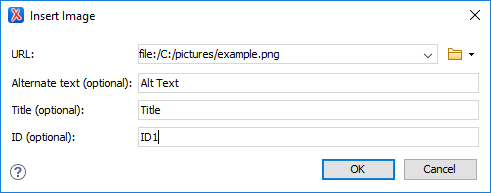
 Insert Ordered
List
Insert Ordered
List- Inserts an ordered list at the cursor position. Three child list items are also automatically inserted by default. You can also use this action to convert selected content to an ordered list.
 Insert Unordered
List
Insert Unordered
List- Inserts an unordered list at the cursor position. Three child list items are also automatically inserted by default. You can also use this action to convert selected content to an unordered list.
 Insert Task
List
Insert Task
List- Inserts a task list at the cursor position. Three child list items are also automatically inserted by default. You can also use this action to convert selected content to a task list.
 Insert Table
- Inserts a table at the cursor position.
 Tags Display
Mode drop-down menu
Tags Display
Mode drop-down menu- Allows you to control the amount of markup that is displayed in the Preview
pane and offers the following choices:
 Full Tags with
Attributes
Full Tags with
Attributes- Displays full tag names with attributes for both block and inline elements.
 Full Tags
- Displays full tag names without attributes for both block and inline elements.
 Block Tags
- Displays full tag names for block elements and simple tags without names for inline elements.
 Inline Tags
- Displays full tag names for inline elements, while block elements are not displayed.
 Partial Tags
- Displays simple tags without names for inline elements, while block elements are not displayed.
 No Tags
- No tags are displayed. This is the most compact mode and is as close as possible to a word-processor view.
- Configure Tags Display Mode
- Opens the Author preferences page where you can configure options regarding tags, such as the default Tags Display Mode, Tags Background Color, Tags Foreground Color, and Tags Font.
Contextual Menu Actions
The following default actions are available in the contextual menu when editing Markdown documents:
 Cut,
Cut,
 Copy,
Copy,  Paste
Paste- Use these actions to execute the typical editing actions on the currently selected content.
- Show/Hide Preview
- A toggle action that shows or hides the Preview pane.
- Export as DITA Topic
- Converts the current Markdown document into a DITA topic.
- Export as HTML
- Converts the current Markdown document into an XHTML document.
- Print (Available in the Preview pane)
- Opens a page setup dialog box that allows you to configure printing options for the current document.