
DITA Reusable Components ViewEdit online
The DITA Reusable Components view is helpful if you use a large amount of keys or reusable components in your DITA project. It collects all of the keys and reusable components that are defined in the root map and presents them in a dynamic table where you can easily locate and insert references to them. If the view is not displayed, it can be opened by selecting it from . It will appear in the bottom-right section of the editor. It re-collects the keys anytime the root map is changed or you switch the editor focus to a different file.
- Keys - Displays all the keys that are defined in the root map and provides ways to easily insert references to them as cross reference links, key references, or variables. It includes a search filter field to help you find particular keys and some contextual menu actions. It also supports drag and drop actions and double-clicking a key is the fastest way to insert a reference.
- Components - Displays all the topics (from the root map) that contain reusable components and provides ways to easily insert them as content references or content key references. To determine which topics to display in this tab, Oxygen XML Editor plugin looks for any topicref in the root map that is marked as resource-only. This tab includes a search field, some filtering options, and some simple links and contextual menu actions to quickly insert references or open their source file. It also supports drag and drop and double-clicking actions.
Keys Tab
The DITA Reusable Components view collects all the keys that are defined in the current root map and displays them in the Keys tab. Keys that are defined with a value have that value listed in the Description column while keys that are defined with an href pointing to their location have that href value listed in the Href column.
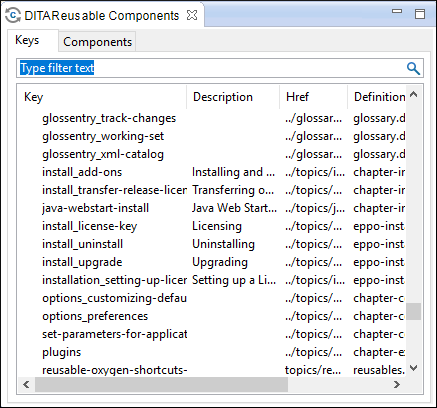
The Keys tab includes the following features and options:
- Search Filter
- You can enter text in the filter field at the top of this tab to filter the list and search for a specific keys.
- Columns
- This tab includes the following columns:
- Key - The name of the key.
- Description - The description of the key that
is obtained from the definition of the key (for example, the
description for a keydef would be found in the
keywordelement inside topicmeta, or the description for a topicref would be found in anavitleelement). For more information about where the data in this column is collected, see Description Column Data Collection. - Href - The value of the href where the key points to.
- Definition Location - The name of the DITA map where the key is defined.
Description Column Data Collection: The Description column collects data from the definition of the key, either from thenavtitleelement or, if missing, from thekeywordelement. The following example shows two key definitions that will be collected in the keys table. Their corresponding information from the Description column will displayoxygen.shandoxygen.tar.gzrespectively.<keydef keys="executableInstallLinux"> <topicmeta> <keywords> <keyword>oxygen.sh</keyword> </keywords> </topicmeta> </keydef> <keydef keys="archiveInstallAll"> <topicmeta> <navtitle> oxygen.tar.gz </navtitle> </topicmeta> </keydef>
- Double-Click Mechanism
- You can double-click any key listed in this tab to insert a key reference at the
current cursor position or surrounding the current selection.
- If the selected key points to an
hrefvalue, it is inserted as a cross reference link (xref). - If the selected key is a reference to an image, it is inserted as an
imageelement. - If the selected key does not have an associated
href, it is inserted as a variable reference (ph).
- If the selected key points to an
- Drag and Drop Mechanism
- You can drag a key from this tab and drop it in the main editor to insert a key
reference at the current cursor position.
- If the selected key points to an
hrefvalue, it is inserted as a cross reference link (xref). - If the selected key is a reference to an image, it is inserted as an
imageelement. - If the selected key does not have an associated
href, it is inserted as a variable reference (ph).
- If the selected key points to an
- Contextual Menu Actions
-
- Insert as Link
- Inserts a cross reference link (xref) to the selected key at the current cursor position or surrounding the current selection.
- Insert as Variable
- Inserts a variable reference
(ph) to the selected key at the current cursor position or
surrounding the current selection. However, if the selected key is a reference
to an image, this action inserts the key reference in an
imageelement. - Insert as Keyref
- Presents a submenu with all the elements that can be inserted at the current
cursor position. Selecting an element will insert that element at the current
cursor position or surrounding the current selection with a
keyrefattribute and its value set to the selected key. - Go to Definition
- Opens the DITA map where the key is defined.
- Search References
- Searches for all references to the selected key in the entire DITA map structure.
- Group by Definition Location
- A toggle action that can be used to group (and sort) all the keys based upon the value in the Definition Location column.
Components Tab
topicref in the DITA map file needs to have a
processing-role attribute set like
this:<topicref href="topics/randomize-xml-content.dita" processing-role="resource-only"/>The DITA Reusable Components view considers topic references that contain
processing-role="resource-only" to be candidates to contain
reusable components. The reusable components inside these topics are collected from all
elements that have an ID specified. These reusable components are displayed in the
Components tab along with the file name and the specific names of
the elements that contain an ID attribute. 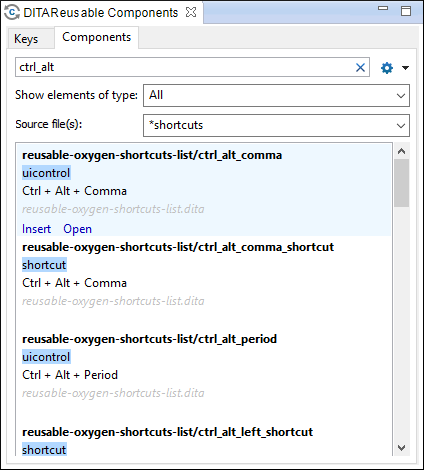
The Components tab includes the following features and options:
- Search Filter
- You can enter text in the filter field at the top of this tab to filter the list and
search for specific content inside the list of reusable components. This field
supports many of the Lucene-based search patterns, such as wildcards
(
*,?), boolean operators (AND,OR,NOT), fuzzy searches (~), boosting searches (^), and more.  Settings > Compact Mode
- You can use this toggle action to switch the display for the Componts tab to a compact visualization mode. When switched to Compact mode, fewer details are shown for each component, but more components are displayed in the view.
- Show Elements of Type
- You can use this drop-down list to select specific types of elements to be displayed in the subsequent preview window. This can help you narrow down the list of possible source elements that you can select.
- Source File(s)
- You can use this combo box to search for specific source files (the topics that
contain reusable components) or select a file from its drop-down list. You can also
use wildcards (such as
*or?) in this field. - Double-Click Mechanism
- You can double-click any reusable component listed in preview window in this tab to
insert it as a content reference or content key reference at the current cursor
position or replace the current selection.
- If the parent topic of the selected component has a key defined, it is inserted as a content key reference (conkeyref).
- If the parent topic of the selected component does not have a key defined, it is inserted as a content reference (conref).
- Drag and Drop Mechanism
- You can drag a reusable component from the preview window in this tab and drop it in
the main editor to insert a content reference or content key reference at the current
cursor position.
- If the parent topic of the selected component has a key defined, it is inserted as a content key reference (conkeyref).
- If the parent topic of the selected component does not have a key defined, it is inserted as a content reference (conref).
- Hover and Click Actions
- If you hover over a component shown in the preview window, you have access to the
following link actions:
- Insert
- Inserts the component as a content reference or content key reference at the current cursor position or replaces the current selection. If the parent topic has a key defined, it is inserted as a content key reference (conkeyref). Otherwise, it is inserted as a content reference (conref).
- Open
- Opens the source file that contains the reusable component.
- Contextual Menu Actions
-
- Insert Content Reference
- Inserts the component as a content reference (conref) at the current cursor position or replaces the current selection.
- Insert Content Key Reference
- Inserts the component as a content key reference (conkeyref) at the current cursor position or replaces the current selection. This action is only available if the parent topic has a key defined.
- Go to Definition
- Opens the source file that contains the reusable component.
- Search References
- Searches for all references to the selected component in the entire DITA map structure.