How to Configure PostgreSQL 8.3 Data Source DriversEdit online
To configure a data source for connecting to a PostgreSQL server, follow these steps:
- Go to http://jdbc.postgresql.org/download.html and download the PostgreSQL 8.3 JDBC3 driver.
- Open the Preferences dialog box and go to Data Sources.
-
Click the
New
button in the Data Sources panel.
The dialog box for configuring a data source is opened.
Figure: Data Source Drivers Configuration Dialog Box
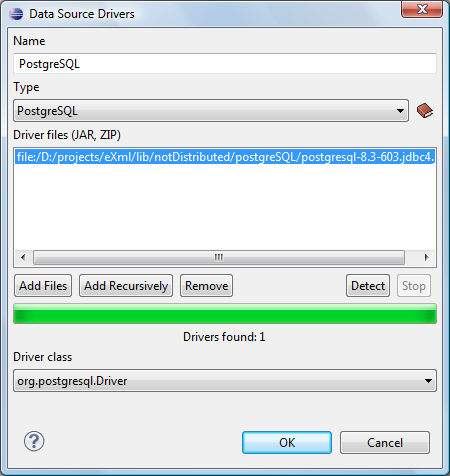
- Enter a unique name for the data source.
- Select PostgreSQL in the driver Type drop-down list.
-
Click the Add Files button and select the PostgreSQL driver file
that you downloaded.
The PostgreSQL driver file is called postgresql-8.3-603.jdbc3.jar.
- Select the most appropriate Driver class.
- Click the OK button to finish the data source configuration.
- Continue on to configure your PostgreSQL connection.