
Using a Git RepositoryEdit online
Oxygen XML Web Author includes a Git plugin that allows you to edit files stored in a Git repository (including GitHub, GitLab, and Bitbucket integrations). The procedure in this topic assumes that your system administrator has enabled this plugin in your installation of Oxygen XML Web Author.
Opening or Creating Files
To open a file stored in a Git repository or create a new file, go to the main Dashboard, click the
tab for your particular Git file repository integration (GitHub, Bitbucket, or GitLab), and
log in. To create a new document, click on New in the top-right
corner. To open an existing document, browse for the file and double-click it. If you need
to change the repository or branch, click the  Edit button.

 Upload File button to upload
it to the repository before selecting it.
Upload File button to upload
it to the repository before selecting it.Committing Files to a Git Repository
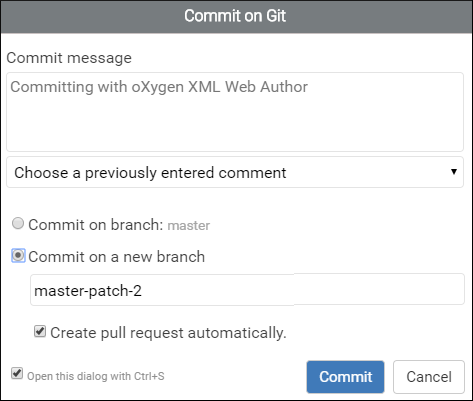
If someone else has committed the current document since you last opened it (causing conflicts), a Commit Status confirmation dialog box will appear.
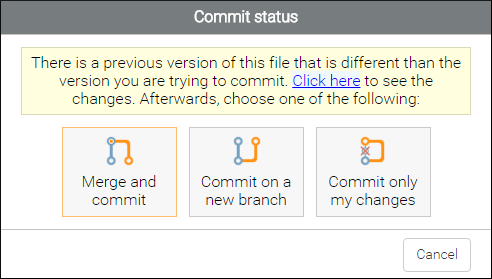
- Click here link - You can click the link at the top of the dialog box to see the difference between the two commits.
- Merge and commit - Merges your changes with versions that were committed by other people and commits the merged changes.
- Commit on a new branch - Creates a new branch that contains your version of the document so that you can merge the changes at a later time, after the conflicts have been solved.
- Commit only my changes - Commits your changes regardless of whether or not there was a conflict, and the changes made by the other user are lost.
- Cancel - Cancels the operation and your changes are not committed to the repository. Before canceling, you could click the link at the top to see the differences, correct the conflicts manually, and then commit afterwards using the Commit only my changes option.
Committing to a Repository Without Access Rights
If you try to commit a file on a repository that you do not have access to, a dialog box is displayed that allows you to enter or choose a commit message but you cannot choose a branch. It warns you that continuing will commit the file to a new branch and allows you to create an automatic pull request.
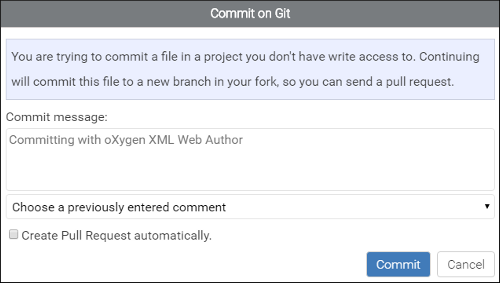
- Fork the project into your account, if it is not already.
- Create a new branch from the edited branch.
- Commit your changes on this newly created branch.
- Create a pull request from your newly created branch to the originally edited branch.
- Switch the editor to your branch so further save operations will just add new commits to your branch, thus updating the pull request with new changes.
Working with a Generic Git Repository Stored on a Central Server
- When you open a file, it is pulled from the original repository.
- When you commit a file, it is automatically pushed to the original repository.