DITA Topic Document TypeEdit online
Oxygen XML Web Author includes a variety of features that were designed specifically for DITA topic document types. Most of these features can be accessed through actions available on the DITA framework-specific toolbar or from the contextual menu.
DITA New Document Templates
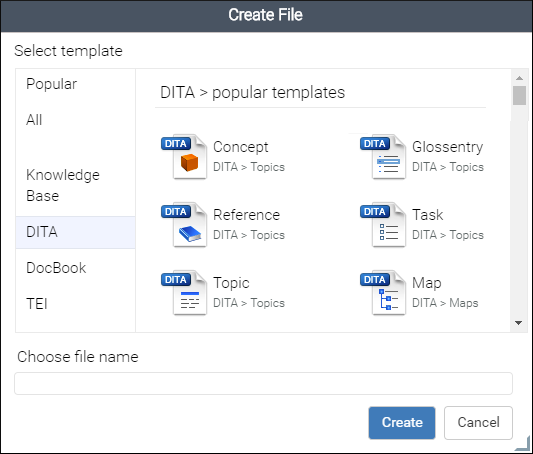
Oxygen XML Web Author includes a variety of predefined new document templates that make it easy to create various types of DITA documents with some of the document structure already present. When you use the New button in the Dashboard for your particular file repository, a dialog box is displayed where you can choose from various types of new document templates, including many for DITA.
DITA Toolbar Actions
The following default actions are readily available on the DITA toolbar when editing a DITA document in Oxygen XML Web Author:
 Choose Root DITA
Map
Choose Root DITA
Map- Opens a dialog box where you can enter a URL for the root DITA map that
you want to be associated with the current document.Note: If the root DITA map contains a subject scheme, the Attributes panel provides proposals for attribute values according to the definitions in the subject scheme map.
 Bold
Bold- Surrounds the selected text with a
b(bold) tag.  Italic
- Surrounds the selected text with an
i(italic) tag.  Underline
- Surrounds the selected text with a
u(underline) tag.  Link
Actions Drop-Down Menu
Link
Actions Drop-Down Menu-
The following link actions are available from this menu:
- Cross Reference
- Used to insert a cross reference link to a DITA resource. Selecting this
option opens a dialog box where you can select a target file and a target
element (for any element in the target file with an
@idattribute set). It inserts the target link as a DITA<xref>element and points to the target using the@hrefattribute. - File Reference
- Used to insert a link to a non-DITA file resource. Selecting this option
opens a dialog box where you can select a target file. It inserts the target
link as a DITA
<xref>element and points to the target file using the@hrefattribute, and also inserts a@formatattribute and detects the appropriate value based on the type of resource. - Web Link
- Used to insert a link to a web-related resource. Selecting this option opens
a simple dialog box where you can enter the URL of the target web link. It
inserts the target link as a DITA
<xref>element and points to the target URL using the@hrefattribute, and also inserts a@formatand@scopeattribute and detects the appropriate values (for example,format="html" scope="external").
 Insert
Image
Insert
Image- Opens a dialog box where you can browse for and select an image to be inserted into a DITA document at the cursor position.
 Insert
Section Drop-Down Menu
Insert
Section Drop-Down Menu- The following insert actions are available from this menu:
 Insert
Section
Insert
Section- Inserts a new
sectionelement in the document, depending on the current context.  Insert Concept
- Inserts a new
conceptelement, depending on the current context. Concepts provide background information that users must know before they can successfully work with a product or interface.  Insert Task
- Inserts a new
taskelement, depending on the current context. Tasks are the main building blocks for task-oriented user assistance. They generally provide step-by-step instructions that will help a user to perform a task.  Insert Topic
- Inserts a new
topicelement, depending on the current context. Topics are the basic units of DITA content and are usually organized around a single subject.  Insert Reference
- Inserts a new
referenceelement, depending on the current context. A reference is a top-level container for a reference topic.
 Insert
Paragraph
Insert
Paragraph- Inserts a new paragraph at current cursor position.
 Reuse
Content
Reuse
Content-
This action opens a dialog box where you can select a target file and a target element (for any element in the target file with an
@idattribute set). It inserts the target as a DITA content reference element (<conref>).  Insert step or
list item
Insert step or
list item- Inserts a new list or step item in the current list type.
 Insert Unordered
List
Insert Unordered
List- Inserts an unordered list at the cursor position. A child list item is also automatically inserted by default. You can also use this action to convert selected paragraphs or other types of lists to an unordered list.
 Insert Ordered
List
Insert Ordered
List- Inserts an ordered list at the cursor position. A child list item is also automatically inserted by default. You can also use this action to convert selected paragraphs or other types of lists to an ordered list.
 Insert Table
- Opens a dialog box where you can choose between a CALS and Simple table and optionally enter a title. When you click OK, it inserts a table at the current position.
 Insert Row Below
- Inserts a new table row with empty cells below the current row. This action is available when the cursor is positioned inside a table.
 Delete Row(s)
- Deletes the table row located at cursor position or multiple rows in a selection.
 Insert Column
After
Insert Column
After- Inserts a new table column with empty cells after the current column. This action is available when the cursor is positioned inside a table.
 Delete
Column(s)
Delete
Column(s)- Deletes the table column located at cursor position or multiple columns in a selection.
 Join/Split Cells
Drop-Down Menu
Join/Split Cells
Drop-Down Menu- Presents various options for joining or splitting table cells.
 Insert Special
Character
Insert Special
Character- Opens a dialog box that allows you to select from a large variety of special characters to insert at the current cursor position. The various types of characters include symbols, emoticons, punctuation, and many more.
DITA Contextual Menu Actions
There are various DITA-specific actions that are available in the contextual menu when editing DITA documents in Oxygen XML Web Author:
 Add
Comment
Add
Comment- Opens a dialog box where you can type a comment to insert at the cursor position. The commented text is highlighted and you can see the comment in the Review panel or when hovering over the highlighted text.
 Surround
With
Surround
With- Allows you to choose a tag to enclose selected content.
- Apply Image Map (Available when invoked on an image)
- This action applies an image map on the current image and opens the Image Map Editor dialog box. This feature allows you to create hyperlinks in specific areas of an image that will link to various destinations.
- Table submenu (Available
when invoked on a table)
- Presents various actions for configuring the table, such as adding or deleting rows and columns, joining or splitting cells, and converting from a CALS table to a Simple table (and vice versa).
- Insert submenu
- This submenu includes the following insert actions that are specific to the DITA
framework:
- Insert Table
- Opens a dialog box where you can choose between a CALS and Simple table and optionally enter a title. When you click OK, it inserts a table at the current position.
- Insert Image
- Opens a dialog box where you can browse for and select an image to be inserted into a DITA document at the cursor position.
 Insert
Equation
Insert
Equation- Inserts a MathML equation. Clicking on the equation will open a MathML Editor where you can edit the code.
- Insert
Paragraph
- Inserts a new paragraph at current cursor position.
- Insert
Section
- Inserts a new
sectionelement in the document, depending on the current context. - Insert
Concept
- Inserts a new
conceptelement, depending on the current context. Concepts provide background information that users must know before they can successfully work with a product or interface. - Insert
Task
- Inserts a new
taskelement, depending on the current context. Tasks are the main building blocks for task-oriented user assistance. They generally provide step-by-step instructions that will help a user to perform a task. - Insert
Topic
- Inserts a new
topicelement, depending on the current context. Topics are the basic units of DITA content and are usually organized around a single subject. - Insert
Reference
- Inserts a new
referenceelement, depending on the current context. A reference is a top-level container for a reference topic.
 Insert Element
- Opens a content completion window where you can choose an element to insert at the current position.
- Link submenu
-
The following link actions are available from this menu:
- Cross Reference
- Used to insert a cross reference link to a DITA resource. Selecting this
option opens a dialog box where you can select a target file and a target
element (for any element in the target file with an
@idattribute set). It inserts the target link as a DITA<xref>element and points to the target using the@hrefattribute. - File Reference
- Used to insert a link to a non-DITA file resource. Selecting this option
opens a dialog box where you can select a target file. It inserts the target
link as a DITA
<xref>element and points to the target file using the@hrefattribute, and also inserts a@formatattribute and detects the appropriate value based on the type of resource. - Web Link
- Used to insert a link to a web-related resource. Selecting this option opens
a simple dialog box where you can enter the URL of the target web link. It
inserts the target link as a DITA
<xref>element and points to the target URL using the@hrefattribute, and also inserts a@formatand@scopeattribute and detects the appropriate values (for example,format="html" scope="external").
- Generate IDs
-
Oxygen XML Web Author generates unique IDs for the current element (or elements), depending on how the action is invoked:
- When invoked on a single selection, an ID is generated for the selected element at the cursor position.
- When invoked on a block of selected content, IDs are generated for all top-level elements.
Note: The Generate IDs action does not overwrite existing ID values. It only affects elements that do not already have anidattribute. - Reuse submenu
- This submenu includes the following actions regarding reusing content in DITA:
- Reuse Content
-
This action opens a dialog box where you can select a target file and a target element (for any element in the target file with an
@idattribute set). It inserts the target as a DITA content reference element (<conref>). - Replace All References with Content
- Replaces all referenced fragments (
keyref,conref, orconkeyref) in the current document with the content. Attributes are preserved according to the following priority:- Attributes from the elements in the current document that reference
other content are preserved except for attributes with a
-dita-use-conref-targetvalue. - Attributes from the referenced content are brought into the replaced
elements in the current document except for
idattributes.
For keyrefs inside
xreforlinkelements, thekeyrefattribute is changed to anhrefattribute, while the rest of the content for the keyref is replaced with its source content.If the source content includes references to other topics/resources (hrefs), the operation also resolves those references relative to the new location.
- Attributes from the elements in the current document that reference
other content are preserved except for attributes with a
 Paste Special
- Opens a dialog box that allows you to choose how to paste copied content. You have
to use the Ctrl + V (Command + V on
OS X) keyboard
shortcut (or select Paste from the contextual menu) to paste
the copied content into the preview window in this Paste
Special dialog box and then you can choose to paste it into your
document with one of the following choices:
- Smart Paste - Oxygen XML Web Author will paste the copied content while trying to preserve its structure and if the current location is invalid, Oxygen XML Web Author will attempt to find a possible solution.
- Paste as Text - The copied content will be pasted as text content.
- Paste as XML - Copied content that is considered to be valid XML will be pasted with its XML structure preserved.
-
 Toggle Fold (or simply click on the
  /
/ arrow
in the editing panel)
arrow
in the editing panel)- Toggles the state of the current fold.
 Collapse Other Folds
- Folds all the elements except the current element.
 Collapse Child Folds
- Folds the child elements that are indented one level inside the current element.
 Expand Child Folds
- Unfolds all child elements of the currently selected element.
 Expand
All
Expand
All- Unfolds all elements in the current document.
 Rename
Element
Rename
Element- Opens a content completion window where you can choose an element to rename the element at the current position.
- About Element submenu
- This submenu includes the following actions:
- Style Guide
- Opens the DITA Style Guide Best Practices for Authors in a preview window and displays a topic that is relevant to the element at the cursor position. You can use the Open in new tab button at the bottom of the preview window to open the guide in a separate browser tab.
 Browse reference manual
- Opens a reference to the documentation of the XML element closest to the cursor position in a web browser.
DITA Validation
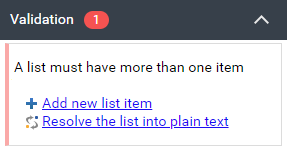
Oxygen XML Web Authorautomatically validates DITA documents as you type and presents warning messages in the Validation panel on the right side of the screen. Many of the DITA validation issues that are detected also include Quick Fix proposals to help you solve the problems.
DITA Content Completion
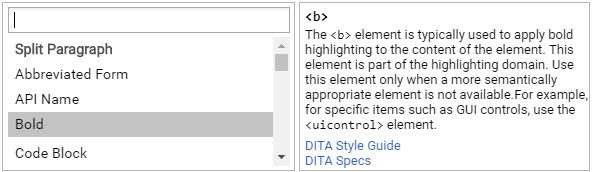
Oxygen XML Web Author includes an inline content completion assistant to help you insert and manage DITA markup without having to take your fingers off the keyboard. By default, it appears when you press the Enter key and it offers proposals that are valid at the current location within the DITA document with the most logical choices listed first. Most proposals also include a description to help you understand exactly what the particular selection will do.
DITA CSS Styles
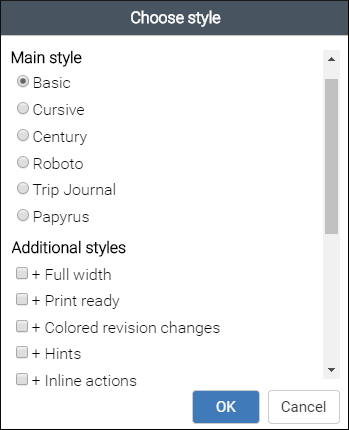
Oxygen XML Web Author has an option to adjust the rendering of documents simply by choosing from various styles. Each style is based on a corresponding CSS file stored in the built-in DITA framework. There are numerous different styles available for DITA documents. You can choose one main style and multiple additional styles that act as layers, with choices such as switching to a full width mode, a print preview mode, or adding inline hints to help you understand the type of content that is expected within the DITA structure.
To select a CSS style, select Choose style from the
 More drop-down menu. This
opens a dialog box where you can select a main css style that applies to the
whole document and one or more alternate css styles that behave like layers and
are merged sequentially with the main style.
More drop-down menu. This
opens a dialog box where you can select a main css style that applies to the
whole document and one or more alternate css styles that behave like layers and
are merged sequentially with the main style.