Image Map EditorHistory | Edit
imagemap element. An Image Map provides an easy
way to create hyperlinks in various areas within an image without having to divide the image
into separate image files. Oxygen XML Web Author includes an Image Map
Editor that helps you to edit image maps that already exist on images in DITA
documents.How to Edit an Existing Image Map in Web Author
- Right-click the image and select Image Map Editor.
- Click the Image Map Editor button below the image.
- You can edit, duplicate, or delete existing shapes, and change their layer order.
- You can add new shapes that will become hyperlinks. To select the target link for a
new shape, click OK to close the visual editor, and in the Shape Table below the
Image Map Editor button, click the
 Edit button in the
Target column for that particular shape. New shapes will have a
[Choose target] message in the Target column and be
presented as a validation warning until you select a target reference.
Edit button in the
Target column for that particular shape. New shapes will have a
[Choose target] message in the Target column and be
presented as a validation warning until you select a target reference.
Shape Table
The shape table below the Image Map Editor button is a sequential
list of all the areas (shapes) that have been added in the image. The
Target column displays the target links that exist in the image
map. You can click the Edit button
next to a target link to select a new reference for that particular hyperlinked area. You
can choose between the following types of links: Cross Reference,
File Reference, or Web Link. All three types
will open a dialog box that allows you to browse for a target resource.
Figure: Image Map Details
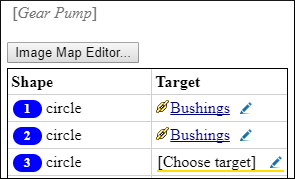
Image Map Editor Interface in Web Author
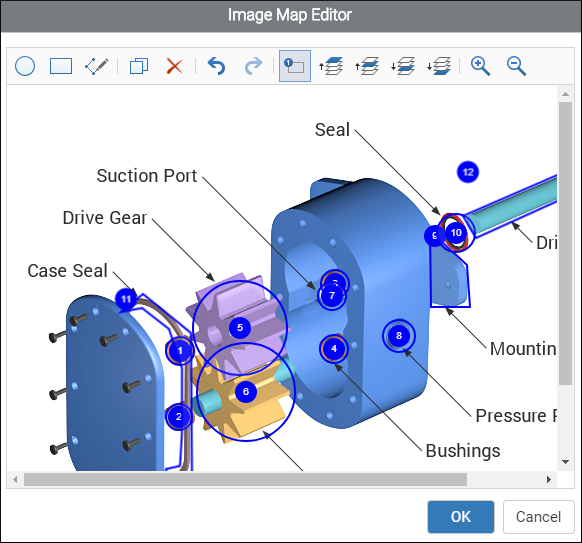
Figure: Image Map Editor in Web Author
- Toolbar
-
 New Circle
- Use this button to draw a circle over an area in the image. You can drag any of the four points to adjust the size of the circle.
 New
Rectangle
New
Rectangle- Use this button to draw a rectangular shape over an area in the image. You can drag any of the four points to adjust the size and shape of the rectangle.
 New Free Form
Shape
New Free Form
Shape- Use this button to draw a free form shape over an area in the image. After selecting this button, left-click anywhere in the image to place the first point of your shape. Then move the cursor to the location of the next desired point and left-click to place the next point, and so on. The shape must have at least 3 points. To complete the shape (area), press Enter on your keyboard or click the toolbar button again. To cancel and discard the shape, press Esc.
 Duplicate
- Use this button to create a duplicate of the currently selected shape.
 Delete
- Use this button to delete the currently selected shape.
 Undo
Undo- Use this button to undo the last action.
 Redo
Redo- Use this button to redo the last action that was undone.
 Show/Hide
Numbers
Show/Hide
Numbers- Use this button to toggle between showing or hiding the numbers for the shapes.
 Bring Shape to
Front
Bring Shape to
Front- Use this button to bring the currently selected shape forward to the top layer.
 Bring Shape
Forward
Bring Shape
Forward- Use this button to bring the currently selected shape forward one layer.
 Send Shape
Backward
Send Shape
Backward- Use this button to send the currently selected shape back one layer.
 Send Shape to
Back
Send Shape to
Back- Use this button to send the currently selected shape back to the bottom layer.
 Zoom In
- Use this button to zoom in on the image in the main image pane.
 Zoom Out
- Use this button to zoom out on the image in the main image pane.
- Image Pane
-
This main Image Pane is where you work with shapes to add hyperlinks to multiple areas within an image. The editing mechanisms that are supported in the Image Pane include the following:
- Mouse Controls and Keyboard Shortcuts
-
- Use the mouse to select and move shapes around in the image pane. It is easy to see which shape is selected in this image pane because the border of the selected shape changes from a solid line to a dotted one.
- You can also drag any of the points of a selected shape to adjust its size and shape.
- You can also move a selected shape by using the arrow keys on your keyboard. In addition, you can hold down Shift while using the arrow keys to move the shape farther or Alt to move it 1 pixel at a time.
- To zoom in or out, you can use the NumPad + or NumPad - keys respectively. Use Ctrl + NumPad 0 to reset the zoom level to its default value.
- You can use Ctrl + Z to undo an action or Ctrl + Y to redo the last action that was undone.
Overlapping Areas
If shapes overlap one another in the Image Map Editor, the one on
the top layer takes precedence. The number shown inside each shape represent its layer (if
the numbers are not displayed, click the
Show/Hide Numbers button on the Image Map Editor
toolbar). To change the layer order for a shape, use the layer buttons on the
Image Map Editor toolbar (, ,
, ).