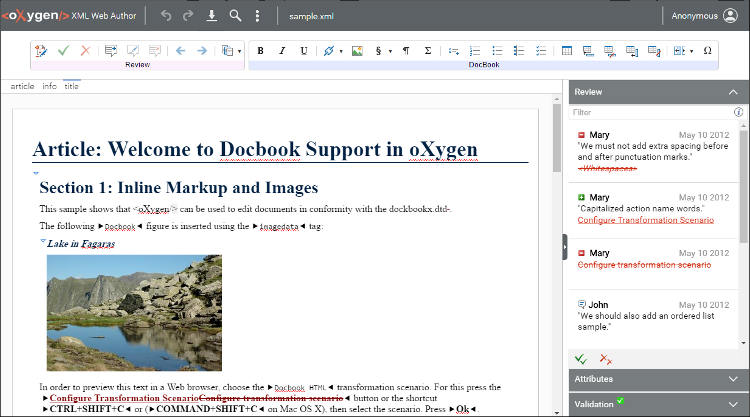
Web Author InterfaceHistory | Edit
The interface of the Oxygen XML Web Author includes a variety of useful actions and features and it groups them in the following functional areas:
Upper Toolbar
The upper toolbar includes the following:
- Oxygen XML Web Author icon
- Clicking the Oxygen XML Web Author icon at the top-left corner of the screen will open the Dashboard page.
 Undo
Undo- Reverses the previous editing action.
 Redo
Redo- Recreates the previous editing action that was undone.
 Download
- Downloads the current document.
 Search
- Opens the Find/Replace popup window that allows you to search the current file and replace the search terms.
- Repository actions
- If you have a Git or SharePoint repository configuration, the toolbar will include actions for committing or checking in/out files.
 More drop-down
menu
More drop-down
menu- Includes the following additional actions:
- Opens a dialog box that allows you to choose where to save the current file.
- More >
 Download
 - Downloads the current file in your current web browser.
- More >
 Print
Print - Opens a print preview pane that allows you to configure printing options for
the current document.Note: Review information (such as tracked changes and comments) is also included in the printed output.
- More >
 Edit as XML
 - Opens the current document in a text editing mode where you can see and edit the XML source code.
- More >
 Preferences
 - Opens a dialog box that allows you to configure the following options:
- Tags Display Mode - Includes dedicated tag modes that allow you to control the amount of markup that is displayed. You can choose from the following tag modes: Full Tags with Attributes, Full Tags, Block Tags, Inline Tags, Partial Tags, or No Tags.
- Language - Allows you to change the interface language. The following languages are supported: English, German, Dutch, Japanese, and French.
- Enable automatic spell checking - Allows you to enable or disable the automatic spell checking feature.
Note: Changes to these preferences apply to the current document, as well as the future ones that are opened in the current browser, but they do not affect other documents that are already opened. - More >
 Help
Help - Opens a WebHelp version of the Oxygen XML Web Author user manual.
- You can use this option to open a dialog box that allows you to write the description of a problem that was encountered while using the application. You can also select additional information to be sent to the technical support team in the various tabs.
- Logs the current user out.
 (File Name)
- Displays the name of the current file.Note: Some documents might be locked for editing. This means that you cannot alter their content or add comments to them. A document lock state is indicated by a padlock icon next to the file name.
 (User Name)
- Displays the current user name. This name comes from the account that is created for your particular type of file repository (such as Dropbox, Google Drive, SharePoint, GitHub, or WebDAV).
Some additional toolbar buttons will be present for certain types of repository connections (for example, SharePoint includes some additional check in/out actions).
On mobile devices, the upper toolbar also allows you to switch between the
Edit and Review modes ( ).
).
Lower Toolbar
- Review Actions - Includes actions such as Track Changes, Add Comment, and more.
- Framework-Specific Actions - Includes actions that are specific for each document type (framework). For example, for DITA documents, the DITA toolbar presents actions that are specific to the DITA framework.
Right Side Panel
The side panel on the right side of the application includes tabs to switch between
the Review, Attributes, and Validation views. If it is not displayed, click the arrow
button ( ) on the far right side of the editor.
Figure: Oxygen XML Web Author on a Desktop PC