Generating IDs for Elements in Author Mode
Oxygen XML Editor plugin allows you to manually assign or edit values of id
attributes in Author mode by using the Attributes View or an in-place attribute
editor. Oxygen XML Editor plugin also includes mechanisms to generate ID values for
elements, either on-request or automatically, in DITA, DocBook, or TEI documents.
Generate IDs On-Request
id attribute.Automatically Generate IDs
Oxygen XML Editor plugin includes an option to automatically add unique ID values to certain elements when they are created in Author mode. The Auto generate IDs for elements option can be found in the ID Options dialog box that is displayed when you select the ID Options action from the framework-specific menu (DITA, DocBook, or TEI). If this Auto generate IDs for elements option is selected, Oxygen XML Editor plugin automatically generates unique ID values for elements that are listed in this dialog box. You can use this dialog box to customize the format of the ID values and choose which elements will have their ID values automatically generated (for example, you can customize the list of elements to include those that you most often need to identify).
ID Options Dialog Box
Figure: ID Options Dialog Box
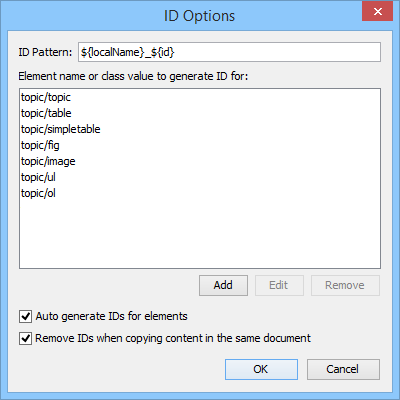
The ID Options dialog box allows you to configure the following options in regards to generating ID values:
- ID Pattern
- The pattern for the ID values that will be generated. This text field can be customized using constant strings or any of the Oxygen XML Editor plugin Editor Variables.
- Element name or class value to generate ID for
- The elements for which ID values will be generated, specified using class attribute values. To customize the list, use the Add, Edit, or Remove buttons.
- Auto generate IDs for elements
- If selected, Oxygen XML Editor plugin will automatically generate unique IDs for the elements listed in this dialog box when they are created in Author mode.
- Remove IDs when copying content in the same document
- When copying and pasting content in the same document, this option allows you
to control whether or not pasted elements that are listed in this dialog box
should retain their existing IDs. To retain the element IDs, deselect this
option.Note: This option does not have an effect on content that is cut and pasted.
Duplicating Elements with Existing IDs
- If the Auto generate IDs for elements option is selected and you duplicate elements with existing IDs, Oxygen XML Editor plugin assigns new, unique ID values to the duplicates.
- If the Auto generate IDs for elements option is not selected and you duplicate elements with existing IDs, the ID values are removed from the duplicates. However, when elements are duplicated in the same document, this option has no effect and IDs are preserved if the Remove IDs when copying content in the same document option is not selected.
- If the Remove IDs when copying content in the same document option is selected, the ID values are removed from elements that are duplicated in the same document. However, selecting this option has no effect if the Auto generate IDs for elements option is selected.
- If the Remove IDs when copying content in the same document option is not selected, the ID values are preserved when elements are duplicated in the same document. For all frameworks other than DocBook, this option has no affect on elements that are duplicated in other documents. For DocBook, it works the same regardless of whether its the same or another document.
Controlling the Default ID Generation Options
It is possible to configure the default ID generation options for DITA, DocBook, and TEI document types. In the frameworks folder for each of those document types, there is an XML configuration file called idGenerationDefaultOptions.xml that contains the default settings for generating IDs in each particular type of document. To configure the default settings, you can edit this file and save it back to the same directory.
The configuration file can be found in the resources folder within the particular framework. For example, the configuration file for the DITA framework is located in: [OXYGEN_INSTALL_DIR]/frameworks/dita/resources/idGenerationDefaultOptions.xml.
- Configure the idGenerationDefaultOptions.xml file for your framework according to your needs.
- Bundle a modified version of the entire framework folder (for example,
[OXYGEN_INSTALL_DIR]/frameworks/dita/). To do this:
- Open the Preferences dialog box and go to Document Type Association.
- Select your document type and click the Extend button.
- In the Document type configuration dialog box that is
now displayed, select External for the
Storage option. By default, this will save the extension
in a new folder in the frameworks folder (for example,
[OXYGEN_INSTALL_DIR]/frameworks/dita-extension (1)), but you can also use the
 Browse button to
specify a specific name and folder.
Browse button to
specify a specific name and folder. - In this new extension folder, create a new folder called resources and add your modified idGenerationDefaultOptions.xml file to this new resources folder.
- Go back to the Document Type Association preferences page, select the extended framework, and click Edit.
- Go to the Classpath tab, add a reference to your new
resources folder, and move this reference up (using the
 Move
Up button) so that it is the first one that appears in the
list.
Move
Up button) so that it is the first one that appears in the
list. - Click OK and exit out of the preferences page.
- Distribute your newly extended folder to other team members by using one of the methods described in Sharing a Framework (Document Type).