Configure Transformation Scenario(s) Dialog Box
You can use the Configure Transformation Scenarios(s) dialog box for editing exiting transformation scenarios or creating new ones.
To open this dialog box, use the  Configure Transformation Scenario(s) (Alt + Shift +
T, C (Command + Alt + T, C on OS X)) action from the
toolbar or the XML menu.
Configure Transformation Scenario(s) (Alt + Shift +
T, C (Command + Alt + T, C on OS X)) action from the
toolbar or the XML menu.
Figure: Configure Transformation Scenario(s) Dialog Box
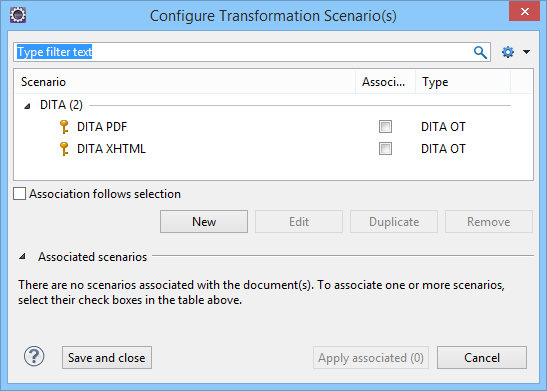
The top section of the dialog box contains a filter that allows you to search through the
scenarios list and the  Settings button allows you to configure the following options:
Settings button allows you to configure the following options:- Show all scenarios
- Select this option to display all the available scenarios, regardless of the document they are associated with.
- Show only the scenarios available for the editor
- Select this option to only display the scenarios that Oxygen XML Editor plugin can apply for the current document type.
- Show associated scenarios
- Select this option to only display the scenarios associated with the document you are editing.
 Import
scenarios
Import
scenarios- This option opens the Import scenarios dialog box that allows
you to select the scenarios file that contains the scenarios you
want to import. If one of the scenarios you import is identical to an existing scenario,
Oxygen XML Editor plugin ignores it. If a conflict appears (an imported scenario has the
same name as an existing one), you can choose between two options:
- Keep or replace the existing scenario.
- Keep both scenarios. Note: When you keep both scenarios, Oxygen XML Editor plugin adds imported to the name of the imported scenario.
- Export selected
scenarios
- Use this option to export selected scenarios individually. Oxygen XML Editor plugin creates a scenarios file that contains the scenarios that you export. This is useful if you want to share scenarios with others or export them to another computer.
The middle section of the dialog box displays the scenarios that you can apply to the current
document. The following columns are
used to display the transformation scenarios:
- Association - The checkboxes in this column mark whether or not a transformation scenario is associated with the current document.
- Scenario - This column presents the names of the transformation scenarios.
- Type - If the Show Type contextual menu option is selected, this column displays the type of the transformation scenario. For further details about the types of transformation scenarios that are available in Oxygen XML Editor plugin, see the Transformation Types section.
- Storage - If the Show Storage contextual menu option is selected, this column displays where a transformation scenario is stored.
To sort each column you can left-click its header. The contextual menu of each header also
includes the following actions:
- Show Type
- Use this option to display the transformation type of each scenario.
- Show Storage
- Use this option to display the storage location of the scenarios.
- Group by Type
- Select this option to group the scenarios by their type.
- Group by Storage
- Select this option to group the scenarios by their storage location.
- Ungroup all
- Select this option to ungroup all the scenarios.
- Reset Layout
- Select this option to restore the default settings of the layout.
The bottom section of the dialog box contains the following actions:
- Association follows selection
- Select this checkbox to automatically associate selected transformation scenarios with
the current document. This option can also be used for multiple selections.Note: When this option is selected, the Association column is hidden.
- New
- This button allows you to create a new transformation scenario.
- Edit
- This button opens the Edit Scenario dialog box that allows you
to configure the options of the transformations scenario. For information about all the
specific options in the various tabs, see the Transformation Types section.Note: If you try to edit a transformation scenario associated with a defined document type, Oxygen XML Editor plugin displays a warning message to inform you that this is not possible and gives you the option to create a duplicate transformation scenario to edit instead.
- Duplicate
- Use this button to create a duplicate transformation scenario.
- Remove
- Use this button to remove transformation scenarios.Note: Removing scenarios associated with a defined document type is not allowed.
The Edit, Duplicate, and
Remove actions are also available in the contextual menu of the
transformation scenarios listed in the middle section of the dialog box (along with
 Import
scenarios and Export selected scenarios).
Import
scenarios and Export selected scenarios).