Dashboard - Creating or Opening DocumentsHistory | Edit
The Oxygen XML Web Author has a user-friendly Dashboard and if
a particular plugin registers a create or
open action, then it will include sections for creating and opening documents for
plugin integrations. You can easily access the Dashboard
at any time while editing documents by simply clicking the  Icon at the top-left corner of the
screen.
Icon at the top-left corner of the
screen.
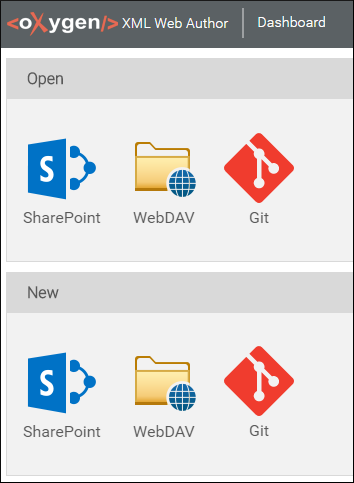
Figure: Oxygen XML Web Author Dashboard
Change the Language
To change the language for the interface, click the  Language icon in the top-right corner of the
Dashboard and select the desired language. By default, you can
choose from: English, German, French, Japanese, or
Dutch.
Language icon in the top-right corner of the
Dashboard and select the desired language. By default, you can
choose from: English, German, French, Japanese, or
Dutch.
Create a New Document
- Go to your Oxygen XML Web Author Dashboard page.
- In the New section, click the icon for the particular
plugin. This opens a dialog box that allows you to select a new file
template.Note: If your connection has not yet been configured, a configuration dialog box will be displayed that provides instructions for configuring and selecting the URL for the connection.
- Select a file template and click OK. This opens a dialog box that allows you browse for a destination path.
- If you are logged in and have previously chosen a repository, you can use the
 Edit button to change
the repository.
Edit button to change
the repository. - Select a destination path and name for the new document.
- Click Save.
The new document will be opened in a new tab.
Open a Document
- Go to your Oxygen XML Web Author Dashboard page.
- In the Open section, click the icon for the particular
plugin. This opens a dialog box that allows you to browse for a
file.Note: If your connection has not yet been configured, a configuration dialog box will be displayed that provides instructions for configuring and selecting the URL for the connection.
- If you are logged in and have previously chosen a repository, you can use the
Edit button to change
the repository.Tip: If the file is not already in your repository, you can use the
 Upload File action
at the top-right corner of the dialog box to upload it to the repository before
selecting it.
Upload File action
at the top-right corner of the dialog box to upload it to the repository before
selecting it. - Once you have found the file you want to open, select it and click OK.
Unlocking a File Stored on a WebDAV Connection
When opening files on a WebDAV server, by default the files are automatically locked to prevent anyone using another connection to that WebDAV server from changing the file. There is an option that can be disabled by a system administrator to change this behavior.
- Go to the Administration Page.
- Select Plugins.
- Click the
 Configure icon for the WebDAV plugin.
 - Deselect the Lock resources on open option.