SharePoint Browser ViewHistory | Edit
The SharePoint Browser view allows you to connect to a SharePoint repository and perform SharePoint-specific actions on the available resources. To display this view, go to .
Figure: SharePoint Browser View
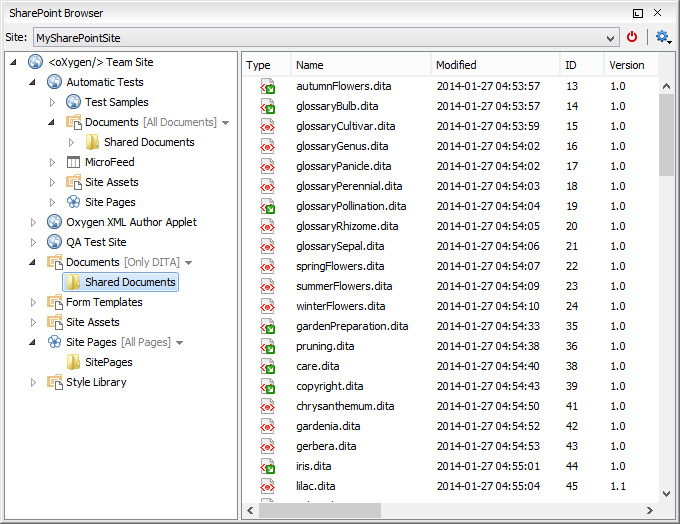
The view is split in several functional areas:
Connection Area
- The Site combo box allows you to select and connect to an already defined SharePoint connection.
- The
 Disconnect action terminates the current connection.
 - The
 Settings drop-down
menu contains actions that help you to quickly define a new connection or manage the
existing ones from the Data Source options page: New
SharePoint Connection and Configure Database
Sources. Also, here you can choose one of the predefined view
layouts.
Settings drop-down
menu contains actions that help you to quickly define a new connection or manage the
existing ones from the Data Source options page: New
SharePoint Connection and Configure Database
Sources. Also, here you can choose one of the predefined view
layouts.
SharePoint Site Navigation Area
If there is no connection selected in the Site combo box, this area is left blank and promotes the actions that allow you to quickly add SharePoint connections. Otherwise, the navigation area presents the SharePoint site structure in a tree-like fashion with various node types (such as sites, libraries, and folders).
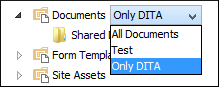
Each library node displays a drop-down menu next to its name where you can select what you want to display for the current library node. This functionality is also available on the contextual menu of the node.
Figure: Drop-Down Menu to Select Which Items to Display
Folder Content Area
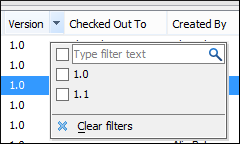
The content of a folder is displayed in a tabular form, where each row represents the properties of a folder or document. The list of columns and the way the documents and folders are organized depends on the currently selected view of the parent library.
| Action | Description | Available for | |
|---|---|---|---|
| folders | documents | ||
 Open Open
|
Displays the content of the currently selected folder. Opens the current document for editing. |
 |
|
| Rename | Renames the current node on server. | |
|
| Import | Import files or folders into the currently selected folder. | |
|
 Delete Delete |
Deletes the current node from the server. | |
|
| Copy Location | Copies to clipboard the URL of the current node. | |
|
 Check Out Check Out |
Reserves the current document for your use so that other users cannot change it while you are editing it. | |
|
| Check In | Commits on the server the changes you made to the document, so that other users can see them. It also makes the document available for editing to other users. | |
|
| Discard Check Out | Discards the previous checkout operation, making the file available for editing to other users. | |
|
 Refresh Refresh |
Queries the server to refresh the available properties of the current node. | |
|
| Drag and Drop | You can drag documents from the SharePoint Browser view and drop them in the main editor area to open them with ease. | |
|
Figure: Column Filter