Revert Your ChangesHistory | Edit
If you want some of your outgoing changes to be overridden you must first open the file in Compare view and choose the sections to be replaced with ones from the repository file. This can be achieved either by editing directly the file or by using the action Copy change from right to left from the Compare view toolbar. After editing the conflicting file you have to run the action Mark as merged before committing it.
If you want to drop all local changes and bring all incoming changes into your working copy resource, you can use the Override and update action. It discards the changes in the local file and updates it from the repository. A dialog box will display the files that will be affected.
Figure: Override and Update Dialog Box
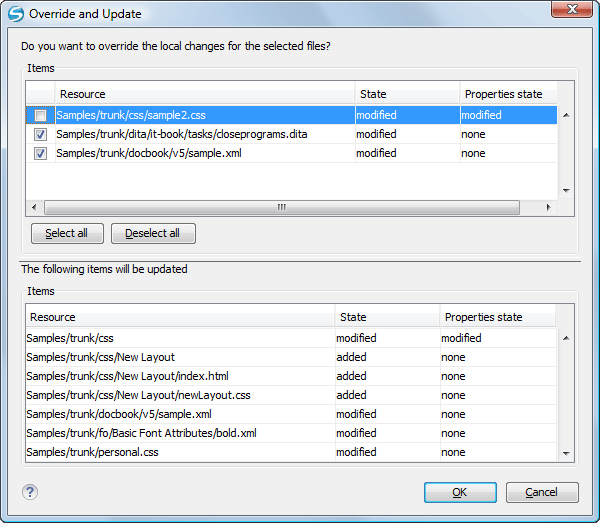
In the first table of the dialog box you will be able to see the resources that will be overridden. In the second table you will find the list of resources that will be updated. Only resources that have an incoming status are updated.