To configure a connection to a PostgreSQL 8.3 server, follow these steps:
-
Open the
Preferences dialog box and go to
Data Sources.
-
In the Connections panel, click the
New button.
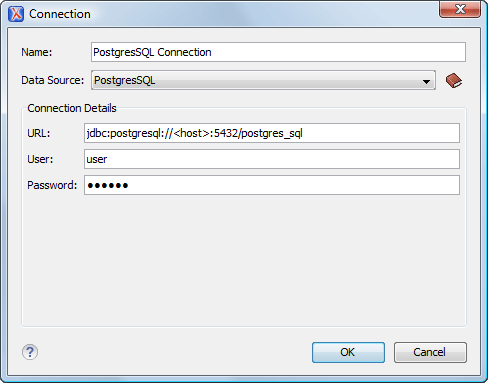
The dialog box for configuring a database connection is displayed.
Figure: Connection Configuration Dialog Box
-
Enter a unique name for the connection.
-
Select the PostgreSQL 8.3 data source in the Data Source
drop-down menu.
-
Enter the connection details.
-
Enter the URL of the PostgreSQL 8.3 server.
-
Enter the user name for the connection to the PostgreSQL 8.3 server.
-
Enter the password for the connection to the PostgreSQL 8.3 server.
-
Click the OK button to finish the configuration of the database
connection.