
Generating OpenAPI Documentation
Oxygen XML Editor includes a tool for generating documentation for OpenAPI 3.0, or 3.1 documents in either JSON or YAML format, including annotations and cross references. The documentation displays information about the servers, paths, components and tags defined in the OpenAPI documents and it is presented in HTML format with various sections, hyperlinks, and filtering options. Also, the generated HTML output is valid based on the W3C validator.
Quick Installation
You can drag the following Install button and drop it into the main editor in Oxygen (version 24.1 or newer) to quickly initiate the installation process:

Manual Installation
- Go to to open an add-on selection dialog box.
- Enter or paste
https://www.oxygenxml.com/InstData/Addons/default/updateSite.xml in the
Show add-ons from field or select it from the drop-down
menu.Note: If you have issues connecting to the default update site, you can download the add-on package, unzip it, then use the Browse for local files action in the Install new add-ons dialog box to locate the downloaded addon.xml file.
- Select the OpenAPI Documentation Generator add-on and click Next.
- Read the end-user license agreement. Then select the I accept all terms of the end-user license agreement option and click Finish.
- Restart the application.
Result: The OpenAPI Documentation dialog box is now available and can be selected from the menu.
Generating OpenAPI Documentation
To generate OpenAPI documentation, select OpenAPI Documentation from the menu. This opens a dialog box where you can specify the location of the OpenAPI file and the HTML output file.
This tool requires an additional add-on to be installed, so the first time you invoke the action, Oxygen XML Editor presents a dialog box asking if you want to install it. Once installed, you need to restart Oxygen XML Editor and the OpenAPI Documentation action will invoke the tool.
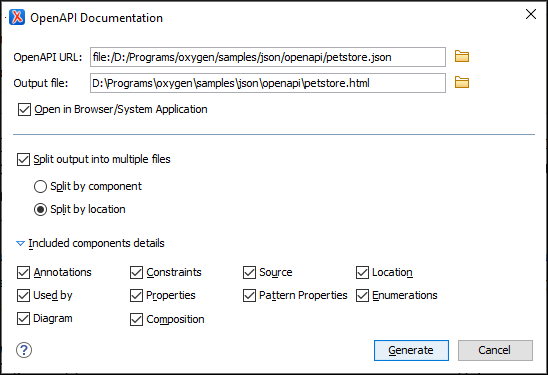
- OpenAPI URL
- The URL of the OpenAPI file (it can be in either JSON or YAML format). You can
specify the path by using the text field or the browsing button (
 ).
). - Output file
- The path to the folder where the generated HTML file will be saved.
- Split output into multiple files
- If selected, the application splits the output into multiple files. You can choose between splitting them by component name or location.
- Included component details
- This section can be used to specify whether or not details about the following
components that belong to internal or imported schemas are shown in the generated
documentation:
- Annotations - Displays the annotations (title, description) for each component (property or definition).
- Constraints - Displays the schema constraints for each component, according to its type.
- Source - Displays the text schema source for each component.
- Location - Displays the schema location for each component.
- Used By - Displays the list of all the components that reference the current definition.
- Properties - Displays the
propertiesof an Object Schema. - Pattern Properties - Displays the
patternPropertiesof an Object Schema. - Enumerations - Displays the enumerated values, if specified in the schema.
- Diagram - Displays the diagram image for each component. The diagrams are generated according to the options specified in the Schema Design preferences page. Diagrams are also generated for components within schemas from referenced files.
- Composition - Displays the
oneOf,anyOf, andallOfcompositors that are used for combining schemas.
You can click Generate at any point to generate the OpenAPI documentation.
Generated OpenAPI Documentation in HTML Format
After generating the OpenAPI documentation, it is presented in the browser in HTML format with various sections, hyperlinks, and options.
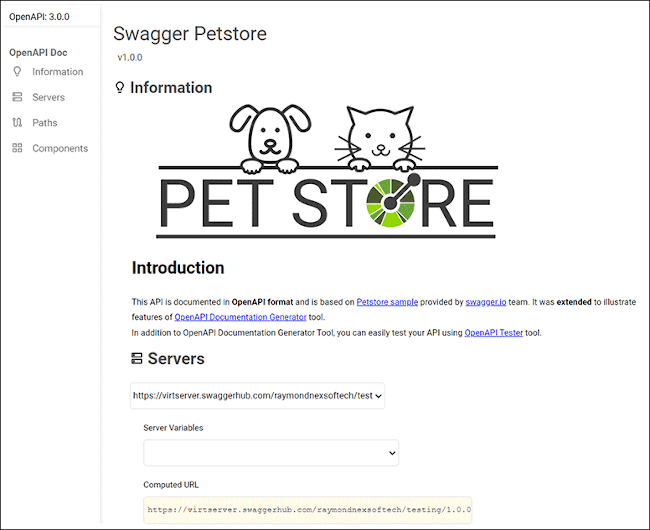
The generated documentation includes a Table of Contents on the left pane with links to particular sections in the right pane. You can collapse or expand details by using the Collapse or Expand buttons.
Resources
For more information about OpenAPI editing, testing, and documenting, watch the following webinar: