
Debugging the CSS
If you notice that some of the CSS properties were not applied as expected, some of the tips offered in this topic might help you with the debugging process.
Comparing the CSS Against the Input File
The first thing that you should try is to check the file structure of the input XML or HTML file and compare it to the CSS selectors to make sure they are written correctly against the document structure. If you still cannot identify the problem, then inspect how the styles are applied (you can try any of the methods listed below).
Inspecting the Applied Styles Using the Chrome Browser
To inspect the applied CSS styles using Chrome:
- In Chrome, open the input XML or HTML file.
- Click the element you want to inspect.
- Activate the Chrome Developer Tools by using
 > More Tools > Developer Tools, or press CTRL+SHIFT+I.
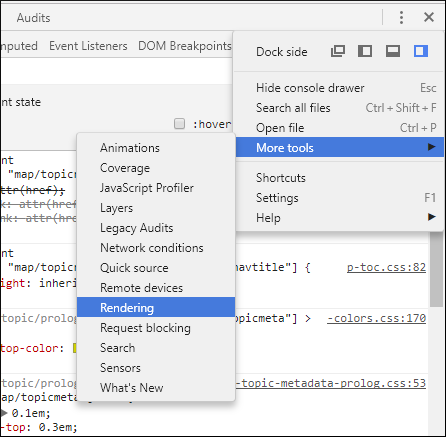
 - Activate the Rendering pane by using > More Tools > Rendering:
- In the Rendering pane, select
print from the Emulate CSS media section.
This activates the CSS selectors enclosed in
@media print {..}.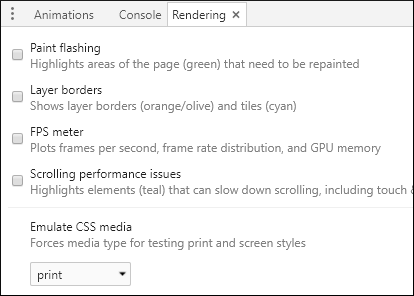
Note: This allows you to debug the styling of elements, table of contents, and index, but not
the styles of the page margin boxes (headers, footers) or page breaks.
Tip: In the left pane of the Developer
Tools interface, you can inspect elements and their styles in the
Elements tab. You can click any of the links to display the applied
CSS files in the Styles tab in the right pane. Editing the styles in
that pane results in a live preview of how the change will affect the output.
Inspecting the Applied Styles Using Oxygen XML Editor/Author
To inspect styles:
- In Oxygen XML Editor/Author, open the input XML or HTML file.
- [Optional] From the Styles toolbar,
choose the + Print Ready entry. This activates certain CSS
selectors enclosed in
@media print {..}. - Click the element you want to style. Use the Inspect Styles action from the Contextual Menu. A specialized CSS Inspector view will show the built-in CSS rules.
Tip: With this file open in Author mode, it might be
helpful to switch the Tags Display Mode to  Full Tags with
Attributes. You might be able to identify the selector you need to style
without using the CSS Inspector view.
Full Tags with
Attributes. You might be able to identify the selector you need to style
without using the CSS Inspector view.
Full Tags with
Attributes. You might be able to identify the selector you need to style
without using the CSS Inspector view.Note: This allows you to debug styling of elements, but not of the page margin boxes (headers,
footers) or page breaks.
CAUTION: Do not modify the built-in rules directly in the CSS files from the
Oxygen XML Editor/Author installation. Instead, copy the rules to your own
customization CSS.
Other techniques
These are some other techniques you may find useful:
- Add background and borders properties to the specific CSS rule. If they do not appear in the output, then there is a problem with the rule selector.
- Try to use the
!importantnotation to the property that is not applied, or make the selector more specific (you can add more parent selectors). - To figure out how the elements are mapped into PDF, you can use this fragment in the
customization
CSS:
* {
   border: 1pt solid blue !important;
}

*:before(1000) {
   content:  oxy_name() !important;
   color: orange;
}

*:before(999) {
   content: "[ class= '" attr(class) "'] " !important;
   color: orange;
}
This will show the element name, its class attribute, and will paint a blue border around each of the elements in the output. It will not show the page margin boxes or some content elements that were hidden.