Information: The Profiling Attributes section is used to define the
attributes and their values. For DITA documents, the default attributes are included
(audience, platform, product,
props, otherprops, and rev), but
if a Subject
Scheme Map is used for profiling your content, you will see the
attributes defined in your subject scheme map instead.
To add new attributes and values, click the
New
button at the bottom of the Profiling Attributes table. To
customize existing attributes and their values, select an attribute and click the
Edit button.
Step Result: In either case, this opens a Profiling
Attribute configuration dialog box where you can define attributes that
exist in your schema.
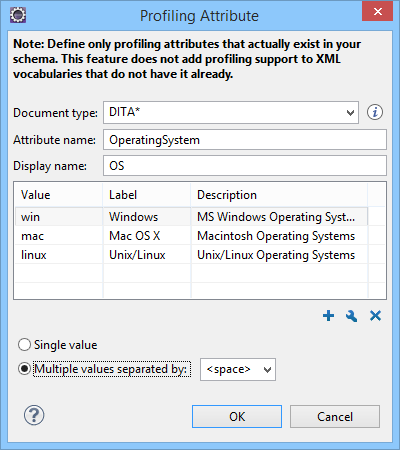
Figure 1: Profiling Attribute Dialog Box
The following options are available in this dialog box:
Tip: You can use the
* or ? wildcards in this combo box. For
example, DITA* would match any document type that starts
with "DITA". You can also specify multiple document types by using commas
to separate them.
Attribute name
The name of the profiling attribute.
Display name
This optional field is used for descriptive rendering in profiling dialog
boxes.
Attribute Values Table
This table displays information about the values for the profiling attribute.
You can configure them by using the buttons at the bottom of the table
(New, Edit, Delete).
The columns
are as follows:
Value - The attribute value. You can also define
profiling attribute groups using the following format:
ParentAttrValue(SubAttrValue1 SubAttrValue2). For more
information, see Conditional Profiling Attribute Groups.
Description - A description for the attribute
value that will be displayed in this table.
Single value
Select this option if you want the attribute to only accept a single value.
Multiple values separated by
Select this option if you want the attribute to accept multiple values, and you
can choose the type of delimiter to use. You can choose between space,
comma, and semicolon, or you can enter a custom delimiter in the
text field. A custom delimiter must be supported by the specified document type. For
example, the DITA document type only accepts spaces as delimiters for attribute
values.
After defining or configuring the attributes and their values
according to your needs, click OK to confirm your selections and
close the Profiling Attributes configuration dialog box.
Click Apply to save the changes.
Result: You should see your changes in the Profiling
Attribute table.
You can also use the Profiling Condition Sets section to apply more
complex filters on your DITA content.
Adding Profiling Attribute Values Directly in a Document
You can add values directly to the existing profiling attributes in a document using the
In-Place Attributes Editor in Author mode, the Attributes view, or in the source code in
Text mode. However, this just adds them to the document and does
not change the conditional text configuration. If you invoke the Edit Profiling
Attributes action (from the contextual menu in Author
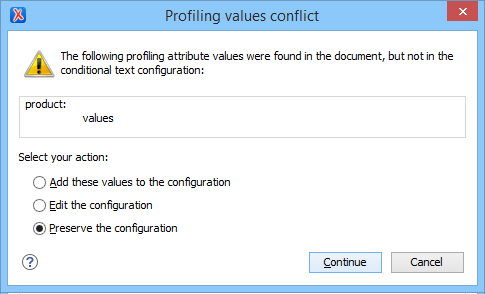
mode) on the new value, the Profiling Values Conflict dialog box will
appear and it includes an Add these values to the configuration
action that will automatically add the new value to the particular profiling attribute. It
also includes an Edit the configuration action that opens the Profiling / Conditional Text preferences page where you
can edit the profiling configuration.
Note: If the Allow contributing extra profiling attribute values
option is not selected in the Profiling / Conditional Text
preferences page, the Profiling Values Conflict dialog box will
never appear, so this automatically adding value not be possible.

 New
button at the bottom of the Profiling Attributes table. To
customize existing attributes and their values, select an attribute and click the
New
button at the bottom of the Profiling Attributes table. To
customize existing attributes and their values, select an attribute and click the
 Edit button.
 The following options are available in this dialog box:
 New,
New,  Edit,
Edit,  Delete).The columns are as follows: