
Find/Replace Dialog BoxEdit online
To open the Find/Replace dialog box, use the Find/Replace action that is available in the Edit menu or by pressing Ctrl + F (Command + F on OS X). It is also invoked by the Find/Replace contextual menu action found in certain views.
- Replace occurrences of target defined in the Find area with a new fragment of text defined in Replace with area.
- Find all the occurrences of a word or string of characters (that can span over multiple lines) in the document you are editing. This operation also takes into account all the whitespaces contained in the fragment you are searching for. The Find/Replace dialog box counts the number of occurrences of the text you are searching for and displays it at the bottom of the dialog box, above the Close button. This number is also displayed in the Results view after you press the Find All button.
- Press Ctrl + Enter (Command + Enter on OS X) on your keyboard.
- Use the Insert newline contextual menu action.
You can use Perl-like regular expressions syntax to define patterns. A content completion assistance window is available in the Find and Replace with areas to help you edit regular expressions. It is activated every time you type \(backslash key) or on-demand if you press Ctrl + Space (Command + Space on OS X) on your keyboard.
The replace operation can bind regular expression capturing groups ($1,
$2, etc.) from the find pattern.
tag-name start tag and its attributes with the
new-tag-name tag use as Find the expression
<tag-name(\s+)(.*)> and as Replace with the expression
<new-tag-name$1$2>.Find/Replace Dialog Box
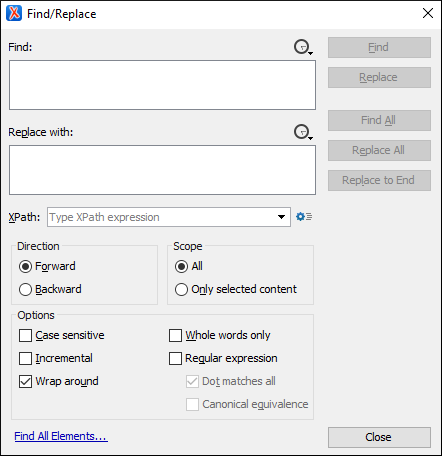
The Find/Replace dialog box contains the following options:
- Find text area box
- This is where you enter the character string to search for. You can search for Unicode
characters specified in the
\uNNNNformat. Also, hexadecimal notation (\xNNNN) and octal notation (\0NNNN) can be used. In this case you have to select the Regular expression option. For example, to search for a space character you can use the\u0020code. - Replace with text area box
- The character string with which to replace the target. The string for replace can be
on a line or on multiple lines. It can contain Perl notation capturing groups, only if
the search expression is a regular expression and the Regular
expression option is selected.Note: Some regular expressions can indefinitely block the application. If the execution of the regular expression does not end in about 5 seconds, the application displays a dialog box that allows you to interrupt the operation.Tip: Special characters such as newline and tab can be inserted in the Find and Replace with text boxes using dedicated actions in the contextual menu (Insert newline and Insert tab).Unicode characters in the
\uNNNNformat can also be used in the Replace with area. - Direction
- Specifies if the search direction is from current position to end of file (Forward) or to start of file (Backward).
- Scope
- Specifies whether the Find/Replace operation is executed over the entire content of the edited document (All option), or over the selected content/lines.
- Options section
-
- Case sensitive
- When selected, the search operation follows the exact letter case of the text entered in the Find field.
- Incremental
- The search operation is started every time you type or delete a letter in the Find text box.
- Wrap search
- When the end of the document is reached, the search operation is continued from the start of the document, until its entire content is covered.
- Whole words only
- Only entire occurrences of a word are included in the search operation. This option is automatically disabled if the Regular expression option is selected.
- Regular expression
- When this option is selected, you can use regular expressions in Perl-like regular expressions syntax to look for specific pieces of text.
- Find button
- Executes a find operation for the next occurrence of the target. It stops after highlighting the find match in the editor panel.
- Replace button
- Executes a replace operation for the target.
- Replace/Find button
- Executes a replace operation for the target followed by a find operation for the next occurrence.
- Replace All button
- Executes a replace operation in the entire scope of the document.