HTML5 Responsive PagesEdit online
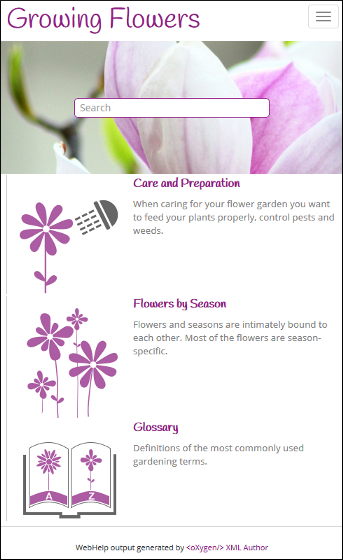
You can select from several different styles of layouts (for example, by default, you can select either a tiles or tree style of layout). Furthermore, each of these layouts include a collection of skins that you can choose from, or you can customize your own.
Figure: WebHelp Responsive Output on a Normal Screen
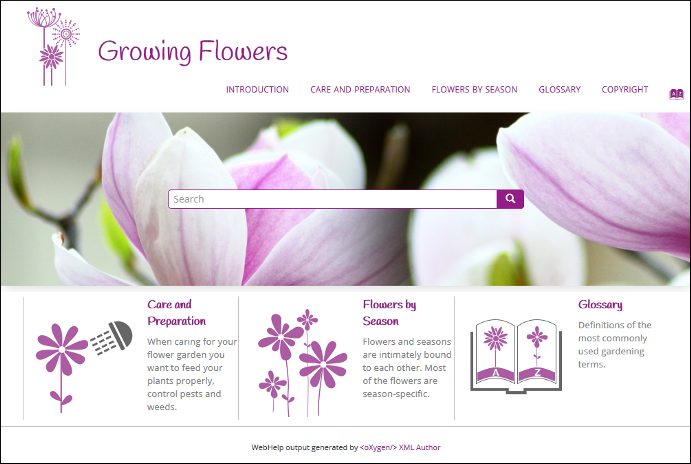
Figure: WebHelp Responsive Output on a Narrow Screen
Main PageEdit online
The Main Page is the home page generated in the WebHelp Responsive output. The main function of the home page is to display top level information and provide links that help you easily navigate to any of the top level topics of the publication. These links can be rendered in either a Tiles or Tree style of layout. The main page also consists of various other components, such as a logo, title, menu, search field, or index link.
Main Page - Tiles Layout
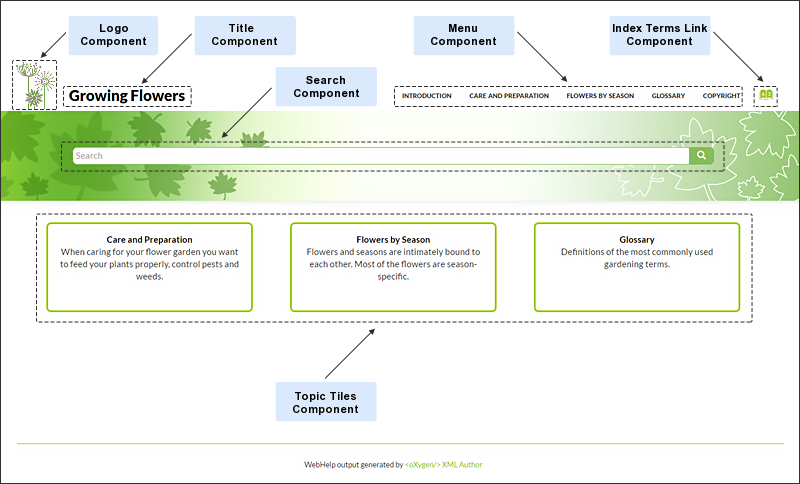
In the tiles presentation mode, a tile component is created for each chapter (first level topic) in the publication. The tile presents a link to the topic and its short description.
Figure: Main Page - Tiles Layout
Main Page - Tree Layout
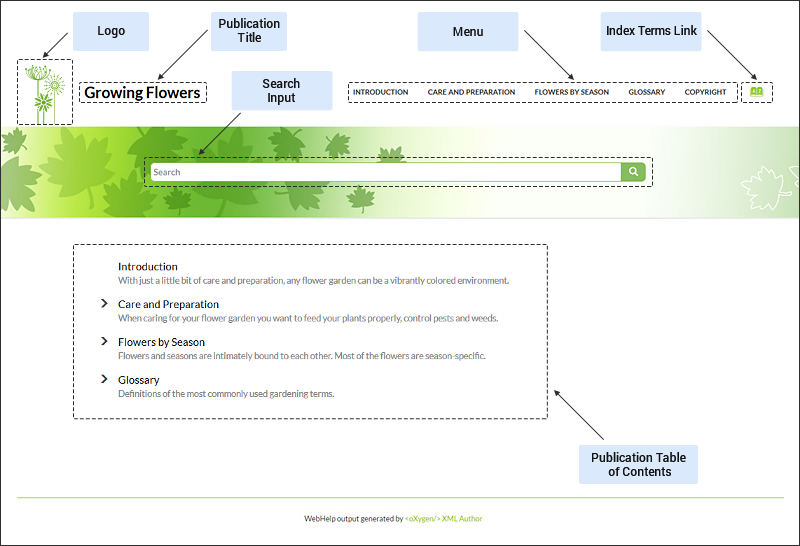
In the tree presentation mode, links to the first and second level topics in the publication are displayed using a tree-like component.
Figure: Main Page - Tree Layout
Main Page Components
The layout components displayed in the main page are:
- Publication Title
- The title of the publication. It is usually taken from the DITA map title.
- Logo
-
Displays a logo associated with the publication. Additionally you can set a target URL that will be opened when you click on the logo image.
The logo image can be specified using the webhelp.logo.image transformation parameter. For target URL use the webhelp.logo.image.target.url parameter.
- Helps you to navigate to your documentation. This component presents a set of links to all topics from your publication. For information about customizing the menu, see How to Customize the Menu topic.
- Index terms link
- Presents a link to the index terms page. You can control if this component is displayed by using the webhelp.show.indexterms.link parameter.
- Search query input
- Input text field allowing you to easily enter your search queries.
- Tiles area
- This section contains a tile for each root topic of the published documentation.
- Topic Tile
- A tile associated with a main topic. Each topic tile has three sections that corresponds to the topic title, short description, and image.
- Topic Tile Title
- Presents the navigation title of the associated topic.
- Topic Tile Short Description
- Presents the short description of the topic. It may be collected either from the topic or from the DITA map topic meta.
- Topic Tile Image
- Presents an image associated with the topic. The image association is done in the DITA map.
- Tree area
- An area containing topic titles from first and second level of your publication.
- WebHelp Responsive output footer.
Topic PageEdit online
The Topic Page is the page generated for each DITA topic in the WebHelp Responsive output. The HTML pages produced for each topic consist of the topic content along with various other additional components, such as a title, menu, navigation breadcrumb, print icon, or side table of contents.
Figure: Topic Page
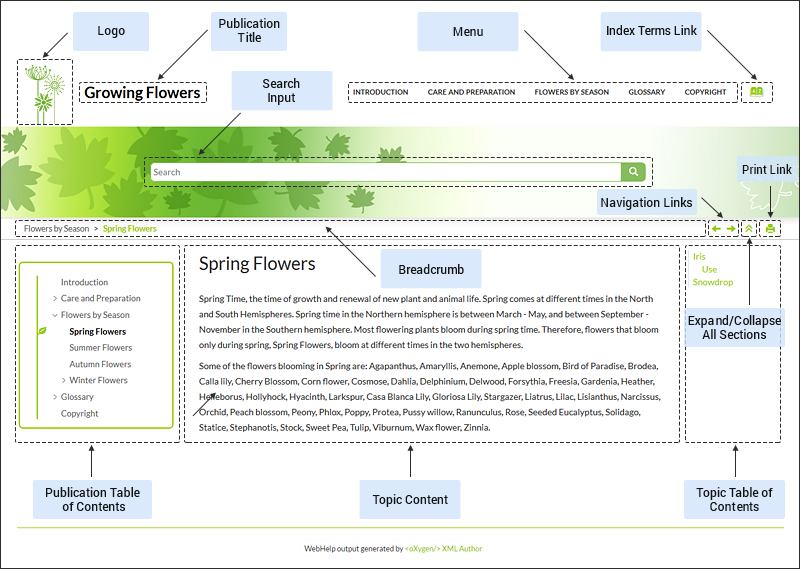
Topic Page Components
The layout components displayed in this page are:
- Publication Title
- The title of the publication. It is usually taken from the DITA map title.
- Logo
-
Displays a logo associated with the publication. Additionally you can set a target URL that will be opened when you click on the logo image.
The logo image can be specified using the webhelp.logo.image transformation parameter. For target URL use the webhelp.logo.image.target.url parameter.
- Helps you to navigate to your documentation. This component presents a set of links to all topics from your publication. For information about customizing the menu, see How to Customize the Menu topic.
- Index terms link
- Presents a link to the index terms page. You can control if this component is displayed by using the webhelp.show.indexterms.link parameter.
- Print Icon
- A print icon that opens the print dialog box for your particular browser.
- Search query input
- Input text field allowing you to easily enter your search queries.
- Topic Content
- Presents the content of the associated DITA topic.
- Breadcrumb
- Presents the path of the current displayed DITA topic in documentation.
- Publication Table of Contents
- A Table of Content for the publication displayed in the left side.
- Topic Table of Contents
- A Table of Content for the topic displayed on the right side. This table of contents contains links to each section within the current topic and the section corresponding to the current scroll position is highlighted.
- Expand/Collapse Sections Icon
- Icon that expands or collapses sections listed in the side table of contents within a topic.
- WebHelp Responsive output footer.
Search PageEdit online
The Search Page presents search results in the WebHelp Responsive output. The HTML page consists of a search results component along with various other additional components, such as a title, menu, or index link.
When you enter search terms in the
Search field, the results are displayed in a results page. When you
click on a result, the topic is opened in the main pane and the search results are
highlighted. If you want to remove the colored highlights, click the  Toggle Highlights button at the
top-right side of the page. The Search field also includes an
autocomplete feature.
Toggle Highlights button at the
top-right side of the page. The Search field also includes an
autocomplete feature.
Figure: Search Results Page
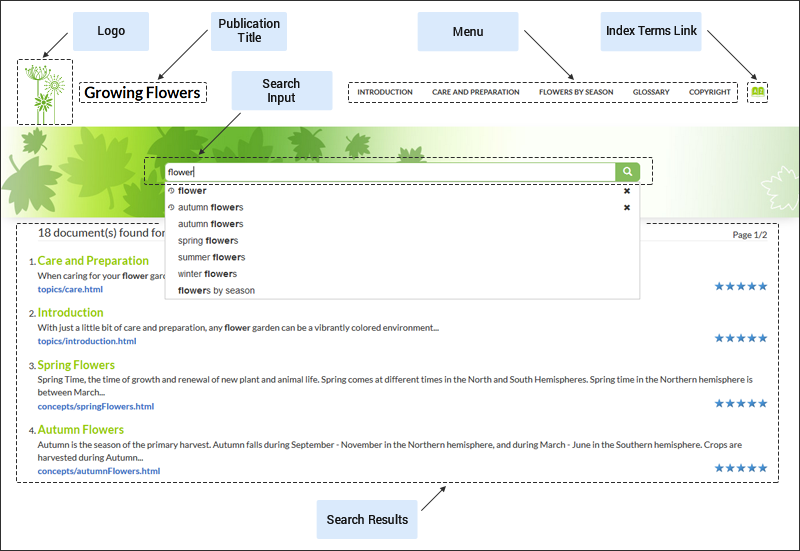
Autocomplete Suggestions in the Search Text Field
- The search queries from the history of the previous searches.
- The titles collected from your documentation.
- Documentation index terms and keywords. For example, in a DITA topic, the keywords and
index terms are specified in the topic prolog section like
this:
<prolog>
  <metadata>
	<keywords><indexterm>databases</indexterm></keywords>
	<keyword>installing</keyword>
	<keyword>uninstalling</keyword>
    <keyword>prerequisites</keyword>
  </metadata>
</prolog>
Missing Terms
If you enter multiple search terms (other than stop words), for any result that the search engine found at least one term but not one or more of the other terms, the Missing terms will be listed below each result.
Search Page Components
The layout components displayed in the search page are:
- Publication Title
- The title of the publication. It is usually taken from the DITA map title.
- Logo
-
Displays a logo associated with the publication. Additionally you can set a target URL that will be opened when you click on the logo image.
The logo image can be specified using the webhelp.logo.image transformation parameter. For target URL use the webhelp.logo.image.target.url parameter.
- Helps you to navigate to your documentation. This component presents a set of links to all topics from your publication. For information about customizing the menu, see How to Customize the Menu topic.
- Index terms link
- Presents a link to the index terms page. You can control if this component is displayed by using the webhelp.show.indexterms.link parameter.
- Search query input
- Input text field allowing you to easily enter your search queries.
- Search results area
- This section is where the search results are displayed.
- WebHelp Responsive output footer.
Index Terms PageEdit online
The Index Terms Page page consists of an index terms section along with various other additional components, such as a title, menu, or search field.
An alphabet that contains the first letter of the documentation index terms is generated at the top of the index page. Each letter represents a link to a specific indices section. The indexes are presented in multiple columns to make it easier to read this page.
Figure: Index Terms Page
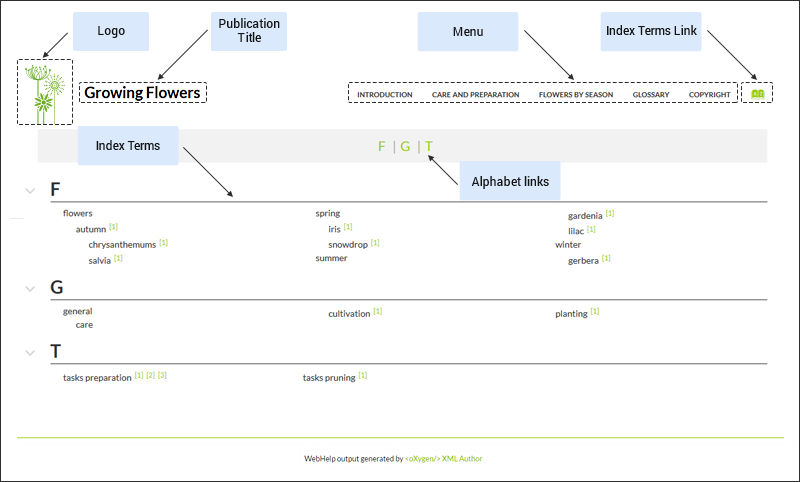
Index Terms Page Components
The layout components displayed in this page are:
- Publication Title
- The title of the publication. It is usually taken from the DITA map title.
- Logo
-
Displays a logo associated with the publication. Additionally you can set a target URL that will be opened when you click on the logo image.
The logo image can be specified using the webhelp.logo.image transformation parameter. For target URL use the webhelp.logo.image.target.url parameter.
- Menu
- Helps you to navigate to your documentation. This component presents a set of links to all topics from your publication. For information about customizing the menu, see How to Customize the Menu topic.
- Index terms link
- Presents a link to the index terms page. You can control if this component is displayed by using the webhelp.show.indexterms.link parameter.
- Index Terms Alphabet
- An alphabet that contains the first letter of index terms. Each letter represents a link to a specific indices section.
- Index Term First Letter
- The first letter of the index.
- Page Footer
- WebHelp Responsive output footer.