Configuring a Git Plugin Integration
Oxygen XML Web Author includes a built-in Git Plugin that allows you to edit files stored in a Git repository (with GitHub, GitLab, and Bitbucket integrations). The Git Plugin allows you to access repositories simply by using your GitHub, GitLab, or Bitbucket login credentials.
GitHub Integration
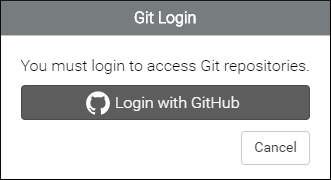
You can configure your Git plugin to allow OAuth 2.0 authentication for GitHub integrations to access files stored in a public or private repository. You will then have access to a Login with GitHub button in the Git Login dialog box. You can configure your integration either by using github.com or with a GitHub Enterprise deployment.
Figure: GitHub Login Dialog Box
Configure a Git Integration with github.com
- Login to GitHub and register a new OAuth application at https://github.com/settings/applications/new.
- Complete the form.
- The Authorization callback URL field should include the following path: [OXYGEN_WEBAUTHOR_URL]/plugins-dispatcher/github-oauth/callback, where [OXYGEN_WEBAUTHOR_URL] is the location where Web Author is deployed (for example, http://Your-Domain:8077/apps/webauthor).
- Click on Register application to obtain the Client ID and Client Secret credentials (they are displayed at the top-right section of the resulting page).
- Set your Client ID and Client Secret
credentials in your plugin configuration by doing the following:
- Go to the Administration Page.
- In the Plugins section, click on the
 Configure icon for the Git
plugin and select the GitHub tab.
Configure icon for the Git
plugin and select the GitHub tab.Figure: GitHub Plugin Configuration Dialog Box
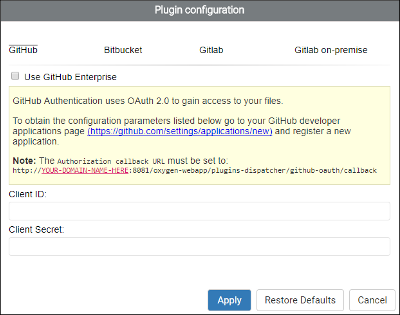
- Enter the Client ID and Client Secret in the Plugin configuration dialog box.
- Click Apply.
- Restart the Oxygen XML Web Author.
Result: You now have access to the Login with GitHub button in the Git Login dialog box.
Configure a Git Integration with a GitHub Enterprise Deployment
- Login to GitHub Enterprise and register a new developer application. The URL is:
[GithubEnterpriseUrl]/settings/applications/new.
- Complete the form.
- The Authorization callback URL field should include the following path: [OXYGEN_WEBAUTHOR_URL]/plugins-dispatcher/github-oauth/callback, where [OXYGEN_WEBAUTHOR_URL] is the location where Web Author is deployed (for example, http://Your-Domain:8077/apps/webauthor).
- Obtain the Client ID and Client Secret credentials at: [GithubEnterpriseUrl]/settings/developers.
- Set the Client ID, Client Secret, and
the API URL in your plugin configuration by doing
the following:
- Go to the Administration Page.
- In the Plugins section, click on the Configure icon for the Git
plugin, select the GitHub tab, and select the
Use GitHub Enterprise option.
Figure: GitHub Enterprise Plugin Configuration Dialog Box
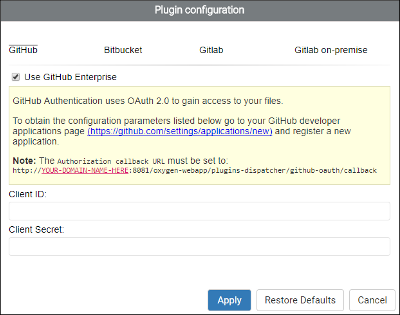
- Enter the API URL, Client ID, and Client Secret in the Plugin configuration dialog box. The API URL is the URL of your GitHub Enterprise deployment ([GithubEnterpriseUrl]).
- Click Apply.
- Restart the Oxygen XML Web Author.
Result: You now have access to the Login with GitHub button in the Git Login dialog box.
GitLab Integration
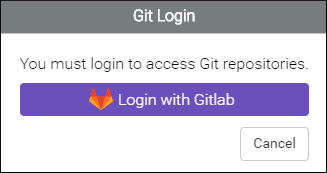
You can configure your Git plugin to allow OAuth 2.0 authentication for GitLab integrations to access files stored in a public or private repository. You will then have access to a Login with GitLab button in the Git Login dialog box. You can configure your integration either by using a GitLab or GitLab On-Premise deployment.
Figure: GitLab Login Dialog Box
Configure a Git Integration with GitLab
- Sign in or register at https://gitlab.com/profile/applications.
- Go to Applications and authorize Web Author to obtain the
configuration parameters.
- The Redirect URI should be set as: [OXYGEN_WEBAUTHOR_URL]/plugins-dispatcher/gitlab-oauth/callback, where [OXYGEN_WEBAUTHOR_URL] is the location where Web Author is deployed (for example, http://Your-Domain:8077/apps/webauthor).
- For the Scopes, select: api, and read_user.
- Set your credentials and redirect URI in your plugin configuration by
doing the following:
- Go to the Administration Page.
- In the Plugins section, click on the Configure icon for the Git
plugin and select the GitLab tab.
Figure: GitLab Plugin Configuration Dialog Box
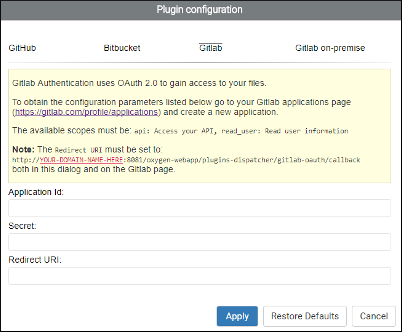
- Enter the Application ID and Secret credentials.
- The Redirect URI must be set to: [OXYGEN_WEBAUTHOR_URL]/plugins-dispatcher/gitlab-oauth/callback, where [OXYGEN_WEBAUTHOR_URL] is the location where Web Author is deployed (for example, http://Your-Domain:8077/apps/webauthor).
- Click Apply.
- Restart the Oxygen XML Web Author.
Result: You now have access to the Login with GitLab button in the Git Login dialog box.
Configure a Git Integration with a GitLab On-Premise Deployment
- Sign in to GitLab ([GitLabOnPremiseUrl]/profile/applications).
- Go to Applications and authorize Web Author to obtain the
configuration parameters.
- The Redirect URI should be set as: [OXYGEN_WEBAUTHOR_URL]/plugins-dispatcher/gitlab-oauth/callback, where [OXYGEN_WEBAUTHOR_URL] is the location where Web Author is deployed (for example, http://Your-Domain:8077/apps/webauthor).
- For the Scopes, select: api, and read_user.
- Set your credentials, API URI, and redirect URI in your plugin
configuration by doing the following:
- Go to the Administration Page.
- In the Plugins section, click on the Configure icon for the Git
plugin and select the GitLab on-premise tab.
Figure: GitLab On-Premise Plugin Configuration Dialog Box
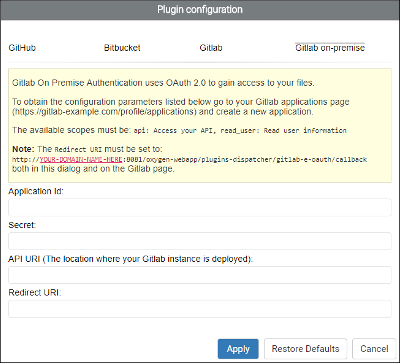
- Enter the Application ID and Secret credentials.
- Set the API URI to match the location where your GitLab instance is deployed.
- The Redirect URI must be set to: [OXYGEN_WEBAUTHOR_URL]/plugins-dispatcher/gitlab-e-oauth/callback, where [OXYGEN_WEBAUTHOR_URL] is the location where Web Author is deployed (for example, http://Your-Domain:8077/apps/webauthor).
- Click Apply.
- Restart the Oxygen XML Web Author.Result: You now have access to the Login with GitLab button in the Git Login dialog box.Important: Oxygen XML Web Author uses the GitLab web API to edit repositories and Git over HTTPS for actions that are not available using the web API. Therefore, your GitLab On-Premise deployment will not work with Oxygen XML Web Author if you disable Git over HTTPS in your deployment.Note: If your GitLab On-Premise deployment uses self-signed HTTPS certificates, Oxygen XML Web Author must be configured to automatically accept the security certificate.
Bitbucket Integration
You can configure your Git plugin to allow OAuth 2.0 authentication for Bitbucket integrations to access files stored in a public or private repository. You will then have access to a Login with Bitbucket button in the Git Login dialog box.
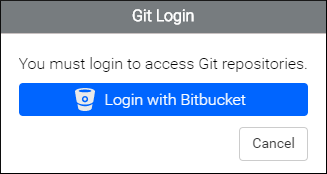
Figure: Bitbucket Login Dialog Box
- Login to the Bitbucket and go to the user settings page ( https://bitbucket.org/account).
- Go to go to the OAuth page and click Add consumer to obtain the Key and Secret credentials.
- Set your credentials in your plugin configuration by doing the following:
- Go to the Administration Page.
- In the Plugins section, click on the Configure icon for the Git
plugin and select the Bitbucket tab.
Figure: Bitbucket Plugin Configuration Dialog Box
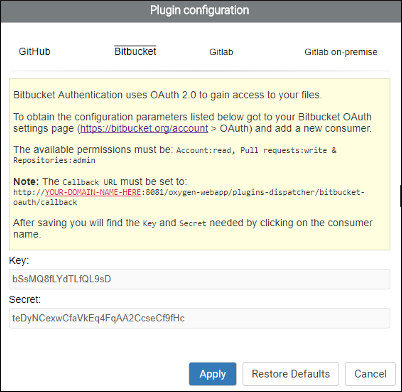
- Enter the Key and Secret credentials.
- Click Apply.
- Restart the Oxygen XML Web Author.
Result: You now have access to the Login with Bitbucket button in the Git Login dialog box.
Custom Options for the Git Plugin
- PLUGIN_CUSTOM_OPTIONS.git.enforced_user
- PLUGIN_CUSTOM_OPTIONS.git.enforced_pass
- PLUGIN_CUSTOM_OPTIONS.git.enforced_mail
<entry>
  <String>PLUGIN_CUSTOM_OPTIONS.git.enforced_user</String>
  <String>example_username</String>
</entry>
<entry>
  <String>PLUGIN_CUSTOM_OPTIONS.git.enforced_pass</String>
  <String>example_password</String>
</entry>
<entry>
  <String>PLUGIN_CUSTOM_OPTIONS.git.enforced_mail</String>
  <String>mail@example.com</String>
</entry>