WebHelp Classic System
WebHelp is a form of online help that consists of a series of web pages (XHTML format). Its advantages include platform independence, ability to update content continuously, and it can be viewed using a regular web browser. The Oxygen XML Developer WebHelp system includes several variants to suit your specific needs. The WebHelp Classic variant is designed for desktop systems when feedback from users is not necessary and it is available for DocBook and DITA document types.
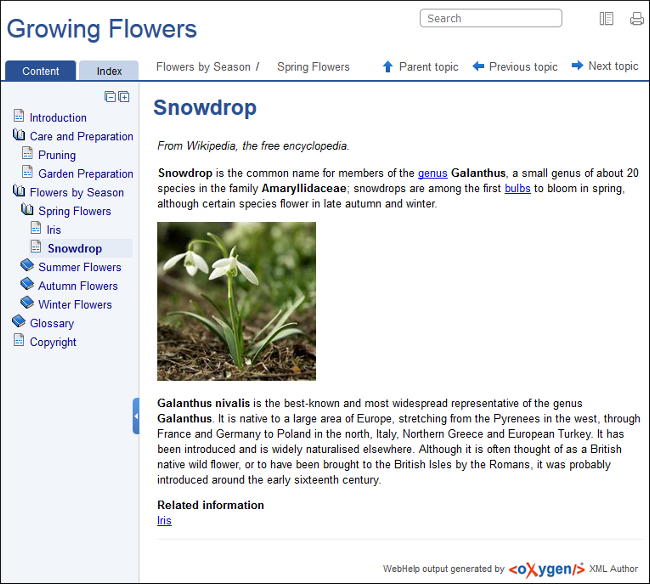
Layout of the WebHelp Classic System Interface
- Left Pane or Frame
- This section on the left side of the help system includes the following tabs:
- Content
- A typical table of contents style presentation of your content. You can use
the
 Expand all/
 Collapse all buttons to
expand or collapse all the topics presented in the Table of Contents.Note: You can enhance the appearance of items in the Table of Contents. See the Customizing WebHelp Classic Systems chapter for more details.
Collapse all buttons to
expand or collapse all the topics presented in the Table of Contents.Note: You can enhance the appearance of items in the Table of Contents. See the Customizing WebHelp Classic Systems chapter for more details. - Index
- Presents the index terms for your content. If your content does not contain
any
indextermelements, this tab is not generated. - Search Results
- This tab is generated when the Search field is used. It presents the search results in the form of links to topics where the search terms are found, along with a rating scheme for each result. For more details, see the Search Feature section.
- Upper Pane or Frame
- The upper section of the help system includes the following features:
- Search Field
- Use this feature to perform searches in your content. When you enter search terms in this field, the results are displayed in the Search Results tab in the left section of the help system, along with a rating scheme for each result. For more details, see the Search Feature section.
 Frames
Option
Frames
Option- Click on this option to display the output rendered in HTML frames.
 Print Option
- Opens a dialog box with various printing options and a print preview.
- Navigation Links
- You can navigate through the content of your output using the navigation
links or arrows in the upper-right part of the page. These arrows allow you to
move to the
 Parent
topic,
Parent
topic,  Previous
topic, or
Previous
topic, or  Next
topic. Links to the parent topics of the currently opened topic
are also presented at the top of the page. For DITA output, these navigation
links are controlled by the
Next
topic. Links to the parent topics of the currently opened topic
are also presented at the top of the page. For DITA output, these navigation
links are controlled by the collection-typeattribute.Tip: To hide the Parent, Next, and Previous links, you can edit the transformation scenario and set the value of theargs.hide.parent.linkparameter toyes.
- Main Pane or Frame
- The content of the help pages are rendered and displayed in this main section.
Figure: WebHelp Classic Output
WebHelp Classic Search Engine
- You can use quotes to perform an exact search for multiple word phrases (for example, "grow flowers" will only return results if both words are found consecutively and exactly as they are typed in the search field). This type of search is known as a phrase search.
- Boolean Search is supported using the following operators: and, or, not. When there are two adjacent search terms without an operator, or is used as the default search operator (for example, grow flowers is the same as grow or flowers).
- The space character separates keywords (an expression such as grow flowers counts as two separate keywords: grow and flowers).
indextermandkeywordsDITA elements are an effective way to increase the ranking of a page (for example, content inside a keywords element weighs more than an H1 HTML element).- Words composed by merging two or more words with colon (":"), minus ("-"), underline ("_"), or dot (".") characters count as a single word.
- Your search terms should contain two or more characters (note that stop words will be ignored). This rule does not apply to CJK (Chinese, Japanese, Korean) languages.
- Search entries that satisfy the phrase search criterion are presented first.
- The number of keywords found in a single page (the higher the number, the better).
- The context (for example, a word found in a title scores better than a word found in
unformatted text). The search ranking order, sorted by relevance is as follows:
- The search term is included in a meta keyword
- The search term is in the title of the page
- The search term is in bold text in a paragraph
- The search term is in normal text in a paragraph
To improve performance, the Search feature excludes certain stop words. For example, the English version of such stop words include: a, an, and, are, as, at, be, but, by, for, if, in, into, is, it, no, not, of, on, or, such, that, the, their, then, there, these, they, this, to, was, will, with.
WebHelp Classic Search Results Tab
When you enter search terms in the Search field at the top of the help system, the results are displayed in the Search Results tab in the left section. When you click on a result in the Search Results tab, that result is displayed in the main pane with the search terms highlighted. If you press Enter with the Search field empty, the highlights are removed.
Figure: WebHelp Classic Search Results Tab
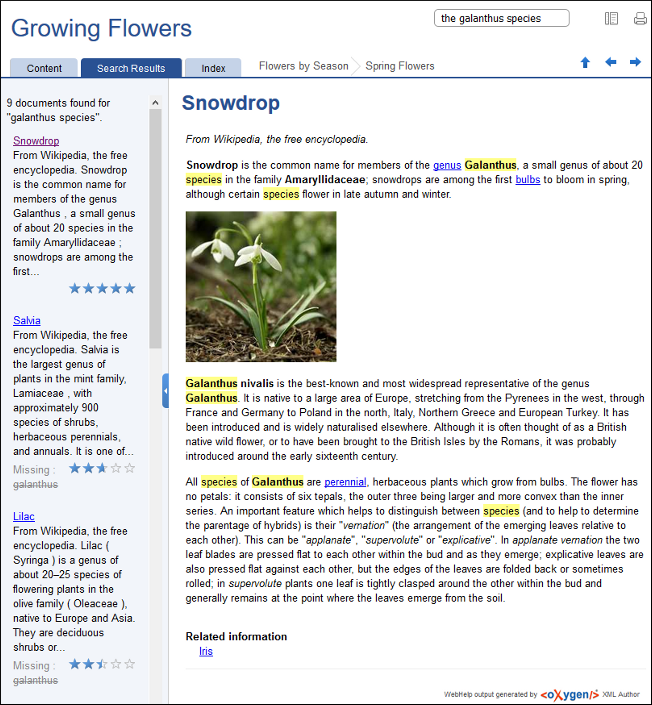
If you enter multiple search terms (other than stop words), for any result that the search engine found at least one term but not one or more of the other terms, the Missing terms will be listed below each result.
HTML tag elements are also assigned a scoring value and these values are evaluated for the search results. For information about editing these values, see Editing Scoring Values of Tag Elements in Search Results.
- Edge
- Internet Explorer (IE 10 or newer)
- Chrome
- Firefox
- Safari
- Opera