Inserting Special Characters
You can insert symbols and other special characters by using the Character
Map dialog box that can be opened with the Edit >  Insert
from Character Map action. If you have chosen to display the
Symbols toolbar (in the Configure
Toolbars dialog box), you can also use the
Insert
from Character Map action. If you have chosen to display the
Symbols toolbar (in the Configure
Toolbars dialog box), you can also use the  Symbols drop-down menu to insert some of the
most commonly used symbols and selecting More symbols from that menu
will also open the Character Map dialog box.
Symbols drop-down menu to insert some of the
most commonly used symbols and selecting More symbols from that menu
will also open the Character Map dialog box.
Figure: Character Map Dialog Box
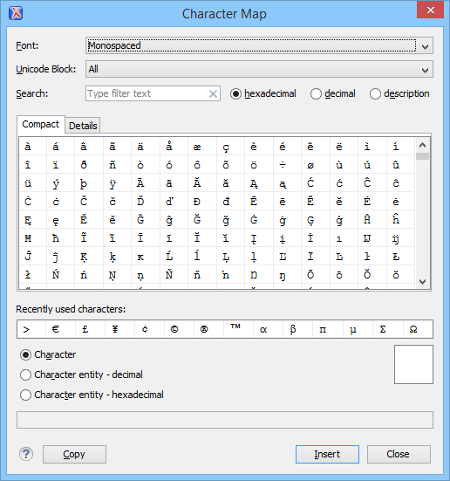
- Font
- Use this drop-down list to choose the font for which you want to display characters.
- Unicode Block
- Use this drop-down list to only see a certain range of characters. This will filter the number of characters displayed, showing only a contiguous range of characters corresponding to the selected block. Unassigned characters are displayed as empty squares.
- Search
- Use this filter to search for a character by one of the following attributes:
- hexadecimal
- decimal
- descriptionNote: Selecting description opens the Details tab. If you enter a character description in the Search field, tdescription is selected automatically.
- Character Table Section
- The characters that are available to be inserted are listed in two tabs:
- Compact - Matrix-like table that displays a visual representation of the characters.
- Details - Displays the available characters in a tabular format, presenting their decimal and hexadecimal value along with their description.
- Recently Used Characters Section
- Displays the symbols that you have used recently and you can also select one from there to insert it in the current document.
- Character Mode Section
- The next section of the dialog box allows you to select how you want the character to
appear in your document. You can choose between the following:
- Character
- Character entity - decimal
- Character entity - hexadecimal
You can see the character or code that will be inserted in your document next to the selections in this section. You can also see the name and range name of a character either at the bottom of the dialog box, or in a tooltip when hovering the cursor over the character.
Press the Insert button to insert the selected character in the current editor at cursor position. You will see the character in the editor if the editor font is able to render it. The Copy button copies it to the clipboard without inserting it in the editor.