New Document Wizard
Oxygen XML Developer supports a wide range of document types. The New Document wizard presents the default associations between a file extension and the type of editor that opens the file. To customize these default associations, open the Preferences dialog box and go to File Types.
The New Document wizard only creates a skeleton document. It may contain a root element, the document prolog, and possibly other child elements depending on options that are specific for each schema type.
New Document Wizard
- Click the
 New button on the toolbar or select .
Result: The New Document wizard is displayed:
Figure: New Document Wizard
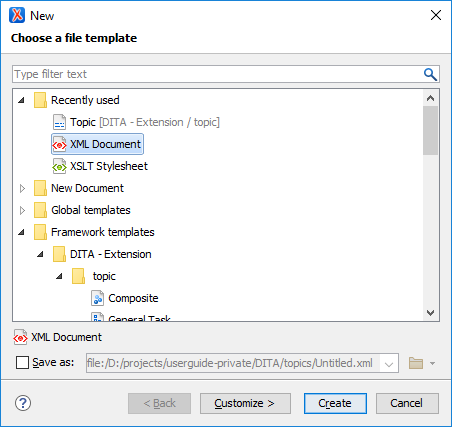 The first page of the wizard displays the supported document types and groups them in the following categories:
- Recently Used - Contains the list of the most recently used file types.
- New Document - Contains the list of all supported document types. This list includes XML, XSL, XML Schema, Document Type Definition, Relax NG Schema, XQuery, web Services Definition Language, Schematron Schema, CSS, Text, PHP, JavaScript, Java, C, C++, Batch, Shell, Properties, SQL, XML Catalog, PERL, and more.
- Global Templates - Contains the list of predefined templates as well as user-defined custom templates. You can create your own custom file templates and add them to the templates folder of the Oxygen XML Developer installation directory. You can also specify an additional directory to use for the templates in the Document Templates preferences page.
- Framework Templates - Contains the list of templates defined in the Document Type configuration dialog box (Templates tab) for each framework.
- Select the type of document that you want to create.Tip: You can use the text filter field at the top of the dialog box to search for a specific template.
- If you want to change the default name and path of the file, select
the Save as option and specify the file path (the Show "Save as" option to save newly created documents in the "New"
document wizard option must be selected in the
Open/Save preferences page). Otherwise, the file will be opened
in a new tab with a default untitled name and the document path will not yet
exist until you save it.Note: For DITA documents, the dialog box includes some additional options for generating a title, file name, and root ID attribute.
- If you want to use the default settings in the creation process, select
Create at the bottom of the dialog box.
Result: The document is created using the default settings and the new file is opened in the appropriate editor.
- If you want to configure properties before creating the file, select
Customize. This action is available for XML, XML Schema,
Schematron, and XSL documents.
Result: A new file configuration dialog box is opened that allows you to customize various options, depending on the document type you selected. After configuring the options in this wizard, click Create to create the file and open it in the appropriate editor.
XML Document File Type
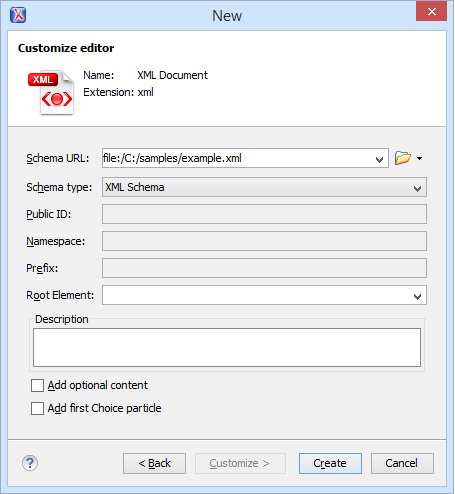
Figure: New XML Document Configuration Wizard Page
 XML Document
for the type of file you want to create and selected the Customize
option, the configuration dialog box will include the following options:
XML Document
for the type of file you want to create and selected the Customize
option, the configuration dialog box will include the following options:- Schema URL - Specifies the path to the schema file. When you select a file, Oxygen XML Developer analyzes its content and tries to fill in the rest of the dialog box.
- Schema Type - Allows you to select the schema type. The following options are available: XML Schema, DTD, RelaxNG XML syntax, RelaxNG compact syntax, and NVDL.
- Public ID - Specifies the PUBLIC identifier declared in the document prolog.
- Namespace - Specifies the document namespace.
- Prefix - Specifies the prefix for the namespace of the document root.
- Root Element - Populated with elements defined in the specified schema, enables selection of the element used as document root.
- Description - A small description of the selected document root.
- Add Optional Content - If you select this option, the elements and attributes defined in the XML Schema as optional are generated in the skeleton XML document.
- Add First Choice Particle - If you select this option, Oxygen XML Developer generates the first element of an
xs:choiceschema element in the skeleton XML document. Oxygen XML Developer creates this document in a new editor panel when you click OK.
XSLT Stylesheet File Type
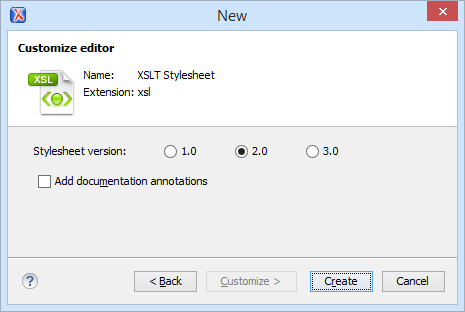
Figure: New XSLT Stylesheet Configuration Wizard Page
 XSLT Stylesheet
for the type of file you want to create and selected the Customize
option, the configuration dialog box will include the following options:
XSLT Stylesheet
for the type of file you want to create and selected the Customize
option, the configuration dialog box will include the following options:- Stylesheet version - Allows you to select the Stylesheet version number. You can select from: 1.0, 2.0, and 3.0.
- Add documentation annotations - Select this option to generate the stylesheet annotation documentation.
XML Schema File Type
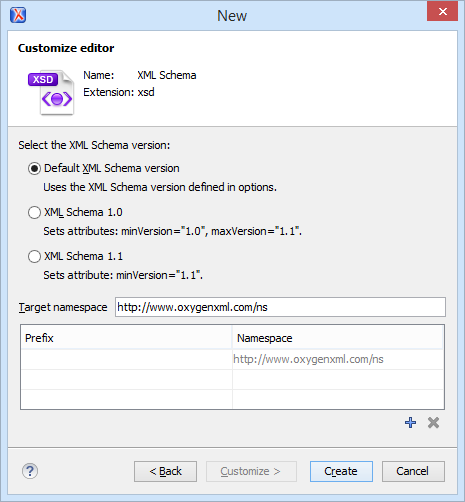
Figure: New XML Schema Configuration Wizard Page
 XML Schema for
the type of file you want to create and selected the Customize
option, the configuration dialog box will include the following options:
XML Schema for
the type of file you want to create and selected the Customize
option, the configuration dialog box will include the following options:- Default XML Schema version - Uses the XML Schema version defined in the XML Schema preferences page.
- XML Schema 1.0 - Sets the
minVersionattribute to 1.0 and themaxVersionattribute to 1.1. - XML Schema 1.1 - Sets the
minVersionattribute to 1.1. - Target namespace - Allows you to specify the schema target namespace.
- Namespace prefix declaration table - This table contains
namespace prefix declarations. Table information can be managed using the
 New
and
New
and  Delete buttons.Tip: For further details on how you can set the version of an XML Schema, go to Setting the XML Schema Version.
Schematron File Type
Figure: New Schematron Configuration Wizard Page
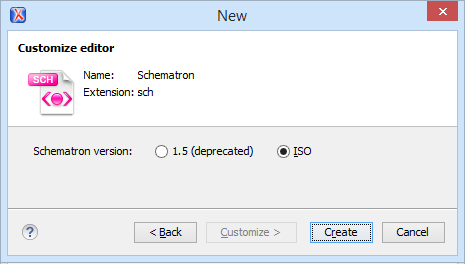
 Schematron for the type of file you want to create and selected the
Customize option, the configuration dialog box will include the
following option:
Schematron for the type of file you want to create and selected the
Customize option, the configuration dialog box will include the
following option:- Schematron version - Specifies the Schematron version. Possible
options: 1.5 (deprecated) and
ISO.Note: Starting with version 16.0 of Oxygen XML Developer, the support for Schematron 1.5 is deprecated. It is recommended to use ISO Schematron instead.