Editing a Transformation Scenario
- Select the
 Configure
Transformation Scenario(s) (Ctrl + Shift
+ C (Command + Shift + C on OS X)) action from the
toolbar or the menu.
Configure
Transformation Scenario(s) (Ctrl + Shift
+ C (Command + Shift + C on OS X)) action from the
toolbar or the menu.Step Result: The Configure Transformation Scenario(s) dialog box is opened.
- Select the particular transformation scenario and click the Edit
button at the bottom of the dialog box or from the contextual menu.Tip: You could also select the scenario and the
 Edit button in the Transformation Scenarios view to achieve the same
result.
Edit button in the Transformation Scenarios view to achieve the same
result.
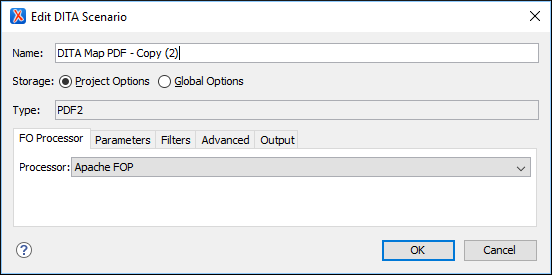
Result: This will open an Edit scenario configuration dialog box that allows you to configure various options in several tabs, depending on the type of transformation scenario that was selected.
Figure: Edit Scenarios Configuration Dialog Box
Transformation Types
The Configure Transformation Scenario(s) dialog box contains a Type column that shows you the transformation type for each of the listed scenarios. Each type of transformation contains includes some tabs with various configuration options.
The following is a list of the transformation types and their particular tabs (click the name of each tab below to see details about all the options that are available):
- DITA OT - This type of transformation includes configurable options in the
following tabs:
- Skins Tab (Available for WebHelp Classic and WebHelp Classic with Feedback)
- Templates Tab (Available for WebHelp Responsive and WebHelp Responsive with Feedback)
- FO Processor Tab (Available for PDF output)
- Parameters Tab
- Filters Tab
- Advanced Tab
- Output Tab
- ANT - This type of transformation includes configurable options in the following tabs:
- XSLT - This type of transformation includes configurable options in the following tabs:
- XProc - This type of transformation includes configurable options in the following tabs:
- XQuery - This type of transformation includes configurable options in the following tabs: