Configuring the Layout of the Views and Editors
All the Oxygen XML Developer views available in the Editor, XSLT Debugger, and XQuery Debugger perspectives are dockable and there are various ways to configure and arrange the layout of the views and editing panes. You can also configure the layout of the toolbars.
To open a view, select it from the menu. You can hide a view by closing it with the  button at the top-right corner of the
view, or with the action.
button at the top-right corner of the
view, or with the action.
Arranging the Layout
The changes you make to any layout are preserved between working sessions. The predefined layout files are saved in the preferences directory of Oxygen XML Developer.
To gain more editing space in the Oxygen XML Developer window, click  Toggle auto-hide
in any view. This button sets the view in the auto-hide state, making it visible only
as a vertical tab, at the margins of the Oxygen XML Developer window. To display a view in
the auto-hide state, hover its side-tab with your cursor, or click it to keep the
view visible until you click elsewhere. A view can also be set to a floating state by using
the Toggle floating action, making it independent from the rest of
the Oxygen XML Developer window.
Toggle auto-hide
in any view. This button sets the view in the auto-hide state, making it visible only
as a vertical tab, at the margins of the Oxygen XML Developer window. To display a view in
the auto-hide state, hover its side-tab with your cursor, or click it to keep the
view visible until you click elsewhere. A view can also be set to a floating state by using
the Toggle floating action, making it independent from the rest of
the Oxygen XML Developer window.
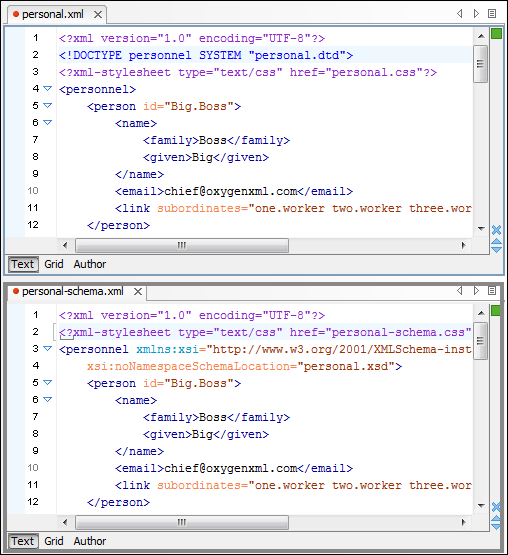
You can drag the editors and arrange them in any order, both horizontally and vertically.
The following image presents two editors arranged as horizontal tiles. To arrange them vertically, drag one of them on top of the other. In this example, the personal.xml file was dragged over the personal-schema.xml file. When doing this, a dark gray rectangle marks the rearranged layout.
Figure: Drag and Drop Editors
Tile/Stack Editor Actions
 Tile
Editors Horizontally
Tile
Editors Horizontally- Splits the editing area into horizontal tiles, one for each open file.
 Tile
Editors Vertically
Tile
Editors Vertically- Splits the editing area into vertical tiles, one for each open file.
 Stack
Editors
Stack
Editors- The reverse of the Tile Editors Horizontally/Vertically actions. Stacks all open editors.
 Synchronous Scrolling
- Select this action to scroll through the tiled editors at the same time.
Split Editor Actions
 Split
Editor Horizontally - Splits the editor horizontally. This is useful for
comparing and merging content between two documents.
Split
Editor Horizontally - Splits the editor horizontally. This is useful for
comparing and merging content between two documents. Split
Editor Vertically - Splits the editor vertically. This is useful for
comparing and merging content between two documents.
Split
Editor Vertically - Splits the editor vertically. This is useful for
comparing and merging content between two documents. Unsplit
Editor - Removes a split action on the editing area.
Unsplit
Editor - Removes a split action on the editing area.
Switch or Move Editor Tabs
Each file that has been opened has a tab at the top of the editing pane and there are several ways to switch between tabs or move them.
- Mouse and Scroll Wheel
- Of course, you can switch to a different editor tab by left-clicking the tab with your mouse, but when there are too many tabs opened to fit on the screen, you can hover over the tab stripe and use the scroll wheel on your mouse to scroll to the left or right (same as using the two arrows on the far-right of the tab stripe).
- Buttons on the Far-Right of the Tab Stripe (

 )
) - You can use the arrow buttons () on the
right side of the tab stripe to scroll to the left or right and the Show List button opens a
pop-up window that displays all the opened file tabs and allows you to select and
switch to a specific opened file.
- Ctrl + Tab (Command + Tab on OS X) [NOTE: Ctrl + Page Down (Ctrl + Alt + Right Arrow on OS X) does the same]
- Switches to the next opened tab in the order specified in the Order of switching between editor tabs option.
- Ctrl + Shift + Tab (Command + Shift + Tab on OS X) [NOTE: Ctrl + Page Up (Ctrl + Alt + Left Arrow on OS X) does the same]
- Switches to the previous opened tab in the order specified in the Order of switching between editor tabs option.
- (Ctrl + F9 (Command + F9 on OS X))
- This action opens a dialog box that allows you to switch to a particular editor tab
by selecting it from a filterable list. This is especially helpful when you have a
large amount of file tabs opened and you want to switch to a certain tab this is not
shown on the screen. It includes a search filter field and several options to help you
find specific opened file tabs.
Figure: Switch Editor Tab Dialog Box
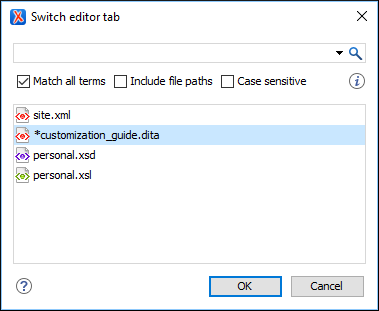 The Switch Editor Tab dialog box contains the following options and features:
- Search Filter
- You can enter text in the filter field at the top of the dialog box to
filter the list and search for specific opened files. You can enter any number
of terms, separated by space, and wildcards are allowed (for example,
*to match any sequence of characters or?to match a single character). This field also has a history drop-down that allows you to select previously used search terms. - Match all terms
- If this option is selected, only the files that match all of your search terms will be displayed. If you use a wildcard in the search filter, this option is automatically disabled.
- Include file paths
- If this option is selected, the search is expanded to include file paths, and also the paths are displayed in this dialog box.
- Case sensitive
- If this option is selected, the search operation will be case-sensitive.
- List of Opened File Tabs
- All files that are currently opened are displayed in the main pane of the dialog box. Files that have been modified but not yet saved are prefixed by an asterisk. To switch to a particular file tab, double-click the file or select it and click OK.
- Mouse Drag
- You can use your mouse to drag editor tabs to a new location on the tab stripe.
- Ctrl + Alt + Comma
- Moves the current file tab one position to the left.
- Ctrl + Alt + Period
- Moves the current file tab one position to the right.
For more information about configuring the interface of Oxygen XML Developer, watch our video demonstration: