The Check Spelling in Files
action allows you to check the spelling on multiple local or remote documents. This action is
available in the following locations:
The Edit
menu.
The contextual menu of the Project view.
The contextual menu of the
DITA Maps Manager view.
The spelling corrections are displayed in the Results view, that allows you to group the
reported errors as a tree with two levels.
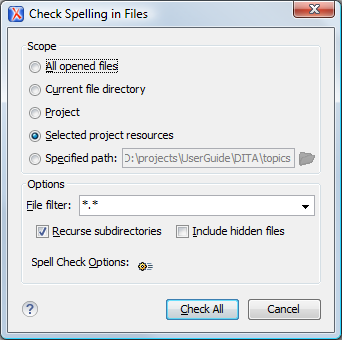
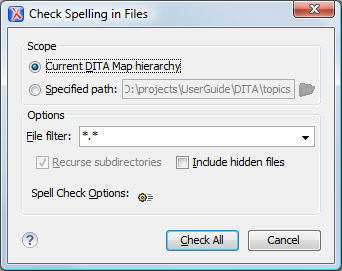
Figure: Check Spelling in Files Dialog Box
The following scopes are available:
All opened files - The spell check is performed in all opened
files.
Directory of the current file - All the files in the folder of the
current edited file.
Project files - All files from the current project.
Selected project files - The selected files from the current
project.
Specified path - Checks the spelling in the files located at a path
that you specify.
The Options section includes the following options:
File filter - Allow you to filter the files from the selected
scope.
Recurse subdirectories - When enabled, the spell check is performed
recursively for the specified scope. The one exception is that this option is ignored if the
scope is set to All opened files.
Include hidden files - When enabled, the spell check is also
performed in the hidden files.
 Check Spelling in Files
action allows you to check the spelling on multiple local or remote documents. This action is
available in the following locations:
Check Spelling in Files
action allows you to check the spelling on multiple local or remote documents. This action is
available in the following locations: