Using the Oxygen XML Web Author with a GitHub Repository
Oxygen XML Web Author includes a GitHub plugin that allows you to edit files stored in a GitHub repository. The procedure in this topic assumes that this plugin is enabled in your installation of Oxygen XML Web Author.
Open or Create File Stored in GitHub
To open a file stored in a GitHub repository, use the dedicated GitHub icon in the Open section of the main dashboard. To create a new file, use the dedicated GitHub icon in the New section. If your connection has not yet been configured, a Configure GitHub dialog box will be displayed that allows you to select the URL for the connection. For information, see Creating or Opening Documents in Oxygen XML Web Author.Commit a File to GitHub
To commit a file to a GitHub repository, select the Commit on GitHub action (or use the Ctrl + S (Command + S on OS X) shortcut). A dialog box will be opened that allows you to enter a commit message and choose the branch for which the commit will be processed (you can also edit the name of the branch in this dialog box). It also includes a Choose a previously entered comment drop-down menu that allows you to select previously used commit message.- When committing on a branch that is different from the branch of the currently opened document and the branch does not exist, Oxygen XML Web Author will attempt to create it.
- If someone else has committed the current document since you last opened it (causing
conflicts), a Commit Status confirmation dialog box will appear.
Figure: Commit Status Dialog Box
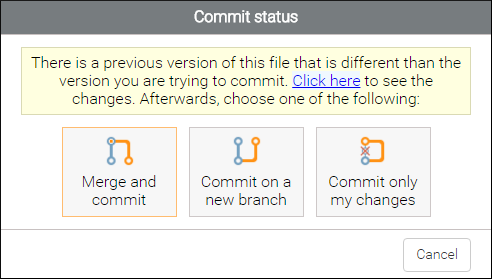 The Commit Status dialog box allows you to choose the following options:
- Click here link - You can click the link at the top of the dialog box to see the difference between the two commits.
- Merge and commit - Merges your changes with versions that were committed by other people and commits the merged changes.
- Commit on a new branch - Creates a new branch that contains your version of the document so that you can merge the changes at a later time, after the conflicts have been solved.
- Commit only my changes - Commits your changes regardless of whether or not there was a conflict, and the changes made by the other user are lost.
- Cancel - Cancels the operation and your changes are not committed to the repository. Before cancelling, you could click the link at the top to see the differences, correct the conflicts manually, and then commit afterwards using the Commit only my changes option.