The Project view is designed to assist the user in organizing and managing related files grouped in the same XML project. The actions available on the context menu and toolbar associated to this panel, enable the creation of XML projects and shortcuts to various operations on the project documents.
Figure: The Project View
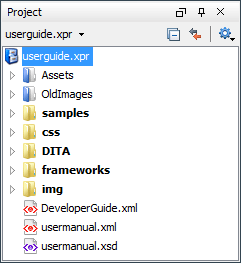
By default, the Project view is positioned on the left side of the Oxygen XML Author window, above the Outline view. A closed view can be quickly reopened at any time with the menu action.
The tree structure occupies most of the view area. In the
upper left side of the view, there is a drop-down list that contains all recently used
projects and project management actions:
The following actions are grouped in the upper right corner:
 Collapse
All
Collapse
All- Collapses all project tree folders. You can also collapse/expand a project tree folder if you select it and press the Enter key or Left Arrow to collapse and Right Arrow to expand.
 Link with
Editor
Link with
Editor- When selected, the project tree highlights the currently edited file, if it is found
in the project files. Note: This button is disabled automatically when you move to the Debugger perspective.
 Settings
- A sub-menu that contains the following actions:
 Filters...
- Allows you to filter the information displayed in the Project view. Click the toolbar button to set filter patterns for the files you want to show or hide. Also, you can set filter patterns for the linked directories that are hidden.
- Show Full Path
- When selected, linked files and folders are presented with a full file path.
- Enable Master Files Support
- Select this option to enable the Master Files support.
- Change Search and Refactor operations scope...
- Allows you to change the collection of documents that define the context of the
search and refactor operations.
- Use only Master Files, if enabled - Restricts Oxygen XML Author to perform the search and refactor operations starting from the master files that are defined for the current resource. This option is available when you select Project in the Select the scope for Search and Refactor operations dialog and the Master Files support is enabled.
- Working sets - Allow you to specify the set of files on which the search and refactor operations will act on.
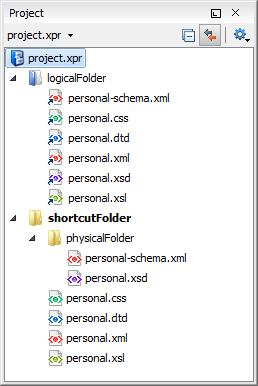
The files are usually organized in an XML project as a collection of folders. There are three types of resources displayed in the Project view:
- Logical folders - marked with a blue icon
on Windows and Unix/Linux (
 ) and a magenta
icon on Mac OS X (
) and a magenta
icon on Mac OS X ( ). They help you group
files within the project. This folder type has no correspondent on the physical disk, since
they are used as containers for related items. Creating and deleting them does not affect
the file system on disk. They are created on the project root or inside other logical
folders by using the contextual action . The contextual menu action
). They help you group
files within the project. This folder type has no correspondent on the physical disk, since
they are used as containers for related items. Creating and deleting them does not affect
the file system on disk. They are created on the project root or inside other logical
folders by using the contextual action . The contextual menu action  Remove from
Project can be used to remove them from the project.
Remove from
Project can be used to remove them from the project. - Physical folders and files - marked with the operating system-specific icon
for folders (usually a yellow icon on Windows and a blue icon on Mac OS X). These folders
and files are mirrors of real folders or files that exist in the local file system. They are
created or added to the project by using contextual menu actions (such as , , , etc.) Also, the contextual menu
action
 Remove from
Disk (Shift+Delete) can be used to remove them from the project and local
file system.
Remove from
Disk (Shift+Delete) can be used to remove them from the project and local
file system. - Shortcut folders and files - the icons
for file shortcuts include a shortcut symbol and names of folder shortcuts are displayed
in bold text. All files and folders that appear as direct descendants
of a logical folder are considered shortcuts. They are created and added with the
contextual actions Add Files... and Add
Folder... from the project root. Both contextual menu actions
Remove
from Project and Remove from Disk (Shift+Delete) are available for
shortcuts. Remove from Project just removes the shortcut from the project, while
Remove from
Disk (Shift+Delete) removes the shortcut and the physical resource from the
local file system.
Figure: The Project View with Examples of all Three Types of Resources
Creating New Project Items
The following actions are available by selecting New from the
contextual menu, when invoked from the project root:
- New >
 File...
 - Creates a new file and adds it to the project structure.
- New > Logical Folder...
- Creates a logical folder in the tree structure (the icon is a magenta folder on Mac
OS X - ).
- Replicates the structure of a remote folder accessible over FTP/SFTP/WebDAV, as a structure of logical folders. The newly created logical folders contain the file structure of the folder it points to.
 New
Project...
New
Project...- Creates a new, empty project.
Add Content to a Logical Folder
The project itself is considered a logical folder. You can add content to a logical folder
using one of the actions available in the contextual menu:
 Add Folder...
- Adds a link to a physical folder, whose name and content mirror a real folder that
exists in the local file system (the icon of this action is different on Mac OS X
 ).
).  Add
Files...
Add
Files...- Adds links to files on the local file system.
 Add
Edited File
Add
Edited File- Adds a link to the currently edited file in the project.
Managing Project Content
Creating/Adding Files and
Folders
You can create linked
folders (shortcuts) by dragging and dropping folders from the Windows Explorer / Mac OS X
Finder to the project tree, or by selecting Add Folder... in the
contextual menu from the project root. To create a file inside a linked folder, select the New > File... action from the contextual menu.
File... action from the contextual menu.Note: The linked files presented in the
Project view are marked with a special icon. Linked folders are
displayed in bold text.
You can create physical folders by selecting from the contextual menu.
When adding files to a project, the default target is the project root. To change a target, select a new folder. Files may have multiple instances within the folder system, but cannot appear twice within the same folder.
Removing Files and Folders
To remove one or more linked files or folders, select them
in the project tree and press the Delete key,
or select the contextual menu action Remove from Project. To remove a linked file or
folder from both project and local file system, select the contextual menu action
Remove from
Disk (Shift+Delete). The Remove from Disk (Shift+Delete) action is also used
to remove physical files or folders.
Remove from Project. To remove a linked file or
folder from both project and local file system, select the contextual menu action
Remove from
Disk (Shift+Delete). The Remove from Disk (Shift+Delete) action is also used
to remove physical files or folders.CAUTION:
In most cases this action is
irreversible, deleting the file permanently. Under particular circumstances (if you are
running a Windows installation of Oxygen XML Author and the Recycle Bin is
active) the file is moved to Recycle Bin.
Moving Files and
Folders
You can move the resources of the project with drag and drop operations on the files and folders of the tree.
You can also use the usual  Cut,
Cut,  Copy, and
 Paste
actions to move resources in the Project view.
Paste
actions to move resources in the Project view.
Renaming Files and Folders
There are three ways you can rename
an item in the Project view. Select the item in the
Project view and do one of the following:
- Invoke the Rename action from the contextual menu.
- Press F2 and type the new name.
- Click the selected item and type the new name.
To finish editing the item name, press Enter.
Note: The Rename action is
also available on logical files.
Locating and Opening Files
If a project folder contains a lot of documents, a certain document can be located quickly in the project tree by selecting the folder containing the desired document and typing the first few characters of the document name. The desired document is automatically selected as soon as the typed characters uniquely identify its name in the folder.
The selected document can be opened by pressing the Enter key, by double-clicking it, or with one of the Open actions from the contextual menu. The files with known document types are opened in the associated editor, while binary files are opened with the associated system application. To open a file with a known document type in an editor other than the default one, use the Open with action. Also, dragging and dropping files from the project tree to the editor area results in the files being opened.
Saving the
Project
The project file is automatically saved every time the content of the Project view is saved or modified by actions such as adding or removing files and drag and drop.
Validate Files
The currently selected files in the Project view can be checked to be XML well-formed or validated against a schema (DTD, XML Schema, Relax NG, Schematron or NVDL) with one of the following contextual menu actions found in the Validate sub-menu:
 Check
Well-Formedness
Check
Well-Formedness- Checks if the selected file or files are well-formed.
 Validate
- Validates the selected file or files against their associated schema. EPUB files make an exception, because this action triggers a Validate and Check for Completeness operation.
- Validate with Schema...
- Validates the selected file of files against a specified schema.
 Configure Validation Scenario(s)...
- Allows you to configure and run a validation scenario.
Applying Transformation Scenarios
The currently selected files in the Project view can be transformed in one step with one of
the following actions available from contextual menu in the Transform sub-menu:
- Transform >
 Apply
Transformation Scenario(s)
Apply
Transformation Scenario(s) - Obtains the output with one of the built-in scenarios.
- Transform >
 Configure Transformation Scenario(s)...
 - Opens a dialog that allows you to configure pre-defined transformation scenarios.
- Transform > Transform with...
- Allows you to select a transformation scenario to be applied to the currently selected files.
Other Contextual Menu Actions
Other actions that are available in the contextual menu from the project tree include:
 Open
Open- Displays the Open file dialog.
- Open with submenu
- This submenu allows you to open the selected file with the internal editor, a system application, or other internal tools: DITA Maps Manager, Archive Browser, MathML Editor, Large File Viewer, Hex Viewer, SVG Viewer.
- Open All Files (when a folder or multiple files/folders are selected)
- Opens all the selected files with the corresponding editors.
- Show in Explorer (or Show in Finder on OS X)
- In Windows, the content of the selected folder or file is presented in a specific explorer window. On MAC OS X, the parent folder is opened and the selected folder is highlighted in a specific finder window.
- (Available for certain document types (such as XML, XSD, and XSL files)
- Allows you to change the name of a resource.
- (Available for certain document types (such as XML, XSD, and XSL files)
- Allows you to change the location on disk of a resource.
- Refactoring >
 XML
Refactoring...
XML
Refactoring... - Opens the XML Refactoring tool wizard that presents refactoring operations to assist you with managing the structure of your XML documents.
 Refresh
- Refreshes the content and the dependencies between the resources in the Master Files directory.
 Find/Replace in Files...
- Allows you to find and replace text in multiple files.
 XPath in
Files...
XPath in
Files...- Opens the XPath/XQuery Builder view that allows you to compose XPath and XQuery expressions and execute them over the currently edited XML document.
 Open/Find
Resource...
Open/Find
Resource...- Opens the Open/Find Resource dialog box.
 Check
Spelling in Files...
Check
Spelling in Files...- Allows you to check the spelling of multiple files.
 Format and
Indent
Format and
Indent- Opens the Format and Indent dialog box that allows you to configure the format and indent (pretty print) action that will be applied on the selected document.
 Open in
SVN Client...
Open in
SVN Client...- Syncro SVN Client tool is opened and it highlights the selected resource in its corresponding working copy.
- Compare...
- Opens the Compare Directories or Compare Files tool.
 Properties
- Displays the properties of the current file in a Properties dialog box.
Menu Level Actions
The following actions are available in the Project menu:
- New
Project...
- Creates a new, empty project.
 Open Project ...
(Ctrl F2 (Command F2 on OS
X)
Open Project ...
(Ctrl F2 (Command F2 on OS
X)- Opens an existing project. Alternatively, you can open a project by dropping an Oxygen XML Author XPR project file from the file explorer into the Project panel.
- Save Project As...
- Allows you to save the current project under a different name.
 Validate
all project files
Validate
all project files- Checks if the project files are well-formed and their mark-up conforms with the specified DTD, XML Schema, or Relax NG schema rules. It returns an error list in the message panel.
- Filters
- Opens the Project filters dialog that allows you to decide which files and directories will be shown or hidden.
- Enable Master Files Support
- Allows you to enable the Master Files Support for each project you are working on.
 Change Search and Refactor operations scope
- Opens a dialog that allows you to define the context of search and refactor operations.
- Show Project View
- Displays the project view.
- Reopen Project
- Contains a list of links of previously used projects. This list can be emptied by invoking the Clear history action.