A variety of actions are available in the DocBook 4 framework that can be added to the DocBook4 menu, the Author custom actions toolbar, the contextual menu, and the Content Completion Assistant. The following default actions are included in the toolbar and the DocBook4 menu and are readily available when editing in Author mode (most of them are also available, by default, in the contextual menu):
 Bold emphasized
text
Bold emphasized
text- Emphasizes the selected text by surrounding it with <emphasis role="bold"> tag. You can use this action on multiple non-contiguous selections.
 Italic emphasized
text
Italic emphasized
text- Emphasizes the selected text by surrounding it with <emphasis role="italic"> tag. You can use this action on multiple non-contiguous selections.
 Underline
emphasized text
Underline
emphasized text- Emphasizes the selected text by surrounding it with <emphasis role="underline"> tag. You can use this action on multiple non-contiguous selections.
 Link
Actions Drop-Down List
Link
Actions Drop-Down List-
The following link actions are available from this list:
- Cross reference (link) - Inserts a hypertext link.
- Cross reference (xref) - Inserts a cross reference to another part of the document.
- Web Link (ulink) - Inserts a link that addresses its target with a URL (Universal Resource Locator).
- Insert olink - Inserts a link that addresses its target
indirectly, using the targetdoc and targetptr
values that are present in a Targetset file.
Figure: Insert OLink Dialog Box
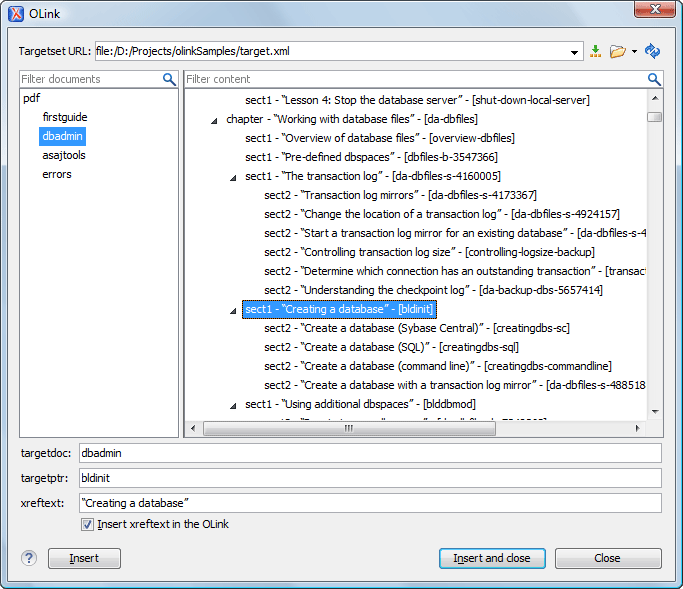
After you choose the Targetset URL, the structure of the target documents is presented. For each target document (targetdoc), the content is displayed allowing you to easily identify the targetptr for the olink element that will be inserted. You can use the search fields to quickly identify a target. If you already know the values for the targetdoc and targetptr, you can insert them directly in the corresponding fields. You can also edit an olink using the Edit OLink action that is available on the contextual menu. The last used Targetset URL will be used to identify the edited target.
- Insert URI - Inserts an URI element. The URI identifies a Uniform Resource Identifier (URI) in content.
 Insert image
reference
Insert image
reference- Inserts an image reference at the caret position. Depending on the current context, an image-type element is inserted.
 Insert
XInclude
Insert
XInclude- Opens a dialog box that allows you to browse and select content to be included and automatically generates the corresponding XInclude instruction.
 Insert
Section Drop-Down List
Insert
Section Drop-Down List- The following link actions are available from this list:
 Insert
Section - Inserts a new section or subsection in the document, depending
on the current context. For example, if the current context is sect1
then a sect2 is inserted. By default, this action also inserts a
para element as a child node. The para element can
be deleted if it is not needed.
Insert
Section - Inserts a new section or subsection in the document, depending
on the current context. For example, if the current context is sect1
then a sect2 is inserted. By default, this action also inserts a
para element as a child node. The para element can
be deleted if it is not needed. Promote Section - Inserts the current node as a
brother of the parent node.
Promote Section - Inserts the current node as a
brother of the parent node. Demote Section - Inserts the current node a
child of the previous node.
Demote Section - Inserts the current node a
child of the previous node.
 Insert a new
paragraph
Insert a new
paragraph- Insert a new paragraph at current cursor position.
 Insert a MathML
equation
Insert a MathML
equation- Opens the XML Fragment Editor that allows you to insert and edit MathML notations.
 Insert a step
or list Item
Insert a step
or list Item- Inserts a new step or list item in the current list type.
 Insert an
ordered list at the caret position
Insert an
ordered list at the caret position- Inserts an ordered list. A child list item is also automatically inserted by default.
 Insert
an unordered list at the caret position
Insert
an unordered list at the caret position- Inserts an itemized list. A child list item is also automatically inserted by default.
 Insert a
variable list at the caret position
Insert a
variable list at the caret position- Inserts a DocBook variable list. A child list item is also inserted automatically by default.
 Insert a
procedure
Insert a
procedure- Inserts a DocBook procedure element. A step child item is also inserted automatically.
 Sort
Sort- Sorts a table selection.
 Insert
Table
Insert
Table- Opens a dialog box that allows you to configure and insert a table. You can generate a header and footer, set the number of rows and columns of the table and decide how the table is framed.
 Insert a new
table row below the current row
Insert a new
table row below the current row- Inserts a new table row with empty cells below the current row. This action is available when the caret is positioned inside a table.
 Insert a
new table column after the current column
Insert a
new table column after the current column- Inserts a new table column with empty cells after the current column. This action is available when the caret is positioned inside a table.
 Insert a
table cell
Insert a
table cell- Inserts a new empty cell depending on the current context. If the caret is positioned between two cells, Oxygen XML Author a new cell at caret position. If the caret is inside a cell, the new cell is created after the current cell.
 Delete a
table column
Delete a
table column- Deletes the table column located at caret position.
 Delete a
table row
Delete a
table row- Deletes the table row located at caret position.
 Edit
Table Properties
Edit
Table Properties- Opens the Table properties dialog box that allows you to configure properties of a table (such as frame borders).
 Table
Join/Split Drop-Down List
Table
Join/Split Drop-Down List- The following link actions are available from this list:
 Join Row Cells - Joins the content of the selected cells. The
operation is available if the selected cells are from the same row and they have the
same row span. The action is also available when the selection is missing, but the
caret is positioned between two cells.
Join Row Cells - Joins the content of the selected cells. The
operation is available if the selected cells are from the same row and they have the
same row span. The action is also available when the selection is missing, but the
caret is positioned between two cells. Join Cell Above - Joins the content of the cell from the current
caret position with the content of the cell above it. This action works only if both
cells have the same column span.
Join Cell Above - Joins the content of the cell from the current
caret position with the content of the cell above it. This action works only if both
cells have the same column span. Join Cell Below - Joins the content of the cell from the current
caret position with the content of the cell below it. This action works only if both
cells have the same column span.Note: When you useJoin Cell
Above and Join Cell Below, Oxygen XML Author
deletes the source row is case it remains empty. The cells that span over multiple
rows are also updated.
Join Cell Below - Joins the content of the cell from the current
caret position with the content of the cell below it. This action works only if both
cells have the same column span.Note: When you useJoin Cell
Above and Join Cell Below, Oxygen XML Author
deletes the source row is case it remains empty. The cells that span over multiple
rows are also updated. Split Cell To The Left - Splits the cell from the current caret
position in two cells, inserting a new empty table cell to the left. This action
works only if the current cell spans over more than one column.Oxygen XML Author decreases the column span of the source cell with one.
Split Cell To The Left - Splits the cell from the current caret
position in two cells, inserting a new empty table cell to the left. This action
works only if the current cell spans over more than one column.Oxygen XML Author decreases the column span of the source cell with one. Split Cell To The Right- Splits the cell from the current caret
position in two cells, inserting a new empty table cell to the right. This action
works only if the current cell spans over more than one column.Oxygen XML Author decreases the column span of the source cell with one.
Split Cell To The Right- Splits the cell from the current caret
position in two cells, inserting a new empty table cell to the right. This action
works only if the current cell spans over more than one column.Oxygen XML Author decreases the column span of the source cell with one. Split Cell Above - Splits the cell from current caret position in
two cells, inserting a new empty table cell above. This action works only if the
current cell spans over more than one row. Oxygen XML Author decreases the
column span of the source cell with one.
Split Cell Above - Splits the cell from current caret position in
two cells, inserting a new empty table cell above. This action works only if the
current cell spans over more than one row. Oxygen XML Author decreases the
column span of the source cell with one. Split Cell Below - Splits the cell from current caret position in
two, inserting a new empty table cell below. This action works only if the current
cell spans over more than one row. Oxygen XML Author decreases the column span
of the source cell with one.
Split Cell Below - Splits the cell from current caret position in
two, inserting a new empty table cell below. This action works only if the current
cell spans over more than one row. Oxygen XML Author decreases the column span
of the source cell with one.
The following default actions are available in the menu:
- ID Options
- Opens the ID Options dialog box that allows you to specify the
elements for which Oxygen XML Author generates a unique ID if the Auto
generate IDs for elements option is enabled. The configurable ID value
pattern can accept most of the application supported Editor Variables.
To retain the element IDs when copying content in a document, disable the Remove IDs when copying content in the same document option.
- Generate IDs
-
This action generates and sets unique IDs for:
- The element at caret position.
- All top-level elements found in the current selection.
- Selections that contain elements from the ID Options list.
Note: IDs that were previously set are preserved.
Drag/Drop Actions
Dragging a file from the
Project view or DITA Maps Manager view and dropping it into a
DocBook 4 document that is edited in Author mode, creates a link to
the dragged file (the ulink DocBook element) at the drop location. Dragging
an image file from the default file system application (Windows Explorer on Windows or
Finder on Mac OS X, for example) and dropping it into a DocBook 4 document inserts an image
element (the inlinegraphic DocBook element with the
fileref attribute) at the drop location, similar to the  Insert Image Reference
toolbar action.
Insert Image Reference
toolbar action.