The following default actions are available in the DITA (Author Custom Actions) toolbar:
 Bold
Bold- Surrounds the selected text with a b tag. You can use this action on multiple non-contiguous selections.
 Italic
- Surrounds the selected text with an i tag. You can use this action on multiple non-contiguous selections.
 Underline
- Surrounds the selected text with a u tag. You can use this action on multiple non-contiguous selections.
 Link
Actions Drop-Down List
Link
Actions Drop-Down List-
The following link actions are available from this list:
- Cross Reference - Depending on the context where it is
invoked, the action inserts one of the following two elements:
- xref element, with the format attribute set to dita
- fragref element, which is a specialization of the
xref elementNote: Both elements point to their target using the href attribute
Figure: Insert a Cross Reference in a DITA Document
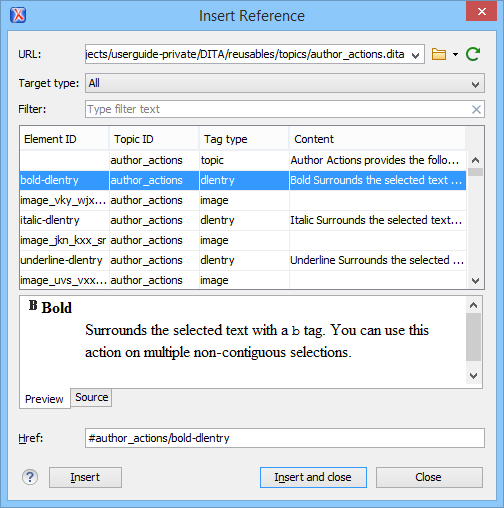 Note: The Insert Reference dialog box is not modal. The dialog box is closed automatically in case you switch to a different editor.
 - Key Reference - Inserts a user specified element with the
value of the keyref attribute set to a specific key name. As stated
in the DITA 1.2 specification, keys are defined at map level and referenced
afterwards. You are able to select the target of the keyref element
in the Insert Key Reference dialog box. Note: The Insert Key Reference dialog box presents the list of keys available in the current DITA Map. If the DITA Map is not opened in the DITA Maps Manager view, the Insert Key Reference dialog box does not display any keys.
You can also reference elements at sub-topic level by pressing the Sub-topic button and choosing the target.
All keys which are presented in the dialog box are gathered from the current opened DITA map. Elements which have the keyref attribute set are displayed as links. The current opened DITA map is also used to resolve references when navigating keyref links in the Author mode. Image elements which use key references are rendered as images. - File Reference - Inserts an xref element with the value of attribute format set to xml.
- Web Link - Inserts an xref element with the value of attribute format set to html, and scope set to external.
- Related Link to Topic - Inserts a link element inside a related-links parent.
- Related Link to File - Inserts a link element with the format attribute set to xml inside a related-links parent.
- Related Link to Web Page - Inserts a link element with the attribute format set to html and scope set to external inside a related-links parent.
- Cross Reference - Depending on the context where it is
invoked, the action inserts one of the following two elements:
 Insert Image
Reference
Insert Image
Reference- Opens the Insert Image dialog box that allows you to configure the properties of an image to be inserted into a DITA document at the caret position.
 Insert
Section Drop-Down List
Insert
Section Drop-Down List- The following link actions are available from this list:
 Insert
Section - Inserts a new section / step in the document, depending on the
current context. A new section will be inserted in either one of the following
contexts:
Insert
Section - Inserts a new section / step in the document, depending on the
current context. A new section will be inserted in either one of the following
contexts: - section context, when the value of class attribute of the current element or one of its ancestors contains topic or section.
- topic's body context, when the value of class attribute of the current element contains topic/body.
A new step will be inserted in either one of the following contexts:
- task step context, when the value of class attribute of the current element or one of its ancestors contains task/step.
- task steps context, when the value of class attribute of the current element contains task/steps.
 Insert
Concept - Inserts a new concept. Concepts provide background information
that users must know before they can successfully work with a product or interface.
This action is available in one of the following contexts:
Insert
Concept - Inserts a new concept. Concepts provide background information
that users must know before they can successfully work with a product or interface.
This action is available in one of the following contexts: - concept context, one of the current element ancestors is a concept. In this case an empty concept will be inserted after the current concept.
- concept or DITA context, current element is a concept or dita. In this case an empty concept will be inserted at current caret position.
- DITA topic context, current element is a topic child of a dita element. In this case an empty concept will be inserted at current caret position.
- DITA topic context, one of the current element ancestors is a DITA topic. In this case an empty concept will be inserted after the first topic ancestor.
 Insert
Task - Inserts a new task. Tasks are the main building blocks for
task-oriented user assistance. They generally provide step-by-step instructions that
will enable a user to perform a task. This action is available in one of the following
contexts:
Insert
Task - Inserts a new task. Tasks are the main building blocks for
task-oriented user assistance. They generally provide step-by-step instructions that
will enable a user to perform a task. This action is available in one of the following
contexts: - task context, one of the current element ancestors is a task. In this case an empty task will be inserted after the last child of the first concept's ancestor.
- task context, the current element is a task. In this case an empty task will be inserted at current caret position.
- topic context, the current element is a dita topic. An empty task will be inserted at current caret position.
- topic context, one of the current element ancestors is a dita topic. An empty task will be inserted after the last child of the first ancestor that is a topic.
 Insert Topic -
 Insert
Reference - Inserts a new reference in the document. A reference is a
top-level container for a reference topic. This action is available in one of the
following contexts:
Insert
Reference - Inserts a new reference in the document. A reference is a
top-level container for a reference topic. This action is available in one of the
following contexts: - reference context - one of the current element ancestors is a reference. In this case an empty reference will be inserted after the last child of the first ancestor that is a reference.
- reference or dita context - the current element is either a dita or a reference. An empty reference will be inserted at caret position.
- topic context - the current element is topic descendant of dita element. An empty reference will be inserted at caret position.
- topic context - the current element is descendant of dita element and descendant of topic element. An empty reference will be inserted after the last child of the first ancestor that is a topic.
 Insert a new
paragraph
Insert a new
paragraph- Insert a new paragraph at current cursor position.
 Insert DITA Content
Reference
Insert DITA Content
Reference-
Inserts a content reference at the caret position.
The DITA conref attribute provides a mechanism for reuse of content fragments. The conref attribute stores a reference to another element and is processed to replace the referencing element with the referenced element. The element containing the content reference acts as a placeholder for the referenced element. The identifier for the referenced element must be either absolute or resolvable in the context of the referencing element. See here for more details.
Oxygen XML Author displays the referenced content of a DITA conref if it can resolve it to a valid resource. If you have URI's instead of local paths in the XML documents and your DITA OT transformation needs an XML catalog to map the URI's to local paths you have to add the catalog to Oxygen XML Author. If the URI's can be resolved the referenced content will be displayed in Author mode and in the transformation output.
A content reference is inserted with the action Insert a DITA Content Reference available on the toolbar Author custom actions and on the menu .
Figure: Insert Content Reference Dialog Box
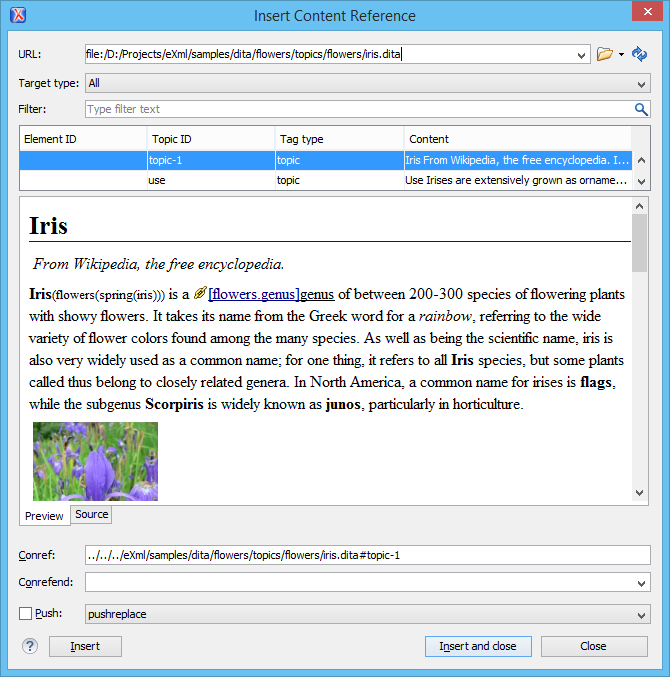 Note: The Insert Content Reference dialog box is not modal. The dialog box is closed automatically in case you switch to a different editor.
In the URL chooser you set the URL of the file from which you want to reuse content. Depending on the Target type filter you will see a tree of elements which can be referenced (which have ID's). For each element the XML content is shown in the preview area. The Conref value is computed automatically for the selected tree element. After pressing Insert, an element with the same name as the target element and having the attribute conref with the value specified in the Conref value field will be inserted at caret position.
According to the DITA 1.2 specification the conrefend attribute can be used to specify content reference ranges. This is a very useful feature when referencing multiple consecutive steps or list items. If you use multiple contiguous sibling selection the conrefend value will also be set to the value of the last selected ID path. Oxygen XML Author will present the entire referenced range as read-only content.
 Insert Content
Key Reference
Insert Content
Key Reference- Inserts a content key reference at the caret position.
As stated in the DITA 1.2 specification the conkeyref attribute provides a mechanism for reuse of content fragments similar with the conref mechanism. Keys are defined at map level which can be referenced using conkeyref. The conkeyref attribute contains a key reference to another element and is processed to replace the referencing element with the referenced element. The element containing the content key reference acts as a placeholder for the referenced element. The identifier for the referenced element must be either absolute or resolvable in the context of the referencing element.
Oxygen XML Author displays the key referenced content of a DITA conkeyref if it can resolve it to a valid resource in the context of the current opened DITA map.
A content key reference is inserted with the action Insert a DITA Content Key Reference available on the toolbar Author custom actions and on the menu .
Figure: Insert Content Key Reference Dialog Box
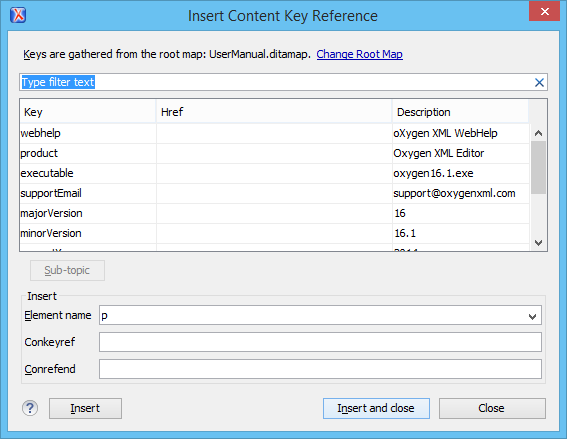 Note: The Insert Content Key Reference dialog box is not modal. The dialog box is closed automatically in case you switch to a different editor.
To reference target elements at sub-topic level just press the Sub-topic button and choose the target.
According to the DITA 1.2 specification the conrefend attribute can be used to specify content reference ranges. This is a very useful feature when referencing multiple consecutive steps or list items. If you use multiple contiguous sibling selection for IDs at sub-topic level the conrefend value will also be set to the value of the last selected ID path. Oxygen XML Author will present the entire referenced range as read-only content.Important: All keys which are presented in the dialog box are gathered from the current opened DITA map. Elements which have the conkeyref attribute set are displayed by default with the target content expanded. The current opened DITA map is also used to resolve references when navigating conkeyref links in the Author mode.  Insert a step or
list item
Insert a step or
list item- Inserts a new list or step item in the current list type.
 Insert an
unordered list at the caret position
Insert an
unordered list at the caret position- Inserts an itemized list. A child list item is also automatically inserted by default.
 Insert an
ordered list at the caret position
Insert an
ordered list at the caret position- Inserts an ordered list. A child list item is also automatically inserted by default.
 Sort
Sort- Sorts a table selection.
 Insert
Table
Insert
Table- Opens a dialog box that allows you to configure and insert a table. You can generate a header and footer, set the number of rows and columns of the table and decide how the table is framed.
 Insert
Row
Insert
Row- Inserts a new table row with empty cells. This action is available when the caret is positioned inside a table.
 Insert
Column
Insert
Column- Inserts a new table column with empty cells after the current column. This action is available when the caret is positioned inside a table.
 Insert
Cell
Insert
Cell- Inserts a new empty cell depending on the current context. If the caret is positioned between two cells, Oxygen XML Author a new cell at caret position. If the caret is inside a cell, the new cell is created after the current cell.
 Delete
Column
Delete
Column- Deletes the table column located at caret position.
 Delete
Row
Delete
Row- Deletes the table row located at caret position.
 Edit Table
Properties
Edit Table
Properties- Opens the Table properties dialog box that allows you to configure properties of a table (such as frame borders).
 Table
Join/Split Drop-Down List
Table
Join/Split Drop-Down List- The following link actions are available from this list:
 Join
Row Cells - Joins the content of the selected cells. The operation is
available if the selected cells are from the same row and they have the same row span.
The action is also available when the selection is missing, but the caret is
positioned between two cells.
Join
Row Cells - Joins the content of the selected cells. The operation is
available if the selected cells are from the same row and they have the same row span.
The action is also available when the selection is missing, but the caret is
positioned between two cells. Join
Cell Above - Joins the content of the cell from the current caret
position with the content of the cell above it. This action works only if both cells
have the same column span.
Join
Cell Above - Joins the content of the cell from the current caret
position with the content of the cell above it. This action works only if both cells
have the same column span. Join
Cell Below - Joins the content of the cell from the current caret
position with the content of the cell below it. This action works only if both cells
have the same column span.Note: When you useJoin Cell
Above and Join Cell Below, Oxygen XML Author
deletes the source row is case it remains empty. The cells that span over multiple
rows are also updated.
Join
Cell Below - Joins the content of the cell from the current caret
position with the content of the cell below it. This action works only if both cells
have the same column span.Note: When you useJoin Cell
Above and Join Cell Below, Oxygen XML Author
deletes the source row is case it remains empty. The cells that span over multiple
rows are also updated. Split Cell To The Left - Splits the cell from the current caret
position in two cells, inserting a new empty table cell to the left. This action works
only if the current cell spans over more than one column.Oxygen XML Author
decreases the column span of the source cell with one.
Split Cell To The Left - Splits the cell from the current caret
position in two cells, inserting a new empty table cell to the left. This action works
only if the current cell spans over more than one column.Oxygen XML Author
decreases the column span of the source cell with one. Split Cell To The Right- Splits the cell from the current caret
position in two cells, inserting a new empty table cell to the right. This action
works only if the current cell spans over more than one column.Oxygen XML Author
decreases the column span of the source cell with one.
Split Cell To The Right- Splits the cell from the current caret
position in two cells, inserting a new empty table cell to the right. This action
works only if the current cell spans over more than one column.Oxygen XML Author
decreases the column span of the source cell with one. Split
Cell Above - Splits the cell from current caret position in two cells,
inserting a new empty table cell above. This action works only if the current cell
spans over more than one row. Oxygen XML Author decreases the column span of the
source cell with one.
Split
Cell Above - Splits the cell from current caret position in two cells,
inserting a new empty table cell above. This action works only if the current cell
spans over more than one row. Oxygen XML Author decreases the column span of the
source cell with one. Split Cell Below - Splits the cell from current caret position in two,
inserting a new empty table cell below. This action works only if the current cell
spans over more than one row. Oxygen XML Author decreases the column span of the
source cell with one.
Split Cell Below - Splits the cell from current caret position in two,
inserting a new empty table cell below. This action works only if the current cell
spans over more than one row. Oxygen XML Author decreases the column span of the
source cell with one.
In
addition, the following default actions are available from the DITA menu:
 Refresh
references
Refresh
references- You can use this action to manually trigger a refresh and update of all referenced resources.
In addition, the following default actions are available from the contextual menu:
- Style Guide
- Opens the DITA Style Guide Best Practices for Authors in your browser and displays a topic that is relevant to the element at the caret position. When editing DITA documents, this action is available in the contextual menu of the editing area (under the About Element sub-menu), in the DITA menu, and in some of the documentation tips that are displayed by the Content Completion Assistant.
- Browse reference manual
- Opens in your web browser of choice a reference to the documentation of the XML element closest to the caret position. When editing DITA documents, this action is available in the contextual menu of the editing area (under the About Element sub-menu) and in the documentation tip displayed by the Content Completion Assistant.
 Paste
special > Paste as content reference
Paste
special > Paste as content reference- Available on the contextual menu of Author editor for any topic file, this operation inserts a content reference (a DITA element with a conref attribute) to the DITA XML element from the clipboard. An entire DITA XML element with an ID attribute must be present in the clipboard when the action is invoked. The conref attribute will point to this ID value.
- Paste
special > Paste as content key reference
- Allows you to indirectly reference content using the conkeyref
attribute. When the DITA content is processed, the key references are resolved using key
definitions from DITA maps. To use this action, do the following:
- Set the id attribute of the element holding the content you want to reference.
- Open the DITA Map in the DITA Maps Manager view and make sure that the Root map combo box points to the correct map that stores the keys.
- Right click the topic that holds the content you want to reference, select Edit Properties, and enter a value in the Keys field.
- Paste
special > Paste as link
- Available on the contextual menu of Author editor for any topic file, this action inserts a link element or an xref one (depending on the location of the paste operation) that points to the DITA XML element from the clipboard. An entire DITA XML element with an ID attribute must be present in the clipboard when the action is invoked. The href attribute of link/href will point to this ID value.
- Paste
special > Paste as link (keyref)
- Inserts a link to the element that you want to reference. To use this action, do the
following:
- Set the id attribute of the element that you want to reference.
- Open the DITA Map in the DITA Maps Manager view and make sure that the Root map combo box points to the correct map that stores the keys.
- Right click the topic that holds the content you want to reference, select Edit Properties, and enter a value in the Keys field.
- Replace conref / conkeyref reference with content
- Replaces the content reference fragment or the conkeyref at caret position with the referenced content. This action is useful when you want to make changes to the content but decide to keep the referenced fragment unchanged.
- Insert Equation
- Allows you to insert an MathML equation. For more information, see section Editing MathML Notations.
- Create Reusable Component
- Creates a reusable component from a selected fragment of text. For more information, see Reusing Content.
- Insert Reusable Component
- Inserts a reusable component at cursor location. For more information, see Reusing Content.
- Remove Content Reference
- Removes the conref attribute of an element. For more information, see Reusing Content.
- Add/Edit Content Reference
- Add or edit the conref attribute of an element. For more information, see Reusing Content.
- Generate IDs
-
This action generates and sets unique IDs for:
- The element at caret position.
- All top-level elements found in the current selection. Additionally, if the selection contains elements from the list, they will all receive an unique ID
Note: IDs already set are preserved.The action is available both in the contextual menu and in the DITA main menu.
- ID Options
- Action available in the main menu, allows you to specify the elements for which Oxygen XML Author generates an unique ID if the Auto generate IDs for
elements option is enabled. The configurable ID value pattern can accept
most of the application supported editor
variables.
To keep an already set element ID when copying content in the same document, make sure the Remove IDs when copying content in the same document option is not checked.
- Search References
- Finds the references to the id attribute value of the selected element in all the topics from the current DITA map (opened in the DITA Maps Manager view). The default shortcut of the action is Ctrl Shift G (Command Shift G on OS X) and can be changed in the DITA Topic document type.
Dragging a file from the Project view or DITA Maps Manager view and dropping it into a DITA document that is edited in Author mode, creates a link to the dragged file (the xref DITA element with the href attribute) at the drop location. Dragging an image file from the default file system application (Windows Explorer on Windows or Finder on Mac OS X, for example) and dropping it into a DITA document inserts an image element (the image DITA element with the href attribute) at the drop location.