Browsing Archives
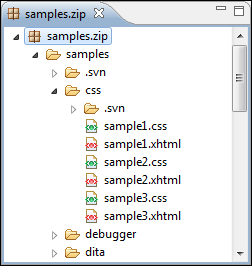
To view the contents and structure of
an archive, use one of the following methods:
- Open an archive from the Navigator view. This will open the archive in the main editing pane. The archive will be unmounted when the editor is closed.
- Use the Eclipse File System (EFS) by right-clicking the archive in the Navigator view and choosing Expand Zip Archive. This will expand the archive in the Navigator view. All the standard Navigator actions are available on the mounted archive. To close the archive, you can use the Collapse ZIP Archive action and any file opened from the expanded archive will be closed when the archive in unmounted.
Tip: If a file is not recognized by Oxygen XML Developer plugin as a supported archive
type, you can add it from the Archive preferences page.
Figure: Browsing an Archive
Toolbar Actions
The following actions are available on the Archive Browser toolbar:
 Validate
(available for EPUB archives only)
Validate
(available for EPUB archives only)- Checks the EPUB archive to see if its content and structure is valid.
 New folder
- Creates a folder as child of the selected folder in the browsed archive.
 New file
- Creates a file as child of the selected folder in the browsed archive.
 Add files
- Adds existing files as children of the selected folder in the browsed archive.
Note: You can also add files in the archive by dragging them from the file browser or the Navigator view and dropping them in the archive editor.
 Delete
- Deletes the selected resource in the browsed archive.
 Open in
System Application
Open in
System Application- Opens the selected resource in the default system application that is associated with that type of file.
 Archive Options
- Opens the Archive preferences page.
Contextual Menu Actions
The following additional actions are available from the contextual menu for resources in the Archive Browser view:
 Open
Open- Opens a resource from the archive in the editor.
- Extract
- Extracts a resource from the archive in a specified folder.
- New folder
- Creates a folder as child of the selected folder in the browsed archive.
- New file
- Creates a file as child of the selected folder in the browsed archive.
- Add files
- Adds existing files as children of the selected folder in the browsed archive.
Note: On OS X, the Add file action is also available and it allows you to add one file at a time.
- Rename
- Renames a resource in the archive.
 Find/Replace in
Files
Find/Replace in
Files- Allows you to search for and replace specific pieces of text inside the archive.
 Cut
Cut- Cuts the selected archive resource.
 Copy
Copy- Copies the selected archive resource.
 Paste
Paste- Pastes a file or folder into the archive.
 Delete
- Removes a file or folder from archive.
- Copy location
- Copies the URL location of the selected resource.
 Refresh
- Refreshes the selected resource.
- Properties
- Shows the properties of the selected resource.