Presenting Validation Errors in Text Mode
Oxygen XML Developer plugin can be configured to automatically validate documents while editing in the Text mode, and actions are also available to manually validate documents on-request.
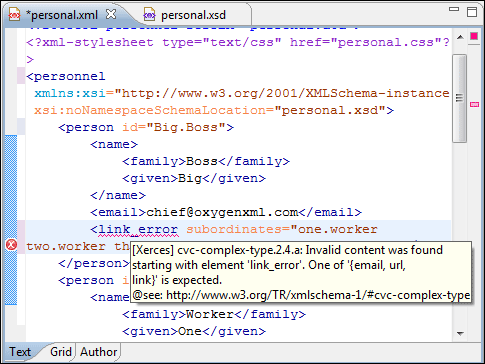
A line with a validation error or warning is marked in the editor panel by underlining the error region with a red line, while validation warnings are underlined in yellow. Hovering over a validation error presents a tooltip message with more details about the error and possible quick fixes (if available for that error or warning).
Figure: Presenting Validation Errors in Text Mode
- Upper Part of the Ruler
- A success indicator square will turn green if the validation is successful, red if validation errors are found, or yellow if validation warnings are found. More details about the errors or warnings are displayed in a tool tip when you hover over indicator square. If there are numerous errors, only the first three are presented in the tool tip.
- Middle Part of the Ruler
- Errors are depicted with red markers, and warnings with yellow markers. If you want to
limit the number of markers that are displayed, open the
Preferences dialog box , go to , and specify the desired limit in the Maximum number of validation highlights
option.
Clicking a marker will highlight the corresponding text area in the editor. The error or warning message is also displayed both in a tool tip (when hovering over the marker) and in the message area on the bottom of the application.
- Bottom Part of the Ruler
- Two navigation arrows (
 ) allow you to skip to
the next or previous error. The same actions can be triggered from (Ctrl + Period
(Command + Period on OS X)) and (Ctrl + Comma
(Command + Comma on OS X)).
) allow you to skip to
the next or previous error. The same actions can be triggered from (Ctrl + Period
(Command + Period on OS X)) and (Ctrl + Comma
(Command + Comma on OS X)).
Status messages from every validation action are logged in the Console view (the Enable oXygen consoles option must be enabled in the View preferences page).
If you want to see all the validation error messages grouped in the Results
view, you should use
the  Validate
action from the toolbar or XML menu. This
action also collects the error messages and displays them in the
Problems view if the validated file is in the current workspace or
in a custom Errors view if the validated file is outside the
workspace.
Validate
action from the toolbar or XML menu. This
action also collects the error messages and displays them in the
Problems view if the validated file is in the current workspace or
in a custom Errors view if the validated file is outside the
workspace.