Browsing and Modifying Archives
You can open an archive in the Archive Browser view by doing one of the following:
- Open an archive from the Project view.
- Choose an archive in the Oxygen XML Developer file chooser dialog box.
- Drag an archive from the file explorer and drop it in the Archives Browser view.
When displaying an archive, the Archive Browser view locks the archive file. It is then automatically unlocked when the Archive Browser view is closed.
Important: If a file is not recognized by Oxygen XML Developer as a supported
archive type, you can add it from the Archive preferences page.
Figure: Browsing an Archive
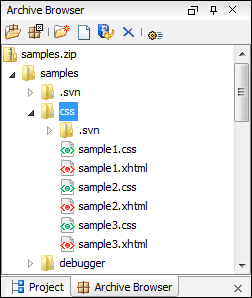
Archive Browser Toolbar
The following actions are available on the Archive Browser toolbar:
 Reopen
- You can use this drop-down to reopen recently edited archives. Apart from the
history of the recently edited archives, the drop-down also contains the
Clear history and
 Open Archive
actions.
Open Archive
actions.  New folder
- Creates a folder as child of the selected folder in the browsed archive.
 New file
- Creates a file as child of the selected folder in the browsed archive.
 Add files
- Adds existing files as children of the selected folder in the browsed archive.
Note: You can also add files in the archive by dragging them from the file browser or Project view and dropping them in the Archive Browser view.
 Delete
- Deletes the selected resource in the browsed archive.
 Archive Options
- Opens the Archive preferences page.
The following additional operations are available from the Archive Browser contextual menu:
 Open
Open- Opens a resource from the archive in the editor.
- New folder
- Creates a folder as child of the selected folder in the browsed archive.
- New file
- Creates a file as child of the selected folder in the browsed archive.
- Add files
- Adds existing files as children of the selected folder in the browsed archive.
Note: On OS X, the Add file action is also available and it allows you to add one file at a time.
 Find/Replace in
Files
Find/Replace in
Files- Allows you to search for and replace specific pieces of text inside the archive.
- Cut
- Cut the selected archive resource.
- Copy
- Copy the selected archive resource.
- Paste
- Paste a file or folder into the archive. Note: You can add files in the archive by copying the files from the Project view and paste them into the Archive view.
- Delete
- Remove a file or folder from archive.
- Copy location
- Copies the URL location of the selected resource.
 Refresh
- Refreshes the selected resource.
- Properties
- Views properties for the selected resource.