This section describes how to work with the Review panel in Oxygen XML Web Author and how to perform some of the most common review tasks. To open
the Review panel, tap or click the Review tab
from the panel on the right side of the screen. If it is not displayed, tap or click the
Toggle Side
Panel button from the upper right-side corner (or swipe from right to left on
mobile devices).
Figure: Web Author Review Panel
Use the Review Panel to View Comments or Tracked Changes
Tap or click the Review Panel tab on the right side of the
screen. If it is not displayed, tap or click the Toggle Side Panel button from the upper
right side corner (or swipe from right to left on mobile devices).
Tap or click one of the comments or tracked changes to see it highlighted in the
document area.
Hover over or select a comment or change to display actions that are available for that
particular item.
Activate Change Tracking
Tap or click the Toggle Change Tracking button from the
Review toolbar to enable or disable this feature.
Note: If you
have access to the Administration Page, you can change the initial state of the
Change Tracking feature when you open a document. For example, you can choose
to have it Always On.
Accept or Reject Tracked Changes
To accept a change, tap or click the Accept Change
button from Review toolbar (on the desktop version you can also
select this action from the contextual menu), or select the change in the
Review panel and select Accept from the
More menu.
To reject a change, tap or click the Reject Change
button from Review toolbar (on the desktop version you can also
select this action from the contextual menu), or select the change in the
Review panel and select Reject from the
More menu.
Add a Comment
Make a selection in the document content.
Tap or click the Add comment button from Review toolbar (on the
desktop version you can also select this action from the contextual menu).
Input a comment in the displayed dialog box. Tap or click Comment
to commit it into the document.
The commented text is highlighted.
Edit or Remove an Existing Comment
You can only edit comments that you added to the document. To do so, select the
comment in the main editing area and tap or click the Edit Comment button
from Review toolbar (on the desktop version you can also select
this action from the contextual menu), or select the comment in the
Review panel and select Edit from the
More menu.
You can remove any comment, regardless of who added to the document. To do so, select
the comment in the main editing area and tap or click the Remove Comment
button from Review toolbar (on the desktop version you can also
select this action from the contextual menu), or select the change in the
Review panel and select Remove from the
More menu.
Reply to Comments or Changes
Select the comment or change in the Review panel and select
Reply. A dialog
box will be displayed that allows you to add your reply.
Select OK to add your reply to the comment thread. The replies
are displayed with an indentation in the Review panel.
Mark Changes or Comments as Done
Select the change or comment in the Review panel and select
Mark as Done.
This toggles the check box and marks the change or comment as being done by graying it
out in the Review panel. You can mark a whole comment thread as
being done by selecting the action on the first (parent) comment or change in the
thread.
Navigate Through the Comments or Tracked Changes
Use the left and right arrow buttons () from the
Review toolbar to navigate between comments or tracked
changes.
The current comment or tracked change is highlighted in the document. Also, it is
displayed in the right-side Review panel.
 Toggle Side
Panel button from the upper right-side corner (or swipe from right to left on
mobile devices).
Toggle Side
Panel button from the upper right-side corner (or swipe from right to left on
mobile devices).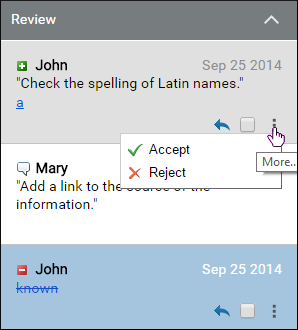
 Toggle Change Tracking button from the
Review toolbar to enable or disable this feature.Note: If you have access to the Administration Page, you can change the initial state of the Change Tracking feature when you open a document. For example, you can choose to have it Always On.
Toggle Change Tracking button from the
Review toolbar to enable or disable this feature.Note: If you have access to the Administration Page, you can change the initial state of the Change Tracking feature when you open a document. For example, you can choose to have it Always On. Accept Change
button from Review toolbar (on the desktop version you can also
select this action from the contextual menu), or select the change in the
Review panel and select
Accept Change
button from Review toolbar (on the desktop version you can also
select this action from the contextual menu), or select the change in the
Review panel and select  More menu.
 Reject Change
button from Review toolbar (on the desktop version you can also
select this action from the contextual menu), or select the change in the
Review panel and select
Reject Change
button from Review toolbar (on the desktop version you can also
select this action from the contextual menu), or select the change in the
Review panel and select  Add comment button from Review toolbar (on the
desktop version you can also select this action from the contextual menu).
Add comment button from Review toolbar (on the
desktop version you can also select this action from the contextual menu). Edit Comment button
from Review toolbar (on the desktop version you can also select
this action from the contextual menu), or select the comment in the
Review panel and select
Edit Comment button
from Review toolbar (on the desktop version you can also select
this action from the contextual menu), or select the comment in the
Review panel and select  Remove Comment
button from Review toolbar (on the desktop version you can also
select this action from the contextual menu), or select the change in the
Review panel and select
Remove Comment
button from Review toolbar (on the desktop version you can also
select this action from the contextual menu), or select the change in the
Review panel and select  Reply. A dialog
box will be displayed that allows you to add your reply.
Reply. A dialog
box will be displayed that allows you to add your reply. Mark as Done.
This toggles the check box and marks the change or comment as being done by graying it
out in the Review panel. You can mark a whole comment thread as
being done by selecting the action on the first (parent) comment or change in the
thread.
Mark as Done.
This toggles the check box and marks the change or comment as being done by graying it
out in the Review panel. You can mark a whole comment thread as
being done by selecting the action on the first (parent) comment or change in the
thread. ) from the
Review toolbar to navigate between comments or tracked
changes.
) from the
Review toolbar to navigate between comments or tracked
changes.