You can manage the transformation scenarios by using the Transformation Scenarios view. To open this view, go to .
Figure: The Scenarios view
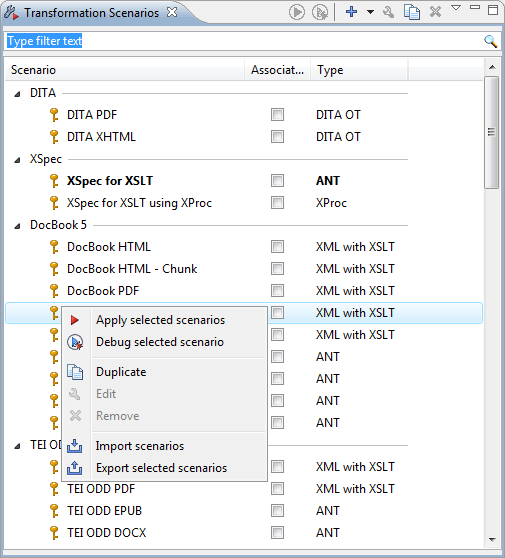
The following options are available in the contextual menu of the Transformation Scenarios view:
 Apply selected
scenarios
Apply selected
scenarios- Select this option to run the current transformation scenario.
 Debug
selected scenario
Debug
selected scenario- Select this option to switch to the Debugger perspective and initialize it with the parameters from the scenario (the XML, XSLT, or XQuery input, the transformation engine, the XSLT parameters).
 Duplicate
- Adds a new scenario to the list that is a duplicate of the current scenario. It is useful for creating a scenario that is similar to an existing one.
 Edit
Edit- Opens the dialog box for editing the parameters of a transformation scenario.
 Remove
- Removes the current scenario from the list. This action is also available by using the Delete key.
 Import scenarios
- This option opens the Import scenarios dialog box that allows you
to select the scenarios file that contains the scenarios you want to
import. If one of the scenarios you import is identical to an existing scenario, Oxygen XML Developer plugin ignores it. If a conflict appears (an imported scenario has the same
name as an existing one), you can choose between two options:
- Keep or replace the existing scenario.
- Keep both scenarios. Note: When you keep both scenarios, Oxygen XML Developer plugin adds imported to the name of the imported scenario.
 Export selected
scenarios
Export selected
scenarios- Use this option to export transformation and validation scenarios individually. Oxygen XML Developer plugin creates a scenarios file that contains the scenarios that you export.
Along with the options available in the contextual menu, the Transformation
Scenarios view toolbar contains a  New drop-down button
that contains a list of the scenarios you can create. Oxygen XML Developer plugin determines the
most appropriate scenarios for the current type of file and displays them at the beginning of
the list, followed by the rest of the scenarios.
New drop-down button
that contains a list of the scenarios you can create. Oxygen XML Developer plugin determines the
most appropriate scenarios for the current type of file and displays them at the beginning of
the list, followed by the rest of the scenarios.
The  Settings drop-down menu
allows you to configure the following options:
Settings drop-down menu
allows you to configure the following options:
Settings drop-down menu
allows you to configure the following options:- Show all scenarios - Select this option to display all the available scenarios, regardless of the document they are associated with.
- Show only the scenarios available for the editor - Select this option to only display the scenarios that Oxygen XML Developer plugin can apply for the current document type.
- Show associated scenarios - Select this option to only display the scenarios associated with the document you are editing.
-
 Import scenarios - This option opens the
Import scenarios dialog box that allows you to select the
scenarios file that contains the scenarios you want to import. If one
of the scenarios you import is identical to an existing scenario, Oxygen XML Developer plugin
ignores it. If a conflict appears (an imported scenario has the same name as an existing one),
you can choose between two options:
Import scenarios - This option opens the
Import scenarios dialog box that allows you to select the
scenarios file that contains the scenarios you want to import. If one
of the scenarios you import is identical to an existing scenario, Oxygen XML Developer plugin
ignores it. If a conflict appears (an imported scenario has the same name as an existing one),
you can choose between two options: - Keep or replace the existing scenario.
- Keep both scenarios. Note: When you keep both scenarios, Oxygen XML Developer plugin adds imported to the name of the imported scenario.
- Export selected scenarios - Use this option to export
transformation and validation scenarios individually. Oxygen XML Developer plugin creates a
scenarios file that contains the scenarios that you export.
- Show Type - Use this option to display the transformation type of each scenario.
- Show Storage - Use this option to display the storage location of the scenarios.
- Group by Type - Select this option to group the scenarios by their type.
- Group by Storage - Select this option to group the scenarios by their storage location.
 Ungroup all - Select this option to ungroup all the scenarios.
- Reset Layout - Select this option to restore the default settings of the layout.
Oxygen XML Developer plugin supports multiple scenarios association. To associate multiple scenarios with a document, enable the check-boxes in front of each scenario. You can also associate multiple scenarios with a document from the Configure Transformation Scenario(s) or Configure Validation Scenario(s) dialog boxes.
The Transformation Scenarios presents both global scenarios and
project scenarios. By default, Oxygen XML Developer plugin presents the items in the
Transformation Scenarios in the following order: scenarios matching
the current framework, scenarios matching the current project, scenarios matching other
frameworks. You can group the scenarios depending on the columns in the
Transformation Scenarios view. Right click the name of a column to
choose how to group the scenarios. The following grouping options are available:
- Group by Type - Select this option to group the scenarios by their type.
- Group by Storage - Select this option to group the scenarios by their storage location.
