Every table from the Data Source Explorer view can be displayed and edited in the Table Explorer view by pressing the Edit button from the contextual menu or by double-clicking one of its fields. To modify the content of a cell, double-click it and start typing. When editing is complete, Oxygen XML Developer plugin attempts to update the database with the new cell content.
Figure: The Table Explorer View
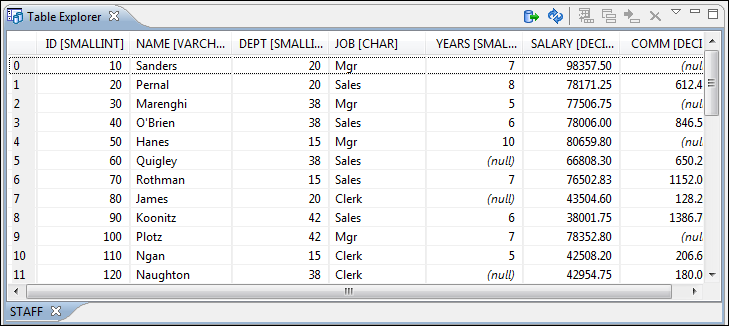
You can sort the content of a table by one of its columns by clicking its column header.
Note the following:
- The first column is an index (not part of the table structure)
- Every column header contains the field name and its data type
- The primary key columns are marked with this symbol:

- Multiple tables are presented in a tabbed manner
For performance issues, you can set the maximum number of cells that are displayed in the Table Explorer view (using the Limit the number of cells field from the Data Sources Preferences page). If a table that has more cells than the value set in the options is displayed in the Table Explorer view, a warning dialog box informs you that the table is only partially shown.
You are notified if the value you have entered in a cell is not valid (and thus cannot be updated).
-
If the content of the edited cell does not belong to the data type of the column, an information dialog box appears, notifying you that the value you have inserted cannot be converted to the SQL type of that field. For example, if you have a column that contains LONG (numerical) values, and a character or string is inserted into one of its cells, you would get the error message that a string value cannot be converted to the requested SQL type (NUMBER).
-
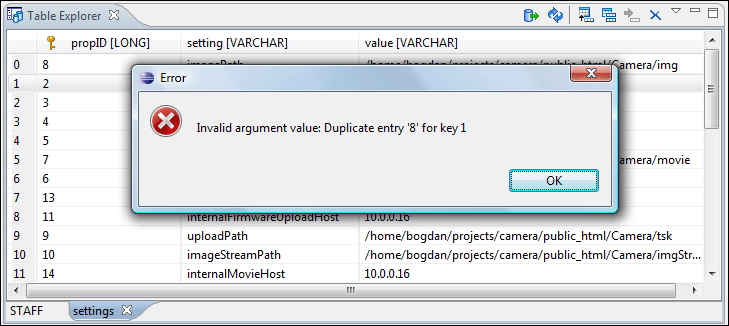
If the constraints of the database are not met (for instance, primary key constraints), an information dialog box will appear, notifying you of the reason the database has not been updated. For example, in the table below, trying to set the second record in the primary key propID column to 8, results in a duplicate entry error since that value has already been used in the first record:
Figure: Duplicate Entry for Primary Key
Common edit actions (Cut, Copy, Paste, Select All, Undo, Redo) are available in the contextual menu of an edited cell.
The contextual menu, available on every cell, also has the following actions:
- Set NULL
- Sets the content of the cell to null. This action is disabled for columns that cannot have a value of null.
 Insert
row
Insert
row- Inserts an empty row in the table.
 Duplicate
row
Duplicate
row- Makes a copy of the selected row and adds it in the Table Explorer view. Note that the new row will not be inserted in the database table until all conflicts are resolved.
 Commit
row
Commit
row- Commits the selected row.
 Delete row
- Deletes the selected row.
 Copy
Copy- Copies the content of the cell.
 Paste
Paste- Pastes copied content into the selected cell.
The Table Explorer toolbar also includes the following actions:
 Export to
XML
Export to
XML- Opens the Export Criteria dialog box (a thorough description of this dialog box can be found in the Import from database chapter) .
 Refresh
- Performs a refresh for the sub-tree of the selected node.
- Insert
row
- Inserts an empty row in the table.
- Duplicate
row
- Makes a copy of the selected row and adds it in the Table Explorer view. Note that the new row will not be inserted in the database table until all conflicts are resolved.
- Commit
row
- Commits the selected row.
- Delete row
- Deletes the selected row.
