To create a DITA OT Transformation scenario, use one of the
following methods:
- Go to and select
 Transformation Scenarios to display this view.
Click the New button and select DITA OT
Transformation.
Transformation Scenarios to display this view.
Click the New button and select DITA OT
Transformation. - Use the Configure Transformation Scenario(s) (Alt + Shift +
T, C (Meta + Alt + T, C on OS X)) action from the
Transformation toolbar or the XML menu. Then click the New button and select
DITA OT Transformation.
- Use the
 Apply Transformation Scenario(s) (Alt + Shift +
T, T (Meta + Alt + T, T on OS X)) action from the
Transformation toolbar or the XML menu. Then click the New button and select
DITA OT Transformation.Note: If a scenario is already associated with the edited document, selectingApply Transformation
Scenario(s) runs the associated scenario automatically. You can check
whether transformation scenarios are associated with the edited document by hovering
your cursor over the Apply Transformation Scenario button.
Apply Transformation Scenario(s) (Alt + Shift +
T, T (Meta + Alt + T, T on OS X)) action from the
Transformation toolbar or the XML menu. Then click the New button and select
DITA OT Transformation.Note: If a scenario is already associated with the edited document, selectingApply Transformation
Scenario(s) runs the associated scenario automatically. You can check
whether transformation scenarios are associated with the edited document by hovering
your cursor over the Apply Transformation Scenario button.
All three methods open the DITA Transformation Type dialog box that presents the list of possible outputs.
Figure: DITA Transformation Type Dialog Box
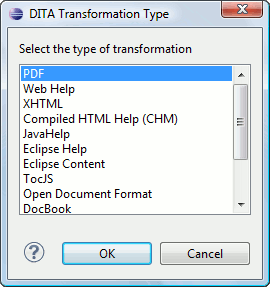
Select the desired type of output and click OK. This opens the New Scenario dialog box, which allows you to configure the options that control the transformation.
The lower part of the dialog box contains the following tabs (only those that are appropriate
for the chosen output type will be displayed):
- Skins (Available for WebHelp and WebHelp with Feedback output types).
- FO Processor (Available for PDF output types).
- Parameters
- Filters
- Advanced
- Output
